Air ClusterAir Cluster

The complete Air Cluster guide

Set up, protect, and automate all your clouds from one place

This guide walks through real Air Cluster workflows, from creating your first cluster to synchronizing folders, automating work, and maintaining your accounts.

Get started in three steps

Follow this path before using the advanced features.

  1. 1Install Air Cluster on Windows and open the cluster configuration.
  2. 2Create a cluster and add the accounts you want to combine.
  3. 3Connect it to manage files, synchronize folders, or schedule tasks.
Illustration of a cloud storage cluster

Air Cluster

1. Install Air Cluster and create your first cluster

A cluster pools the free space from several accounts and presents it as one place to work. Before transferring files, define where they will be stored and which accounts will take part.

Install Air Cluster and prepare your PC

Download the installer from the official website and follow the Windows setup wizard. Air Cluster supports Windows 7, 8, 10, and 11.

  1. 1Download and run the Air Cluster installer.
  2. 2Finish the setup wizard and open the app from the Start menu.
  3. 3Make sure you can sign in to the cloud accounts you plan to use.
Create a cluster

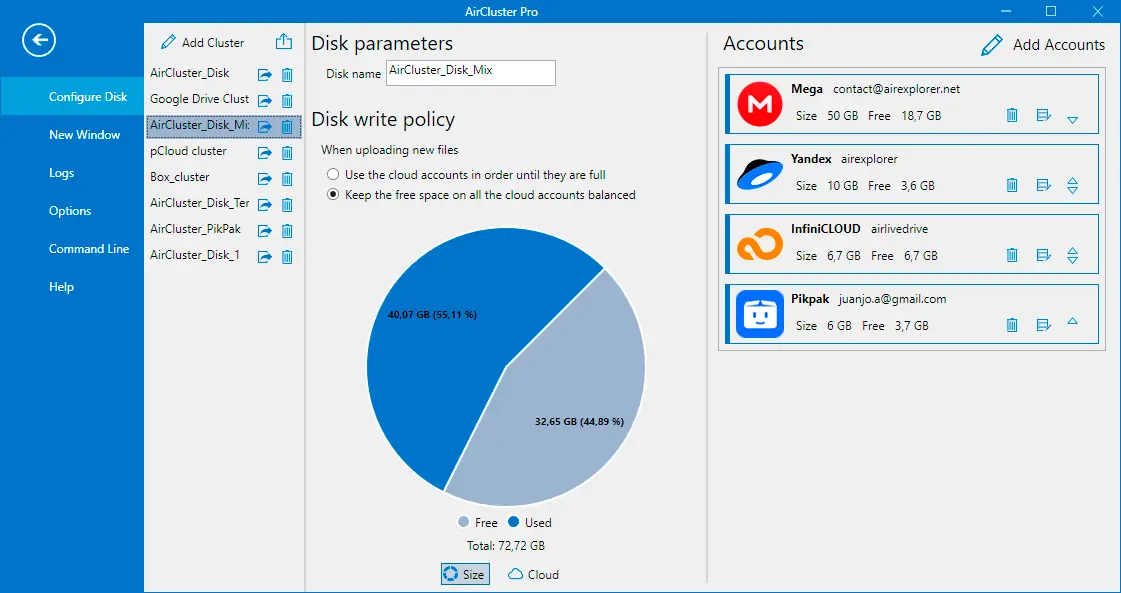
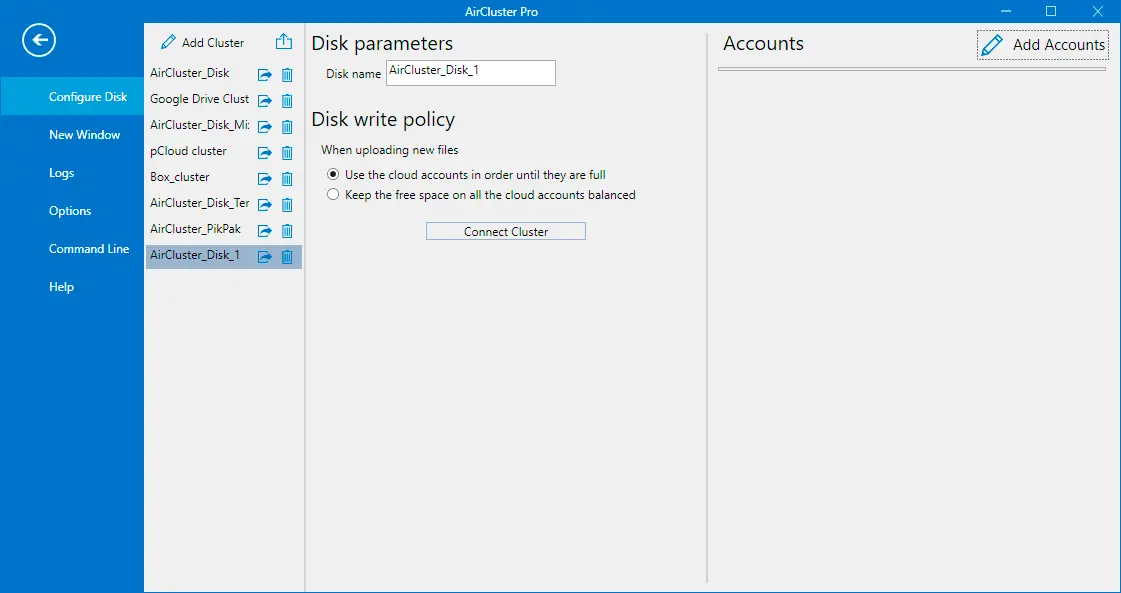
From disk configuration, create a new cluster, give it a clear name, and add the accounts that will be part of it. You can add several accounts from the same provider.

  1. 1Select Add Cluster and enter a name that identifies its purpose.
  2. 2Select Add Accounts, choose a service, and complete browser authentication when requested.
  3. 3Repeat the process for every account, then connect the cluster.
Air Cluster disk parameters for creating a cluster and adding accounts

Understand available space

Every account contributes its available capacity to the cluster. Air Cluster distributes files across accounts according to the disk write policy you choose.

  1. 1Review the free space on every account in cluster configuration.
  2. 2Remove or reconnect accounts with errors before starting an important backup.
  3. 3Connect the cluster to work with it as one location.

Air Cluster

2. Configure accounts and the disk

Disk configuration controls how your accounts are pooled and where files are stored. Set it up before creating automations.

Add, review, and organize accounts

You can add personal accounts, business accounts, and compatible WebDAV or SFTP servers. Each account uses the provider's own credentials and permissions.

  1. 1Open the cluster account list and add the appropriate provider.
  2. 2Finish sign-in and give the account a recognizable name when needed.
  3. 3Remove an account only when it has no pending transfers and should no longer belong to the cluster.

Choose the storage folder and write policy

You can save cluster files in a folder on every cloud account. The write policy either fills accounts in order or keeps their free space balanced.

  1. 1Set a storage folder if you want to keep cluster data separate from other files in every account.
  2. 2Choose ordered accounts to prioritize a specific account, or balanced free space to spread usage.
  3. 3Save the changes and check the available quota before a large upload.
Air Cluster write policy with options to use accounts in order or balance free space

Import or export the configuration

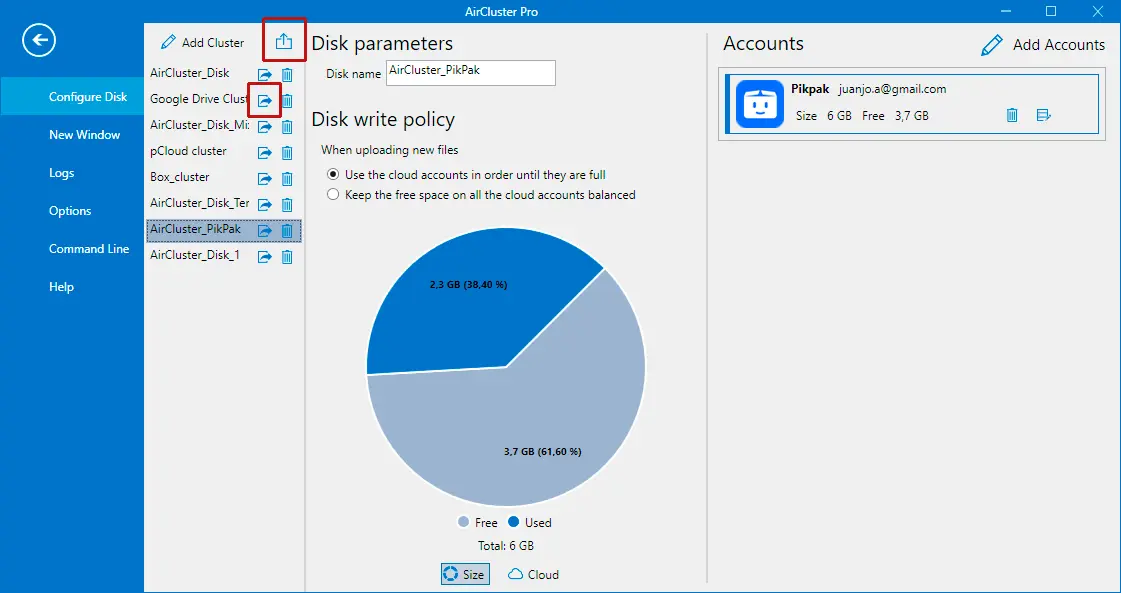
Export a cluster to keep a protected copy of its configuration or move it to another PC. Importing asks for the password that protects the exported file.

  1. 1In cluster configuration, select Export and set a strong password.
  2. 2Store the export in a protected location, separate from your credentials.
  3. 3To restore it, select Import, choose the file, and enter its password.
Air Cluster window for exporting or importing a cluster configuration

Air Cluster

3. Manage files in your cluster

The explorer lets you work with a cluster and its locations like a file manager: browse, search, and queue operations while keeping track of their status.

Browse your files

Open the connected cluster in a tab and browse its folders as if you were working in a single location.

  1. 1Open the cluster from the main screen or create a new tab.
  2. 2Use the folder tree and breadcrumb path to reach the location you need.

Upload, download, and reorganize

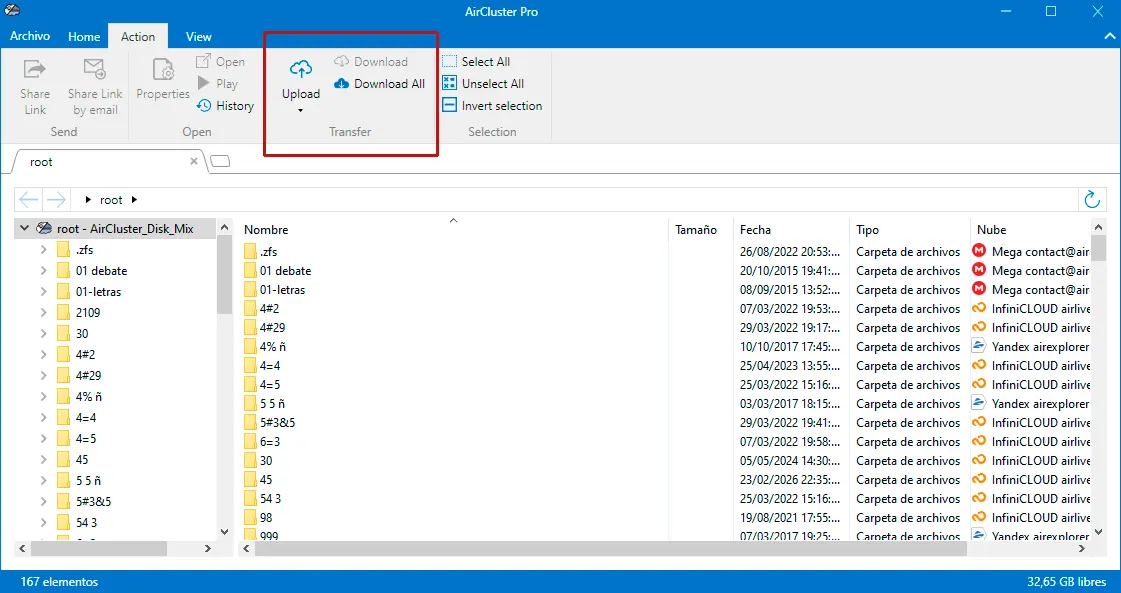
Upload files or folders, download content, copy, move, rename, create folders, and delete items. Operations appear as tasks so you can follow their progress.

  1. 1Select the source and destination, or drag files into a cluster folder.
  2. 2Choose upload, download, copy, or move according to the result you want to keep.
Air Cluster window for uploading files or folders to a cluster

Search files across your cluster

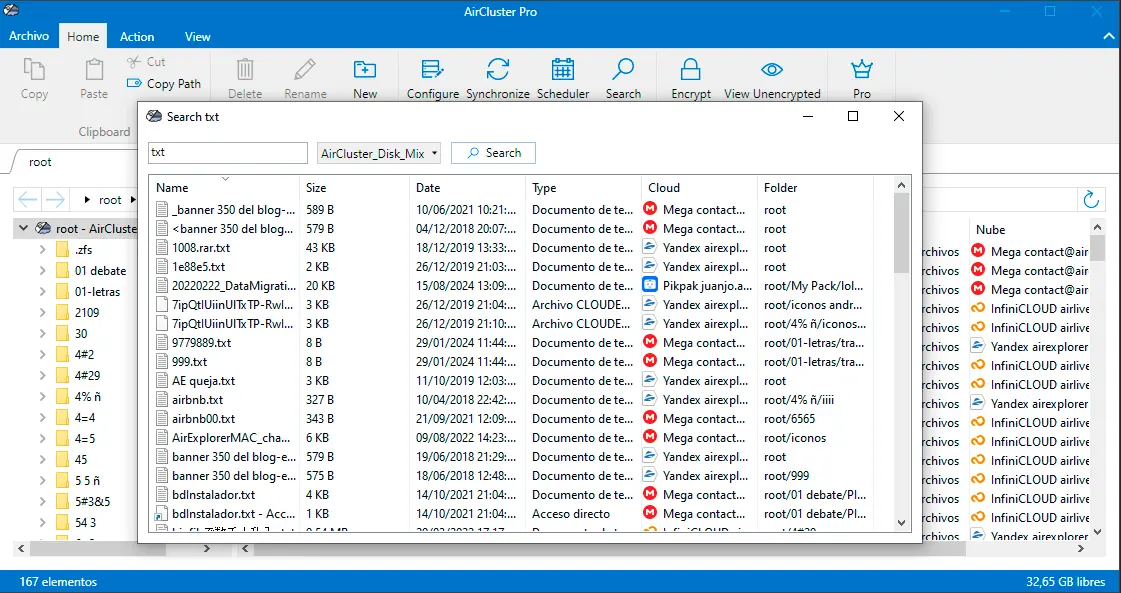
Search looks through every cloud in the cluster and brings the results together in one window. Find files by name or type without checking each account separately.

  1. 1Select the cluster you want to search and enter the file name or type in the search box.
  2. 2Review the results from every account that belongs to the cluster.
  3. 3Select a result and right-click it to open the file from its location.
Air Cluster search window with file results from the clouds in a cluster

Open, preview, and play when available

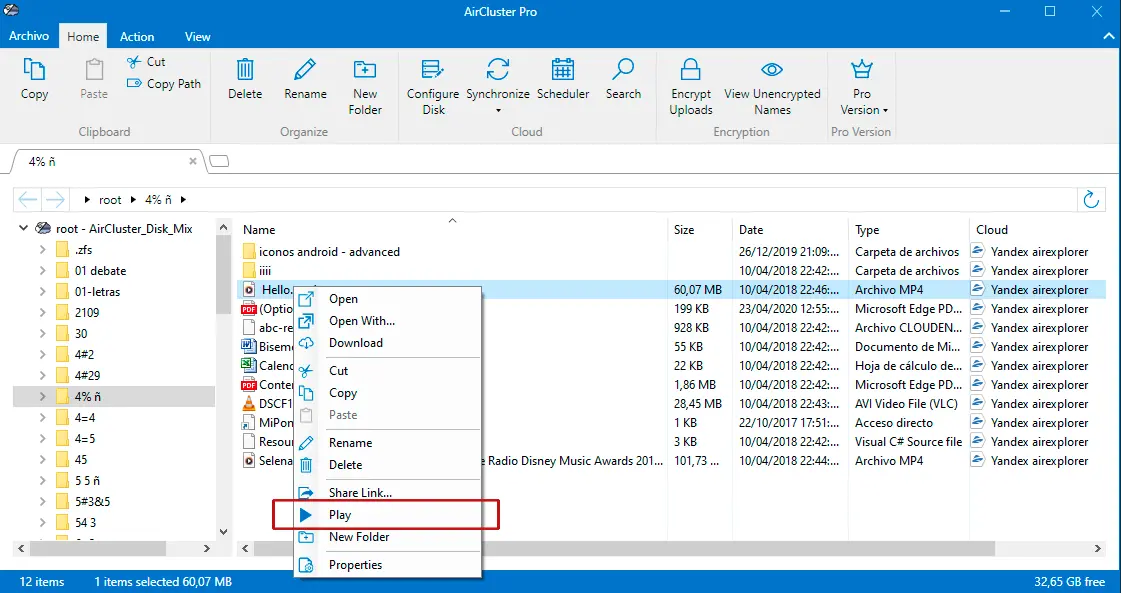
Depending on the provider and file type, Air Cluster can open a file in the browser, create a share link, or play a video directly from the cloud.

  1. 1Select a file and open the available actions menu.
  2. 2Use Open in browser, Play, or Share Link when the account offers the option.
  3. 3Check properties, version history, or collaborators when the provider supports them.
Air Cluster window for playing a video directly from the cloud

Air Cluster

4. Protect and share content

Air Cluster can encrypt files before upload and protect access to the app. Configure these options before handling content you do not want exposed at the provider.

Encrypt uploads

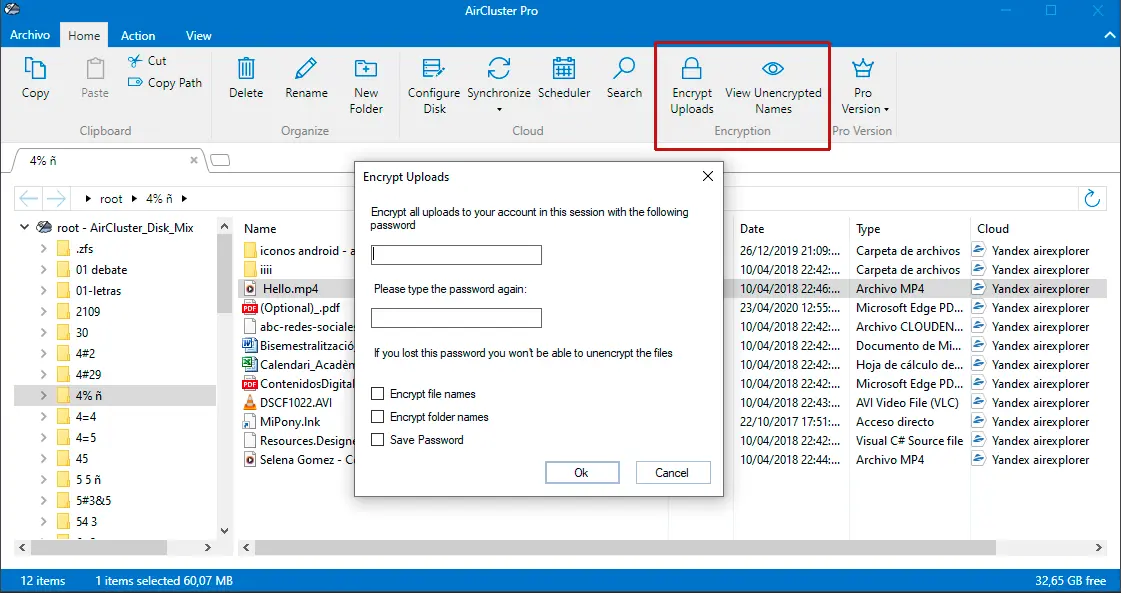
Enable encryption before uploading and set a password. You can also encrypt file and folder names so content is less identifiable in the cloud.

  1. 1Before starting the upload, turn on Encrypt Uploads.
  2. 2Enter and confirm a strong password; save an account's encryption password when appropriate.
  3. 3Choose whether to encrypt file names and folder names too.

Manage encrypted files and app access

When you open encrypted content, Air Cluster requests the applicable password. You can also request a password at startup to prevent unauthorized use on your PC.

  1. 1Enter the encryption password when you need to open or decrypt a file.
  2. 2Use View Unencrypted Names only in a trusted environment.
  3. 3Turn on Request password when Air Cluster starts in Options when you share the computer.
Air Cluster options for managing encrypted files and requesting a password at startup

Share links carefully

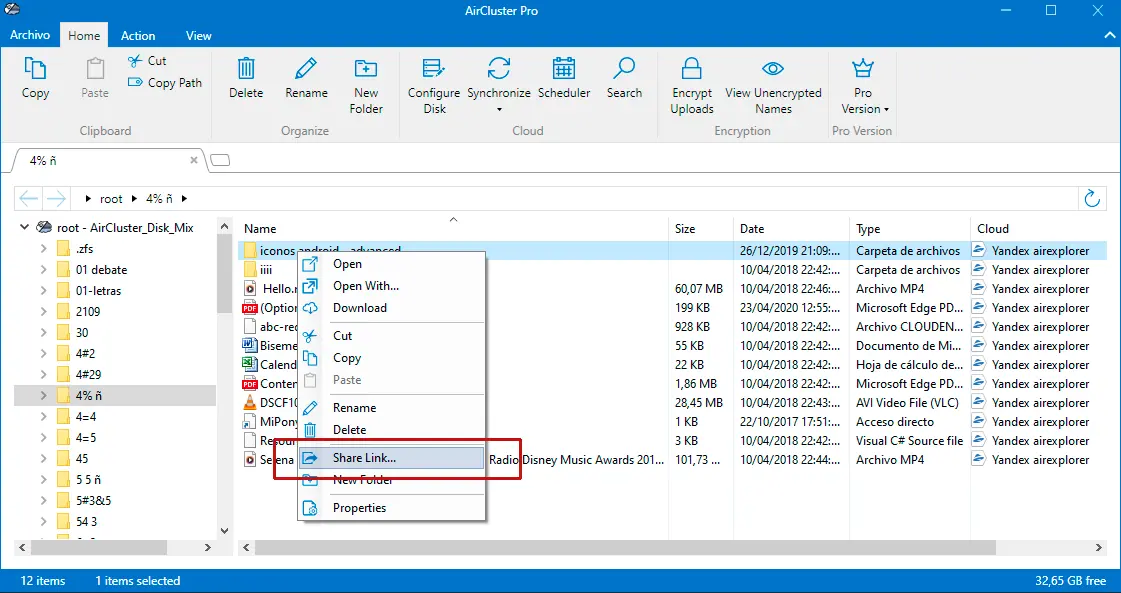
When the connected cloud can create share links, Air Cluster creates one for the selected file. Anyone who receives it gets the access level determined by that provider.

  1. 1Select the file and choose Share Link.
  2. 2Copy the link or send it by email from the sharing window.
  3. 3Review permissions, collaborators, or versions in the cloud account when you need finer control.
Air Cluster window for creating and sharing a file link

Air Cluster

5. Synchronize folders

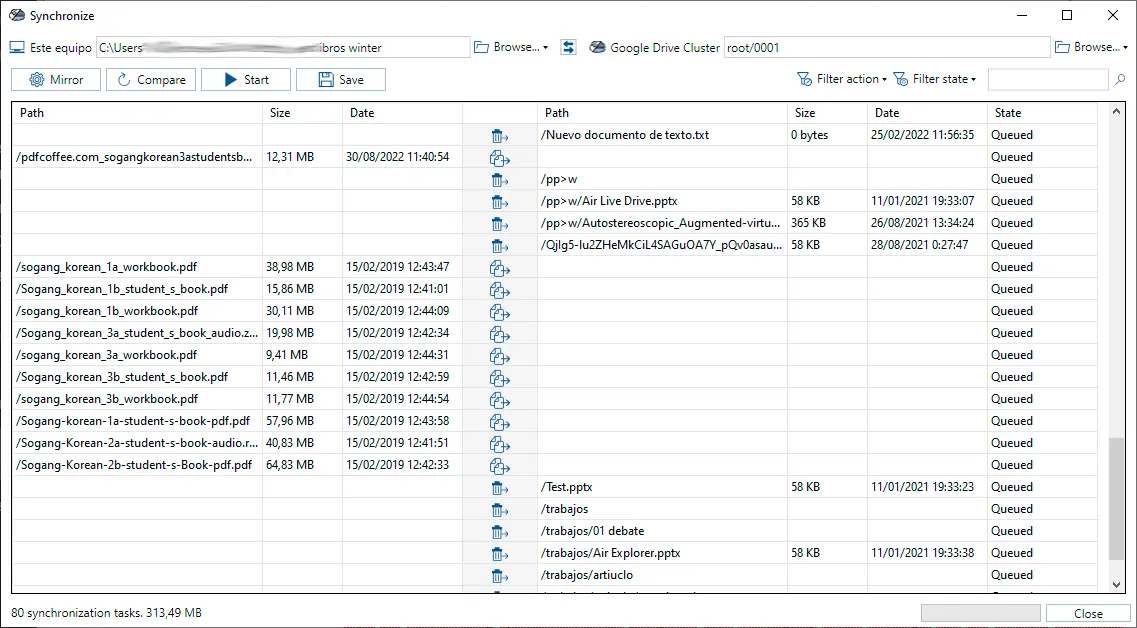
Synchronization compares two locations and lets you apply the required actions in a controlled way. Review the comparison before starting work that can delete or overwrite files.

Set up a synchronization and compare

Choose a left and right folder: they can be on your PC, in a cluster, or in connected accounts. The comparison identifies differences before anything is copied.

  1. 1Create a new synchronization and choose both folders.
  2. 2Select Compare to review files that only exist on one side, are newer, or differ.
  3. 3Filter the list by action, state, or differences before starting.

Choose the right mode

Mirror replicates the left side on the right; Mirror Update copies only newer files; Update copies newer files from left to right; Bidirectional preserves newer changes on both sides. Custom mode lets you decide action by action.

  1. 1Select a mode before comparing, or change it from the configuration button.
  2. 2Review the proposed action for files that only exist on one side.
  3. 3Use Custom when individual cases need a different keep, copy, or delete decision.
Air Cluster window for choosing the synchronization mode between two folders

Fine-tune, save, and monitor

Enable hash comparison when available to compare content, add name, date, or size filters, and save the configuration if you will reuse it.

  1. 1Configure filters and decide whether filtered folders should also be skipped while comparing.
  2. 2Start, pause, or stop the synchronization and open the report when it finishes.
  3. 3Save the configuration to load it later or run it from a scheduled task.

Use hash comparison to check whether two files are identical

A hash is a digital fingerprint for each file. By comparing this fingerprint, Air Cluster can tell whether the files are the same. When they match, the program will not update the file during synchronization.

Hash by cloud service

  • MD5: Local, 4shared, Google Drive, Baidu, pCloud.
  • SHA-1: Local, Box.com, OneDrive, pCloud.
  • SHA-2: Dropbox.
  • SHA-256: Local, MediaFire.
  • No hash: HiDrive, FTP, WebDAV.

Air Cluster

6. Automate and optimize transfers

The task scheduler and transfer options let you run backups and synchronizations repeatedly without manually starting every operation.

Schedule Air Cluster tasks

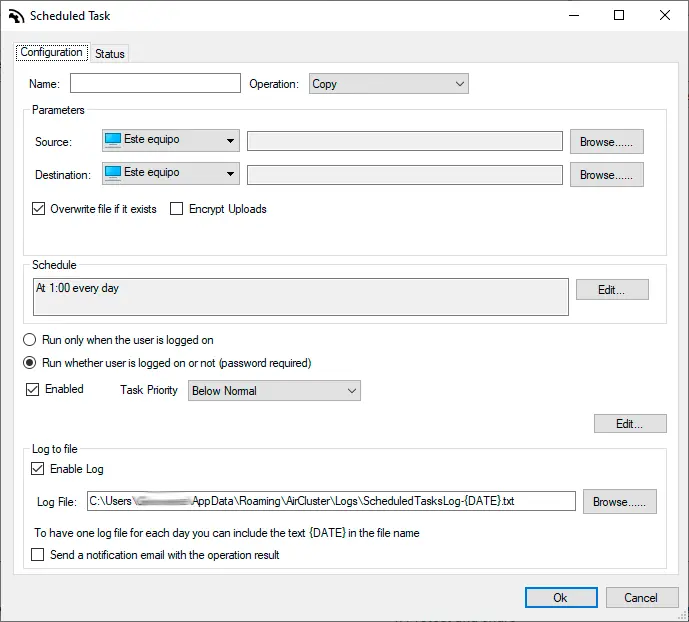
The scheduler shows each task's state, next and last run, and progress. You can create, edit, run, or stop tasks from the same list.

  1. 1Open Scheduler and create a new task.
  2. 2Choose the operation, such as running a saved synchronization, and define when it starts or repeats.
  3. 3Set up a log file or report if you need to review the result later.
Air Cluster Scheduler showing scheduled tasks and their status

Control speed, queue, and logs

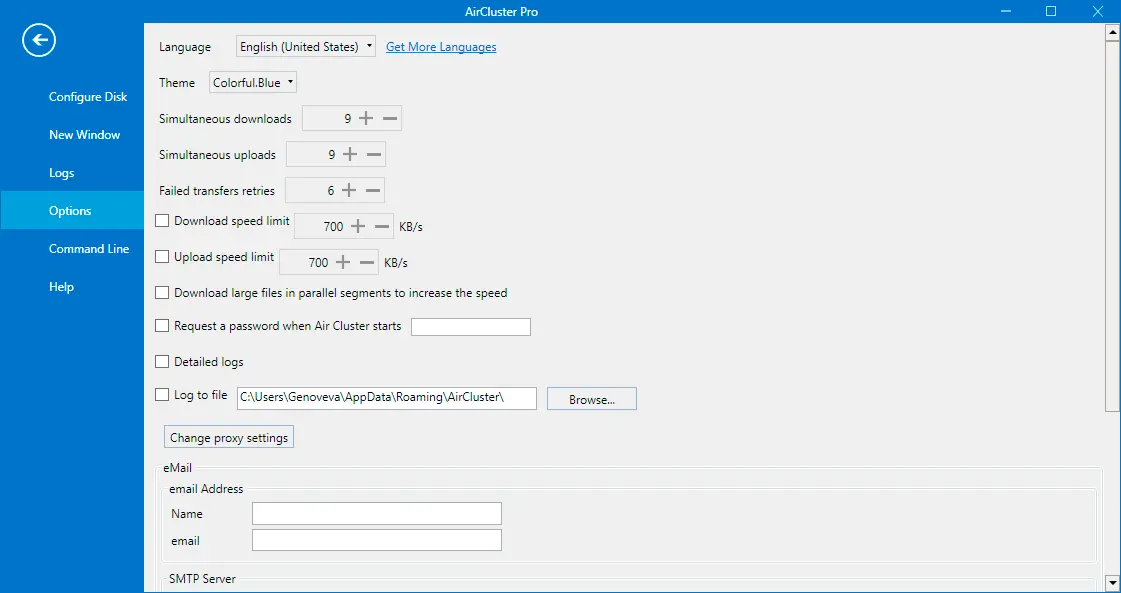
Options let you set retries for failed transfers, speed limits, and the number of simultaneous uploads and downloads. Logs help identify errors and task state.

  1. 1Adjust concurrency and speed limits for your connection and provider policies.
  2. 2Enable parallel downloads for large files when the account allows it.
  3. 3Read the logs and retry only the operations that failed.

Use the command line for automation

AirClusterCmd opens command-line help and can integrate compatible features into scripts and scheduled processes. It is intended for users already automating tasks in Windows.

  1. 1Open Command Line from Air Cluster to read the included help.
  2. 2Start with a saved synchronization or task that you have tested in the interface.
  3. 3Keep a log of every execution so you can check results and errors.

Air Cluster

7. Options, maintenance, and help

Adapt Air Cluster to your network and workflow, keep the application up to date, and use the right information when an account or transfer needs attention.

Customize the application and network

Options include language, theme, logging behavior, and connection through the Windows proxy. Configure them before working on a restricted or corporate network.

  1. 1Open Options and choose your preferred language and theme.
  2. 2Check that the Windows proxy configuration can access your cloud providers.
  3. 3If the proxy requires authentication, choose the appropriate user mode and test a cloud account connection.
Air Cluster Help tab with version, updates, and license information

Update and review your license

The Help tab shows the installed version, update availability, and license information. Keeping the app current helps preserve compatibility with providers.

  1. 1Open Help to check the installed version and update state.
  2. 2Install the update and restart Air Cluster when requested.
  3. 3Use Activate Air Cluster Pro to enter or review the device license code.

Ask for help with useful details

When an operation fails, note the account involved, the task you ran, and the message shown. The logs and the in-app suggestion or error form help diagnose the issue.

  1. 1Check the task state and the latest log lines.
  2. 2Reconnect the account if the error reports a sign-in problem.
  3. 3Send a suggestion or error from Help, including the steps needed to reproduce it.

Report an error or problem

A clear report makes it easier to reproduce and resolve an issue. Include the context and all the information needed to understand what happened.

  1. 1Describe the Air Cluster version, Windows version, connected cloud services, the steps that caused the problem, and the expected result.
  2. 2Attach screenshots when the issue affects the interface or shows an error message.
  3. 3Enable logs and include the relevant entries when you submit the report.

Air Cluster

Need more information?

Check supported clouds, Air Cluster Pro plans, or the blog for focused guides and product updates.