Air ClusterAir Cluster

Set up a custom OAuth Client ID for Google Drive

Google Drive

Use your own Google OAuth credentials with Air Cluster

This guide shows how to create a custom OAuth client in Google Cloud, enable Google Drive access, and enter the resulting credentials in Air Cluster.

Follow the steps in order. The screenshots show the Google Cloud and Air Cluster screens you should see along the way.

01

Create a project in Google Cloud

Create a separate Google Cloud project to hold the credentials that Air Cluster will use for Google Drive.

1

Sign in to Google Cloud Resource Manager and choose Create Project. You may use a different Google account from the one whose Google Drive storage you will connect.
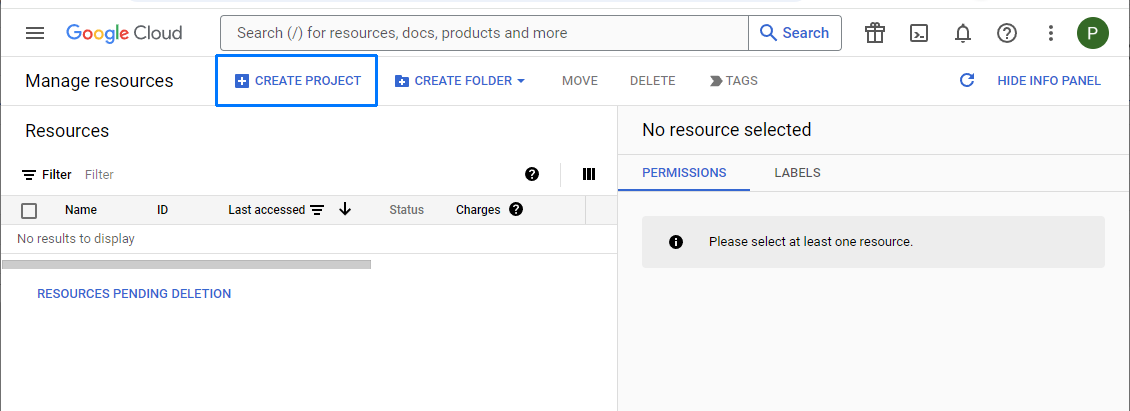
Google Cloud screen for creating a project
2

Enter a recognizable project name, such as Google Drive Custom ID, and confirm the new project.
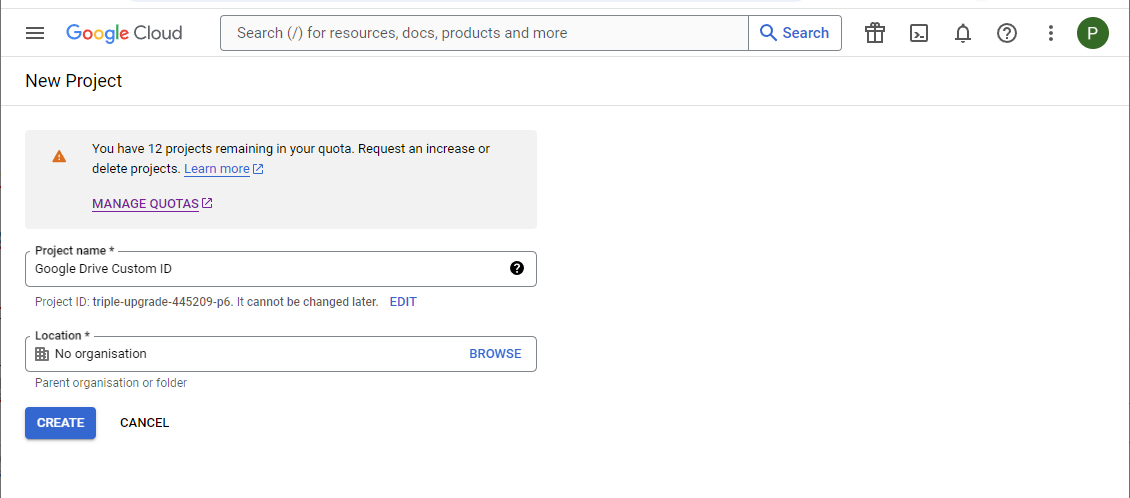
Google Cloud project name dialog
3

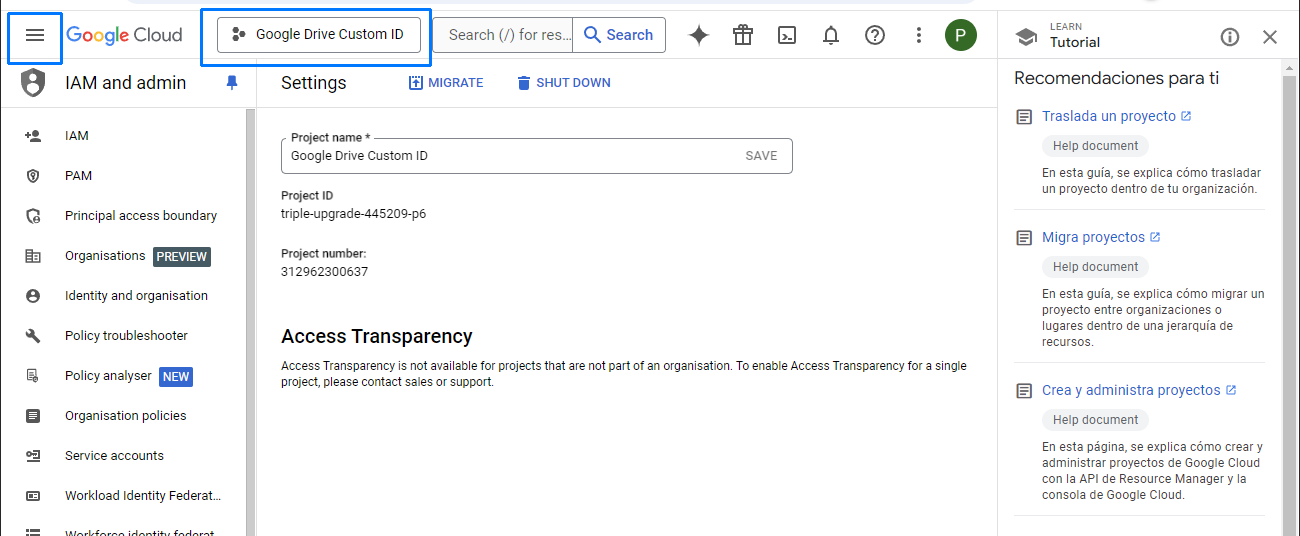
Select the project you just created and open its project settings before continuing.
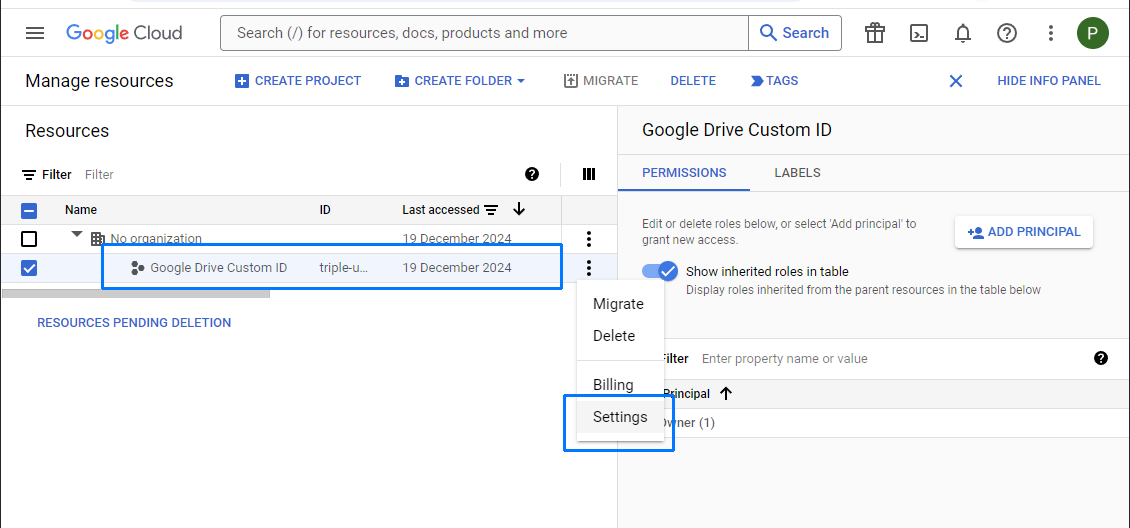
Google Cloud project settings
02

Enable the Google Drive API

The custom client needs the Google Drive API enabled in the project before it can request access to a Drive account.

1

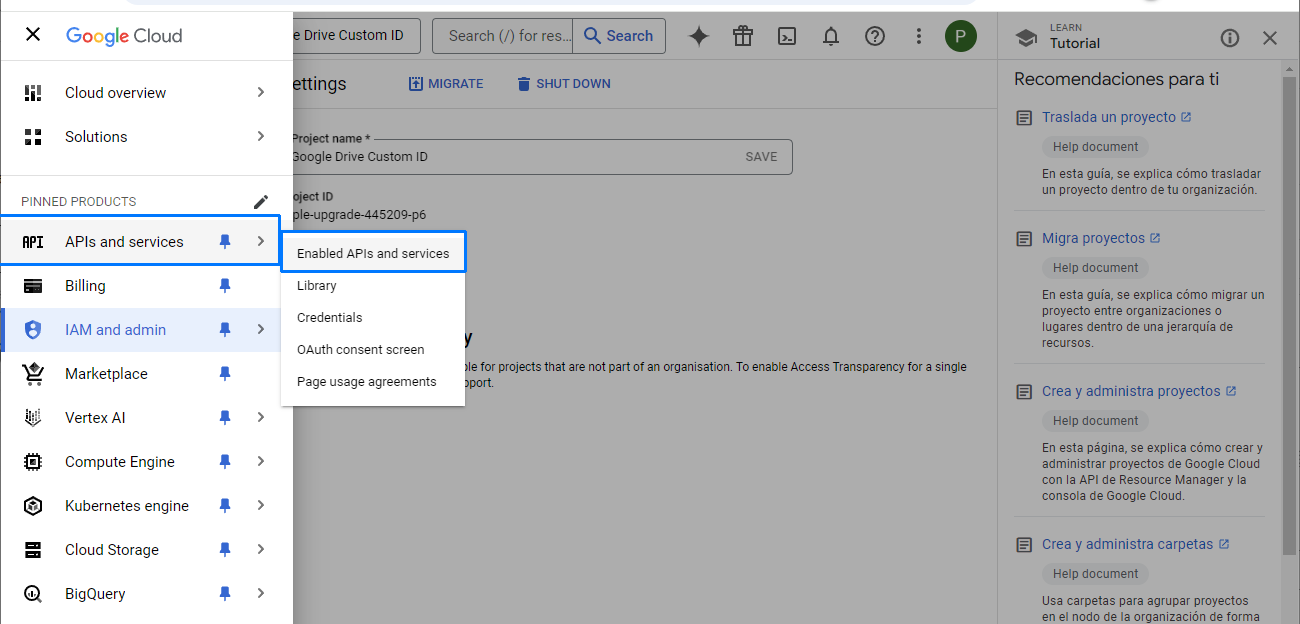
Open the project navigation menu.

Google Cloud navigation menu
2

Go to APIs & Services, then open Enabled APIs & services.

Enabled APIs and services page
3

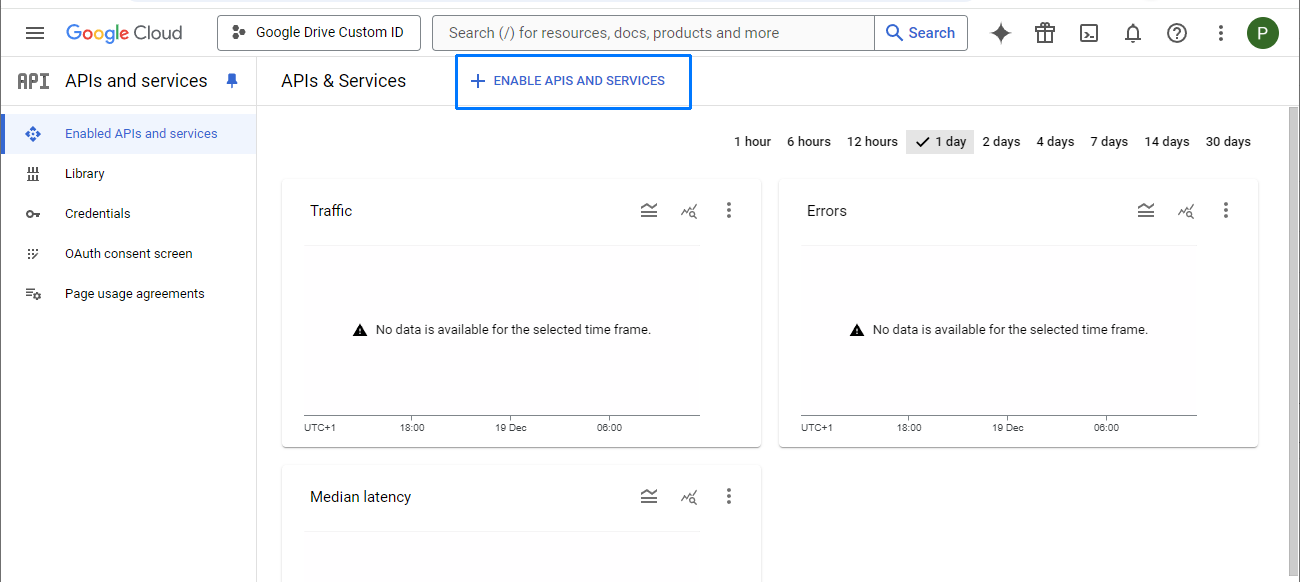
Choose Enable APIs and services to open the API Library.

Enable APIs and services button
4

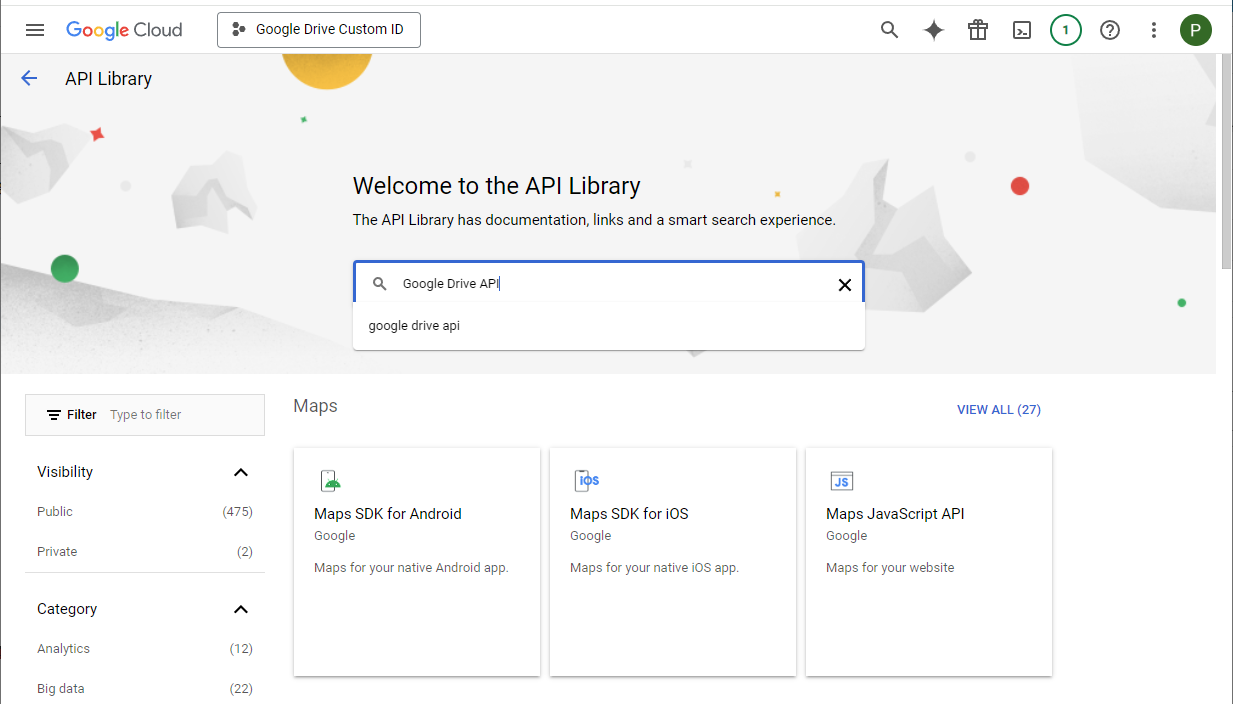
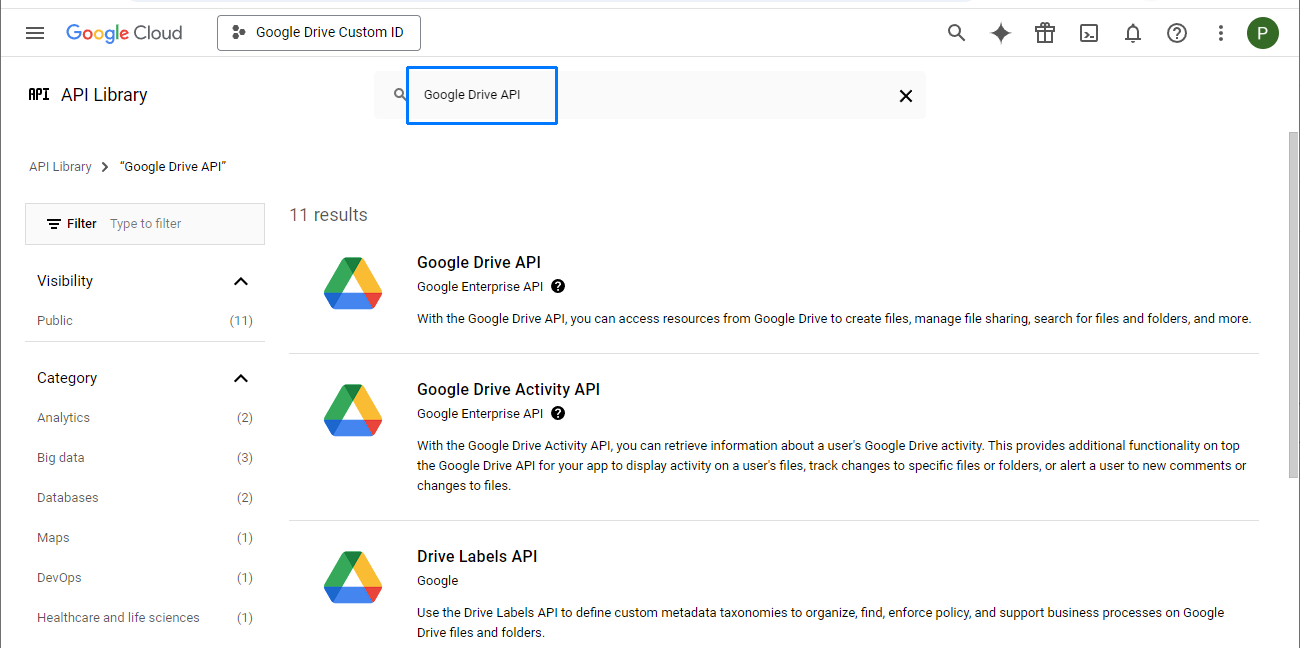
Search the library for Google Drive API.

Google Drive API search result
5

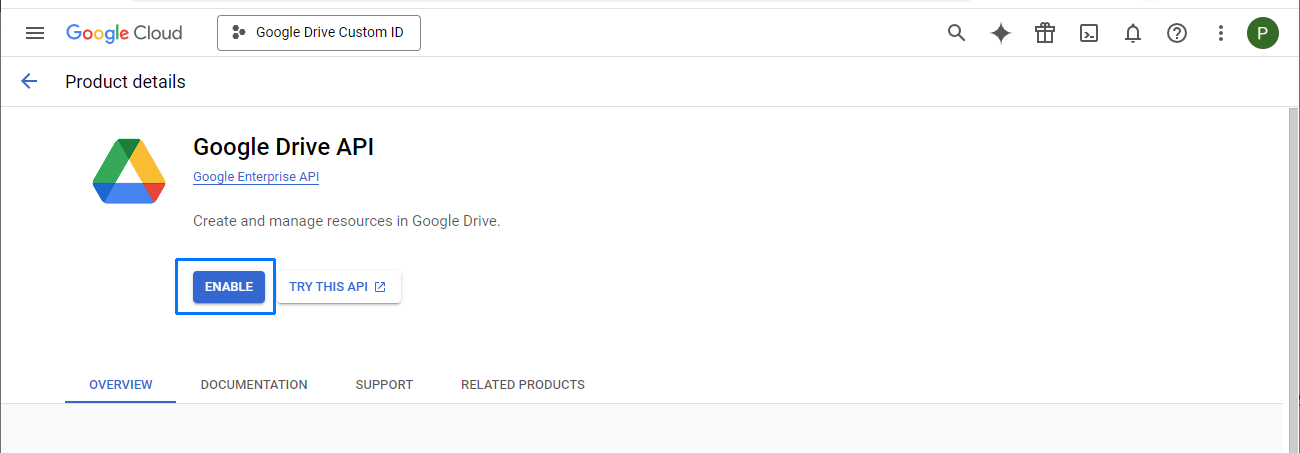
Open the Google Drive API result and select Enable.

Google Drive API detail page
6

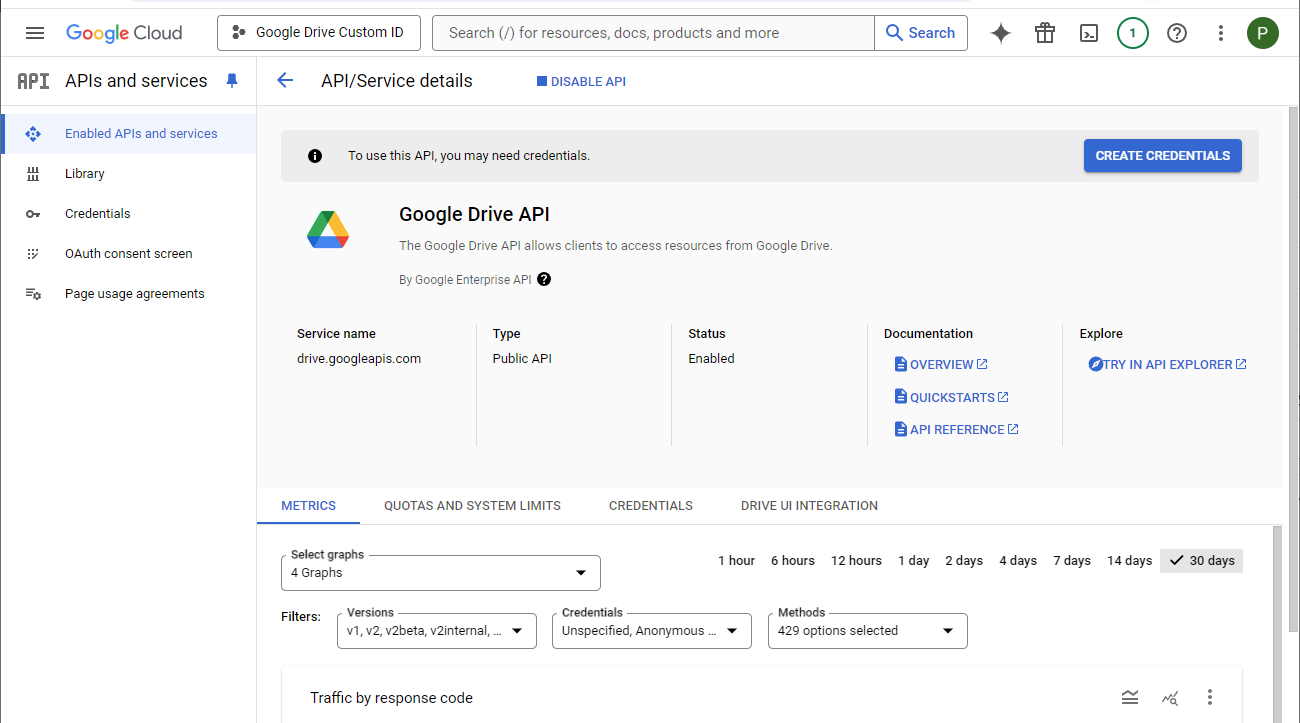
Confirm that Google Drive API is enabled, then return to the APIs & Services overview.

Google Drive API enabled confirmation
Google Cloud APIs and services overview
03

Configure the OAuth consent screen

Set the information Google shows while a user authorizes this custom client.

1

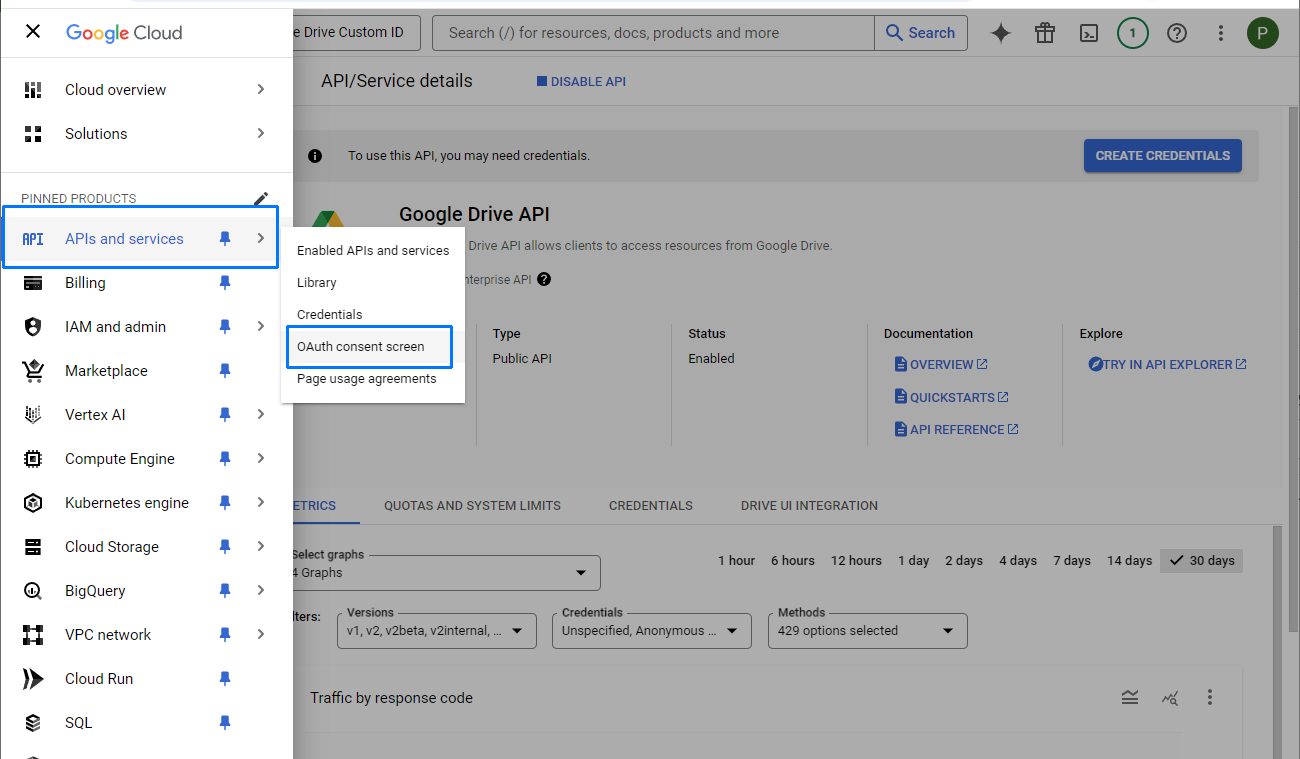
From APIs & Services, open OAuth consent screen.

Google Cloud OAuth consent screen settings
2

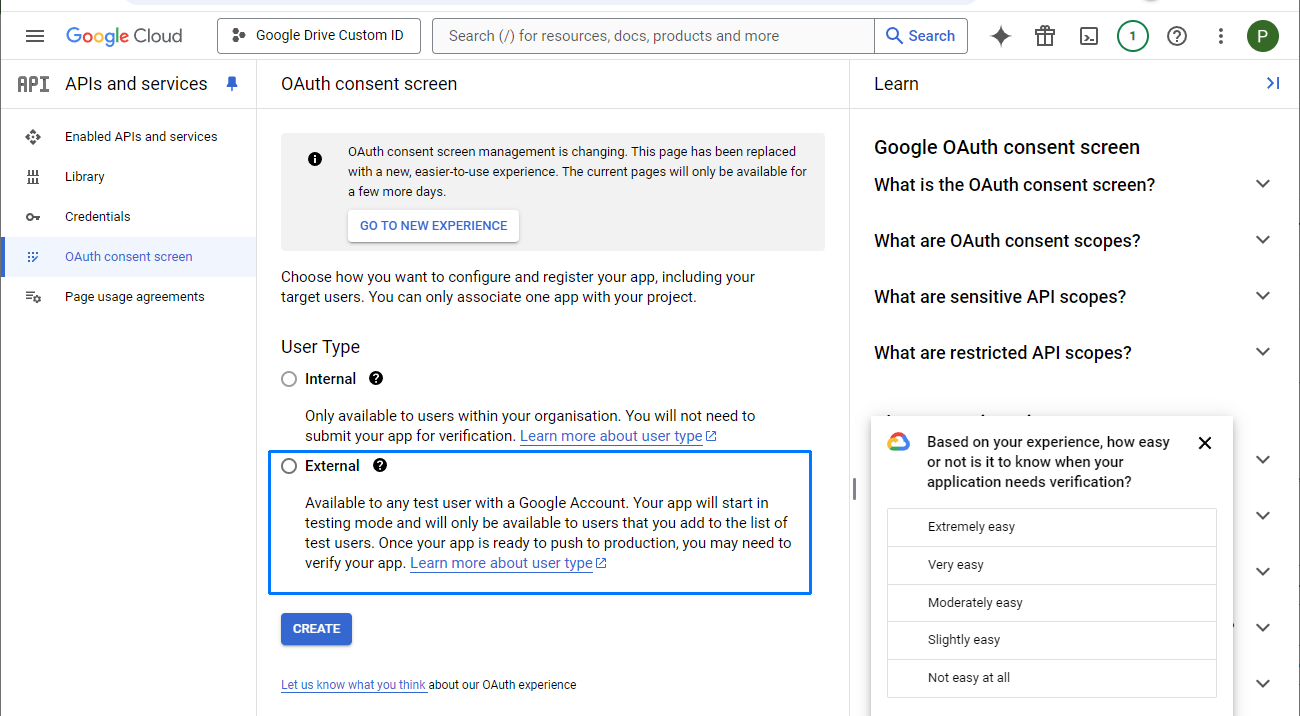
Choose External for a personal client. Choose Internal only when the client will be used exclusively in your organization, then select Create.

OAuth consent screen user type selection
3

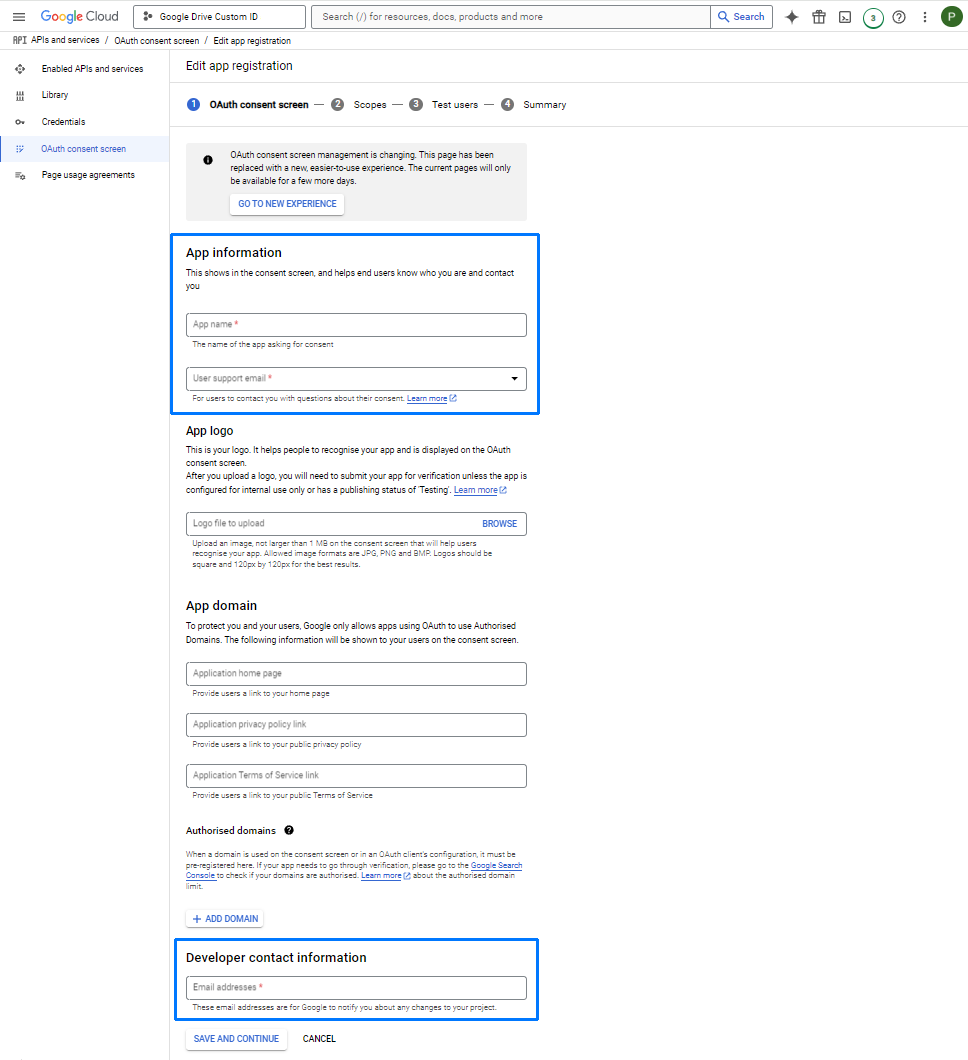
Provide an app name, a user-support email, and developer contact information. Use an email address you can access, then save and continue.

OAuth consent screen app information form
04

Grant the Google Drive scope

Select the Google Drive permission that allows Air Cluster to work with your files after authorization.

1

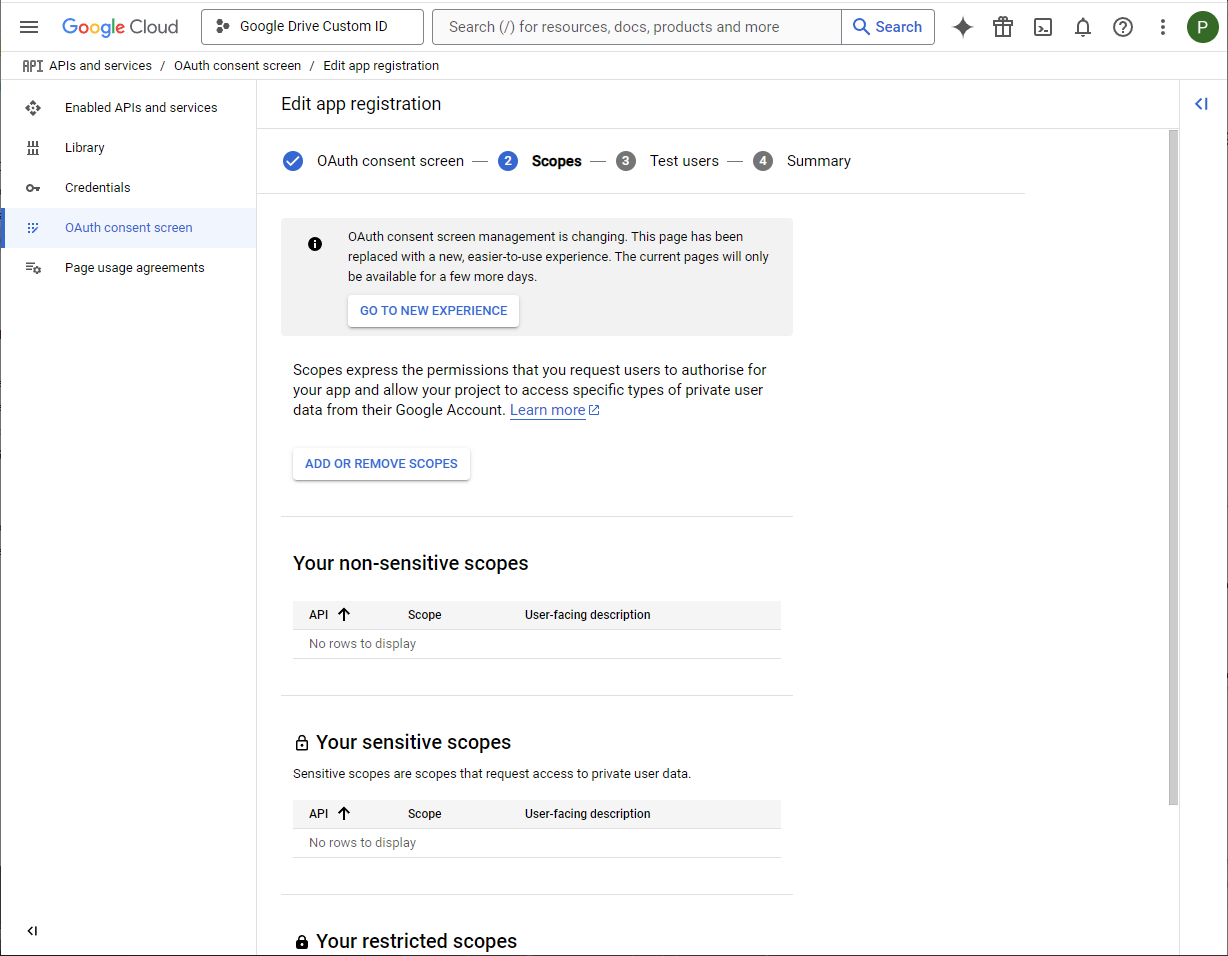
On the OAuth consent screen, select Add or Remove Scopes.

Add or remove OAuth scopes button
2

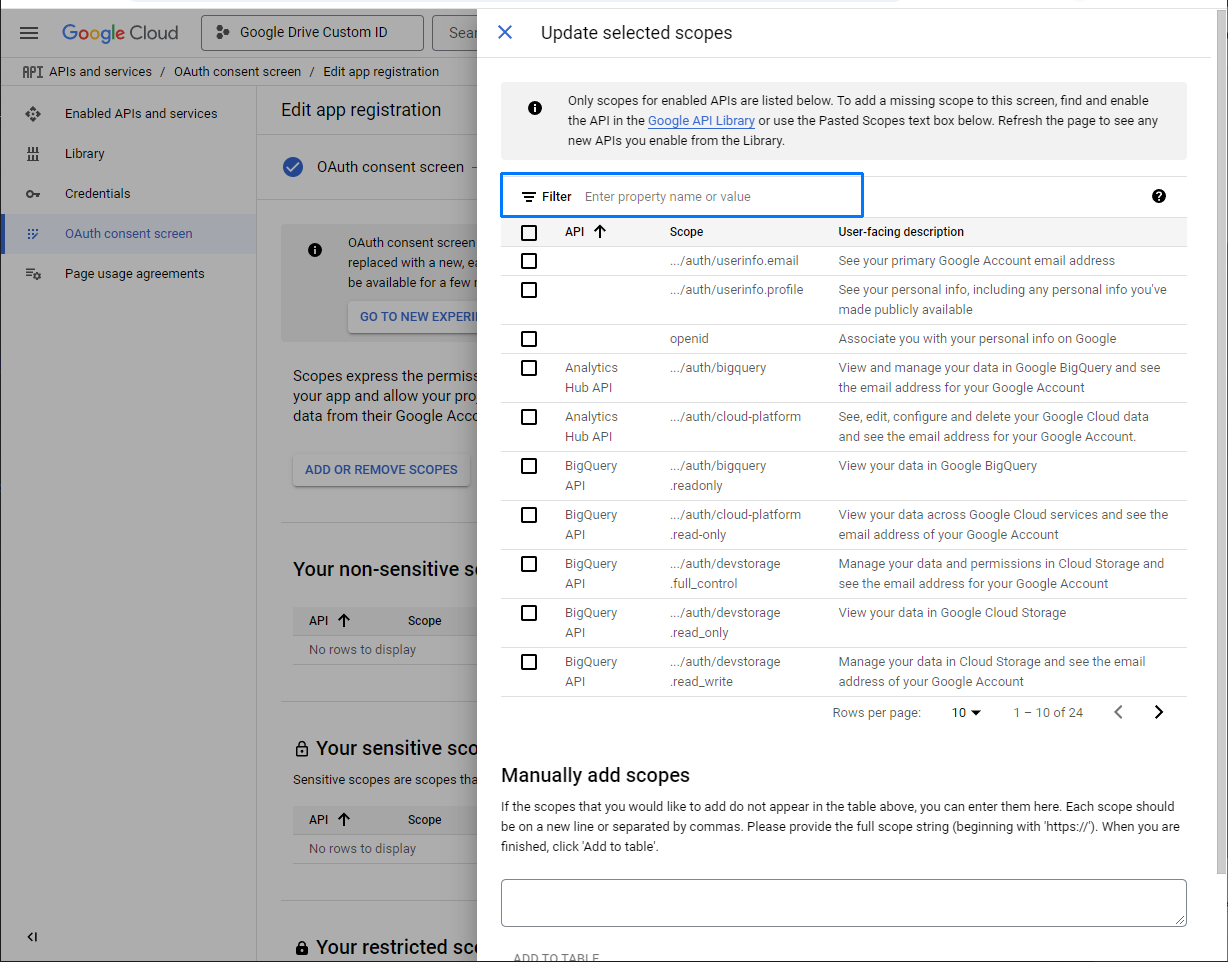
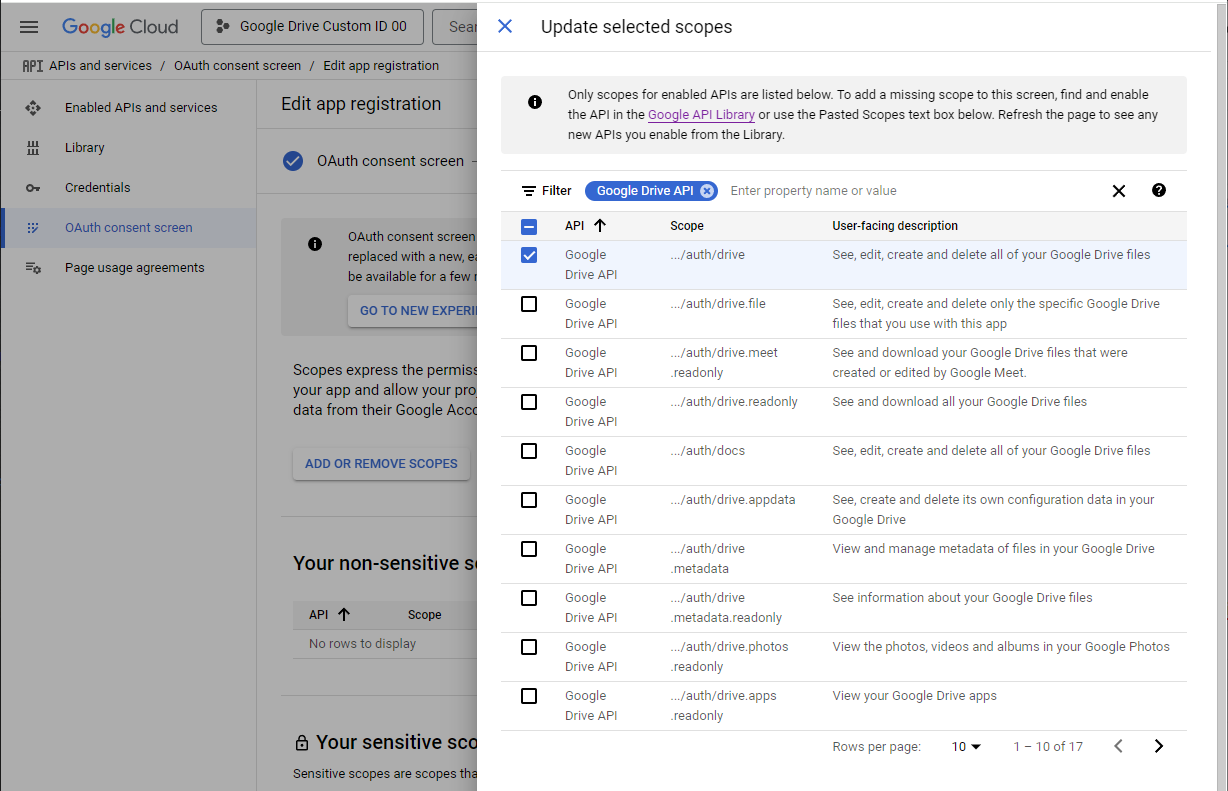
Filter the available scopes for Google Drive API. Select the scope ending in /auth/drive, then choose Update.

Google Drive API scope selection
3

Save the updated scope selection at the bottom of the consent-screen page.

Saving OAuth consent screen scope settings
05

Add a test user

Allow the Google account that will use this client to authorize it during the testing phase.

1

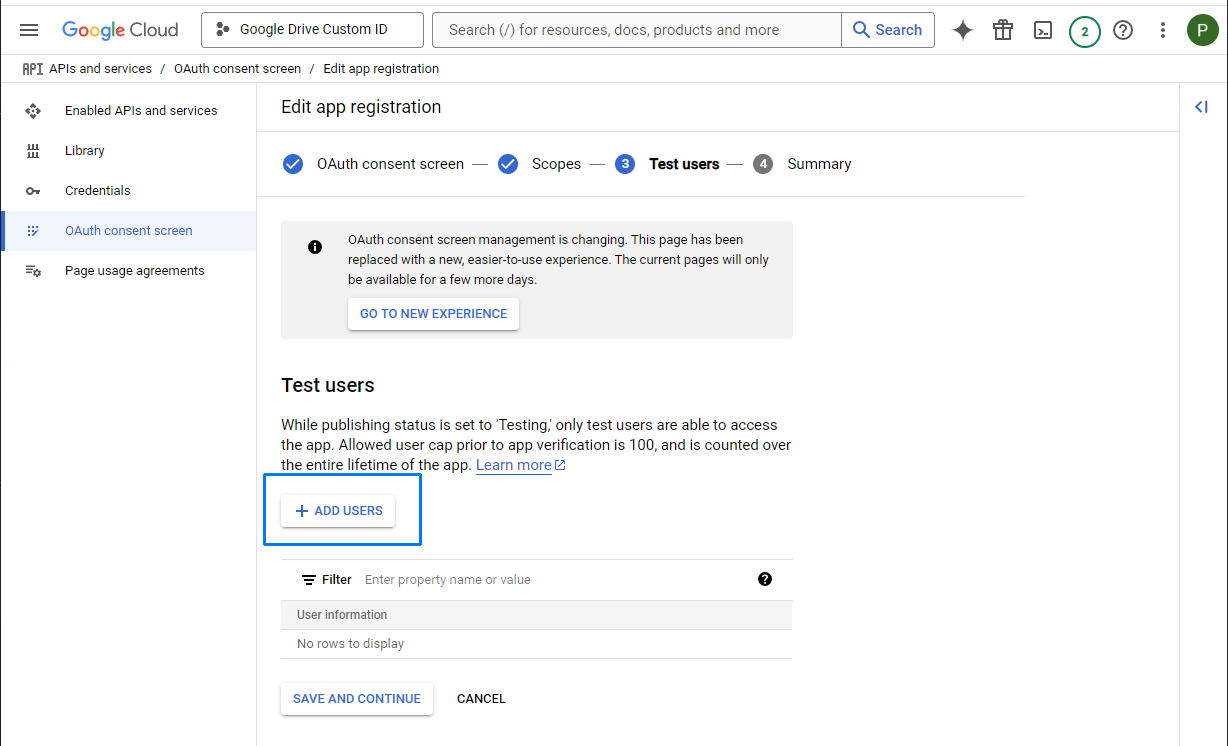
Open the Test users section and choose to add a user.

Google Cloud test users section
2

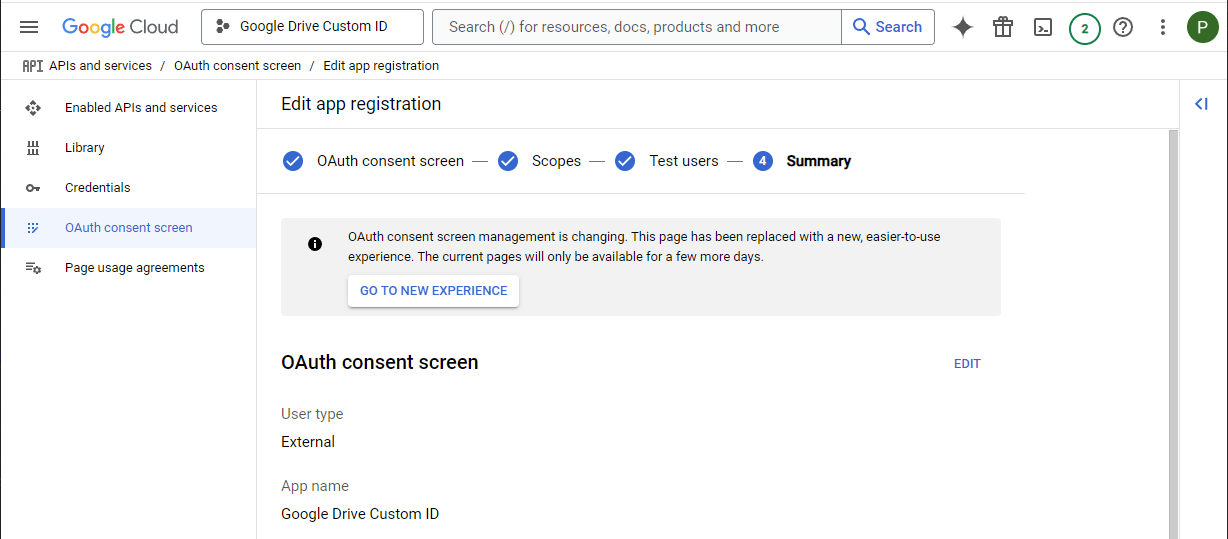
Add the Google account you will connect to Air Cluster, then save the test-user list.

Add test users dialog
06

Create desktop credentials

Create the Client ID and Client Secret that Air Cluster will use during the Google authorization flow.

1

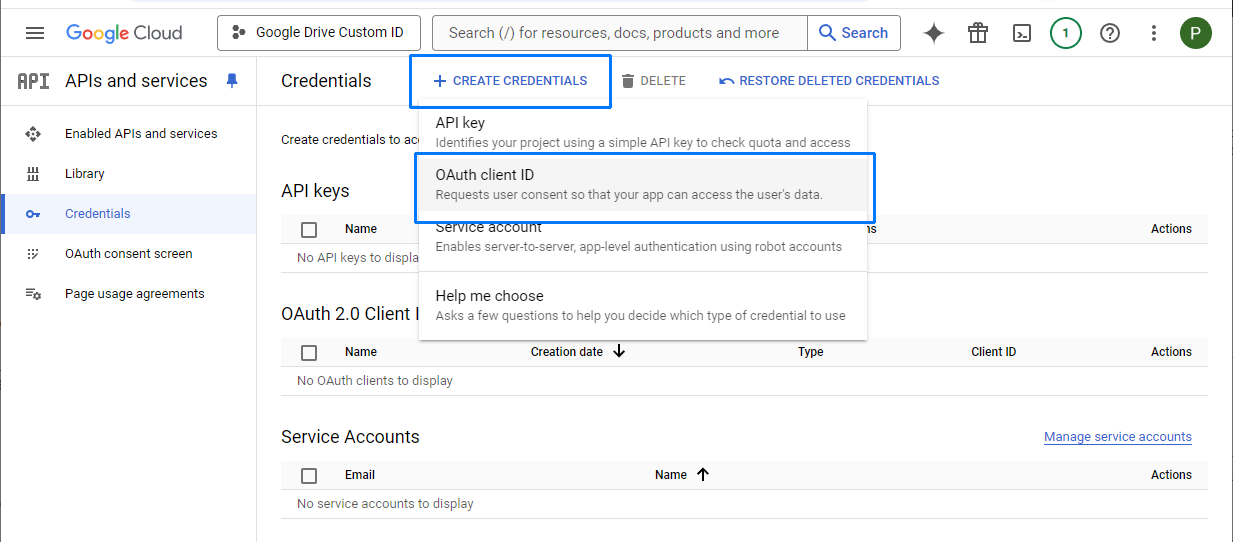
Open Credentials, select Create Credentials, and choose OAuth client ID.

Google Cloud Create Credentials menu
2

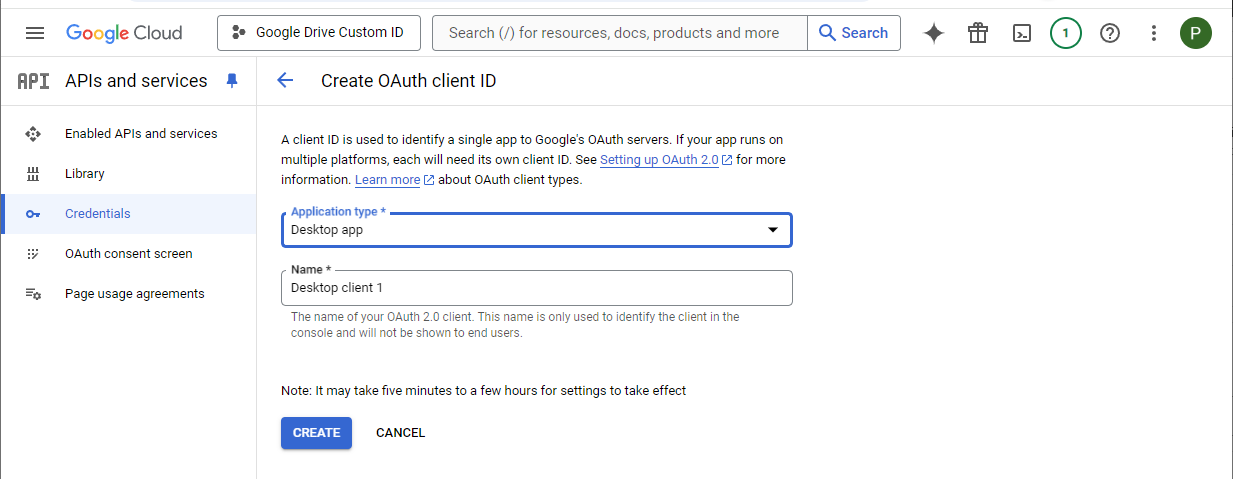
Select Desktop app as the application type. The suggested name is fine, then choose Create.

OAuth client application type selection
3

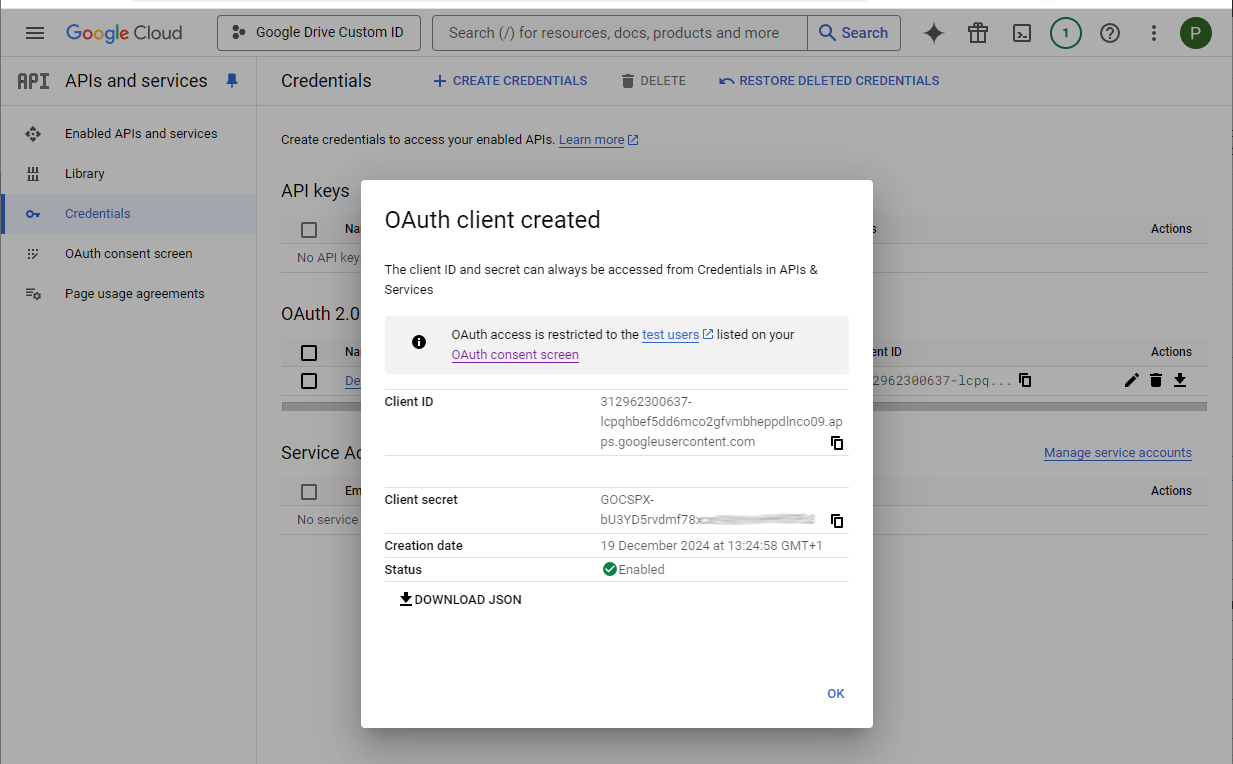
Copy the Client ID and Client Secret from the confirmation window. You will enter both values in Air Cluster.

Created OAuth client ID and secret
07

Publish the consent screen

Publish the consent screen so the custom client can be used outside the test configuration.

1

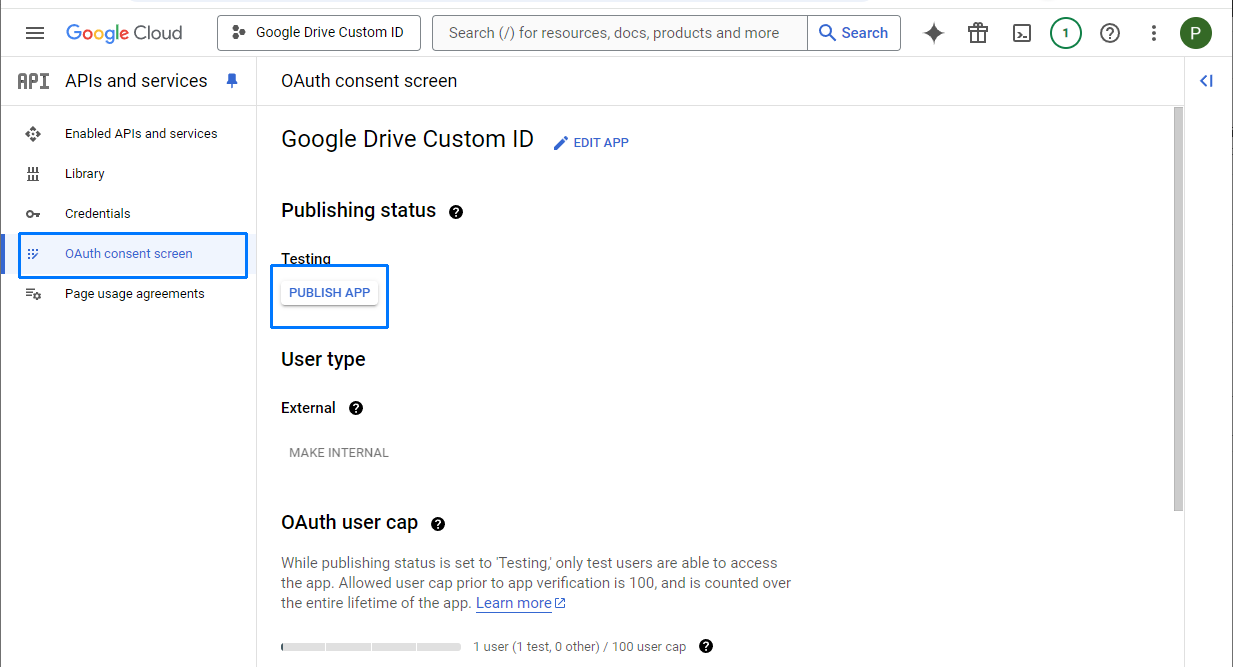
Return to OAuth consent screen, select Publish App, and confirm the action. Google verification is not required for using this client with Air Cluster.

Publish app confirmation in Google Cloud
08

Add the client to Air Cluster

Use the dedicated GoogleDrive Custom Client Id account type to add the credentials to Air Cluster.

1

In Air Cluster, choose Add Accounts and select GoogleDrive Custom Client Id.

Air Cluster GoogleDrive Custom Client Id account option
2

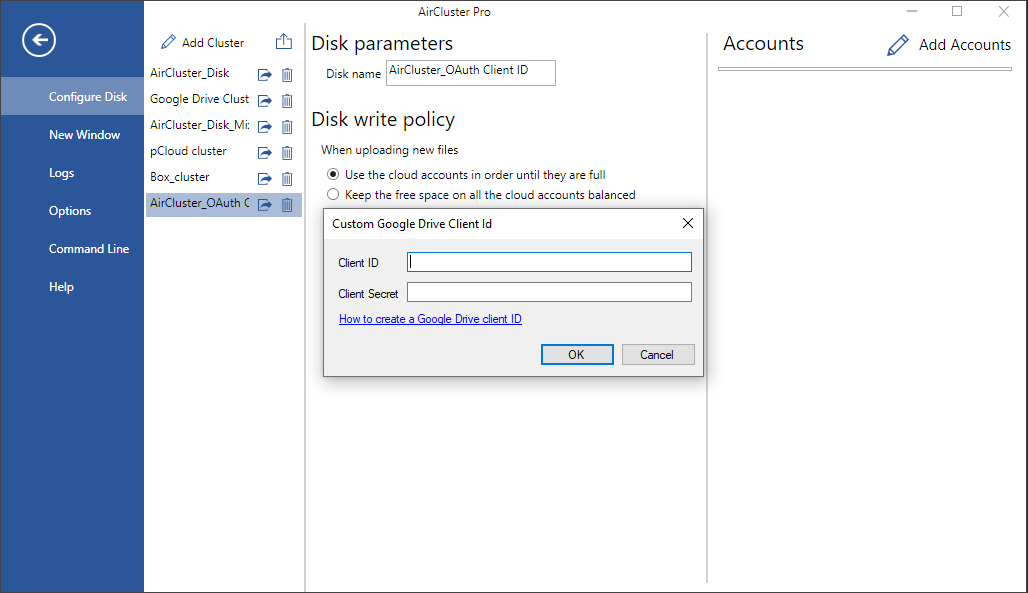
Enter the Client ID and Client Secret you copied from Google Cloud. A browser window will then open for Google authorization.

Air Cluster form for Google OAuth client ID and secret
09

Authorize access to Google Drive

Complete the final Google authorization flow in the browser to finish adding the account.

1

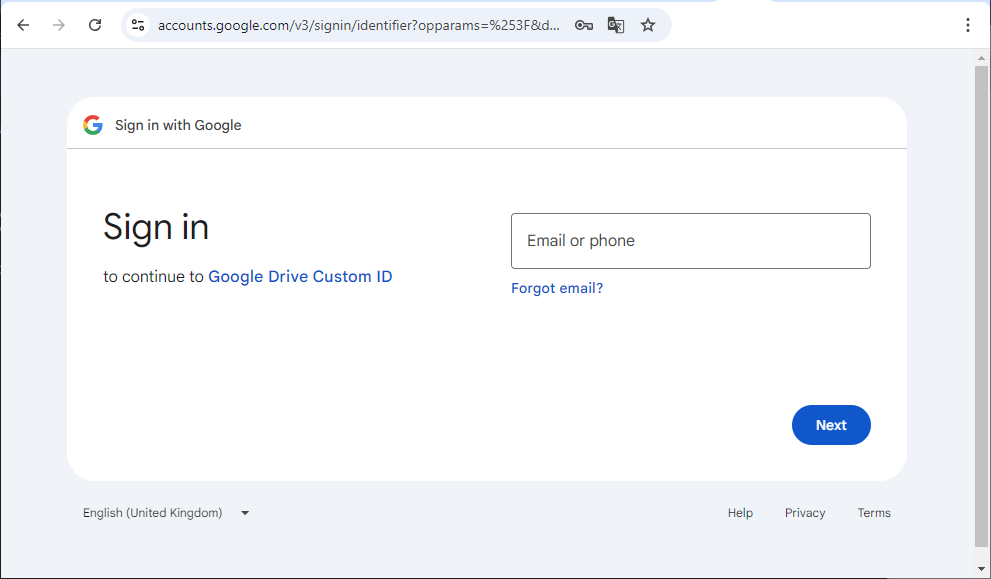
Sign in with the Google account that you added as a test user.

Google account sign-in prompt
2

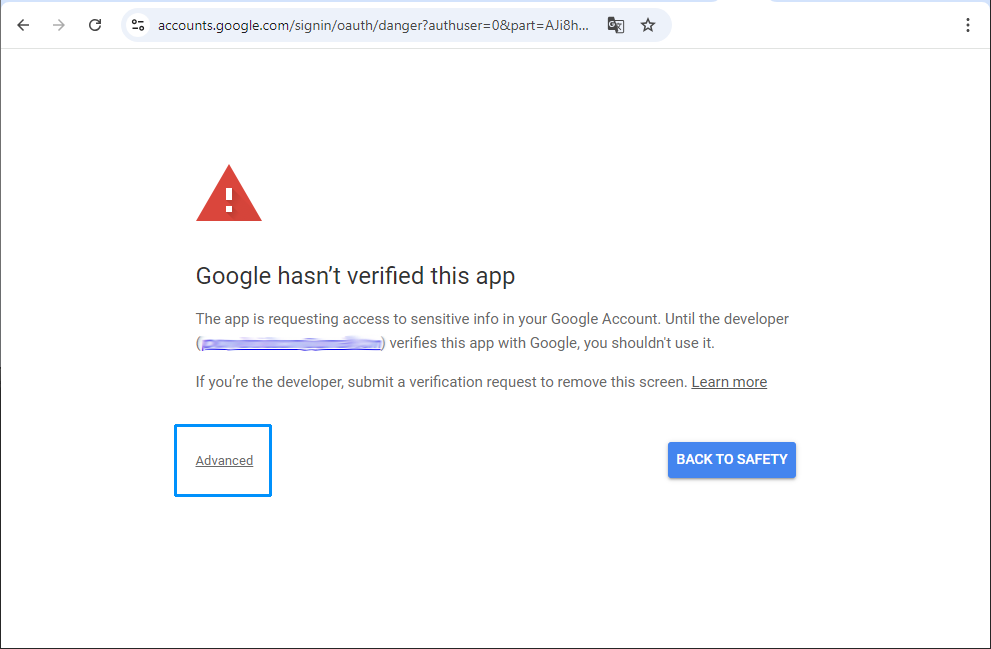
Open Advanced on the Google warning screen.

Google advanced authorization link
3

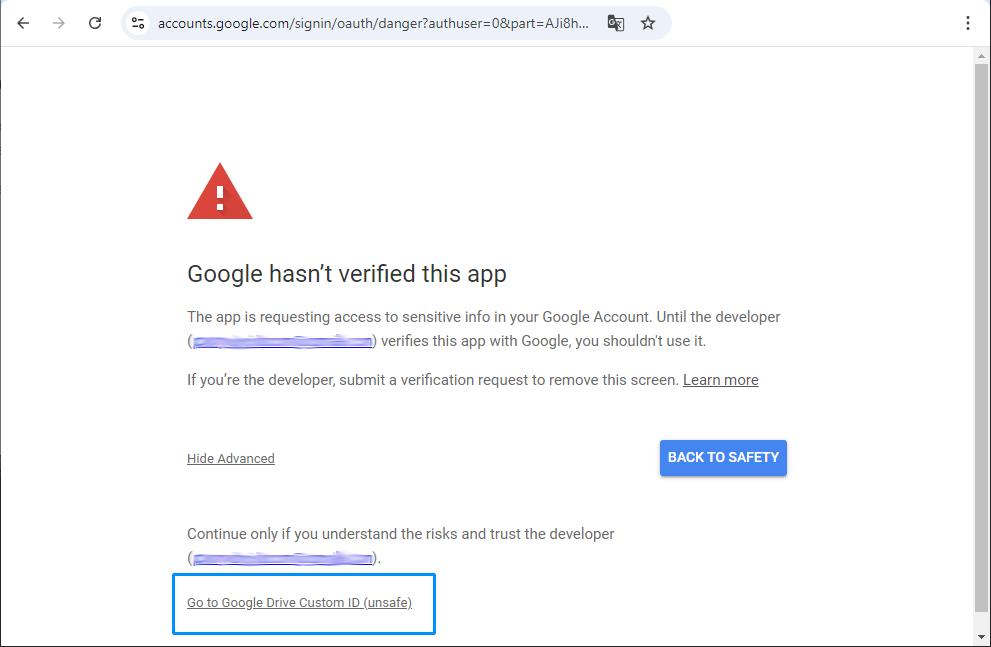
Choose the option to continue to your Google Drive Custom ID client.

Google custom client access confirmation
4

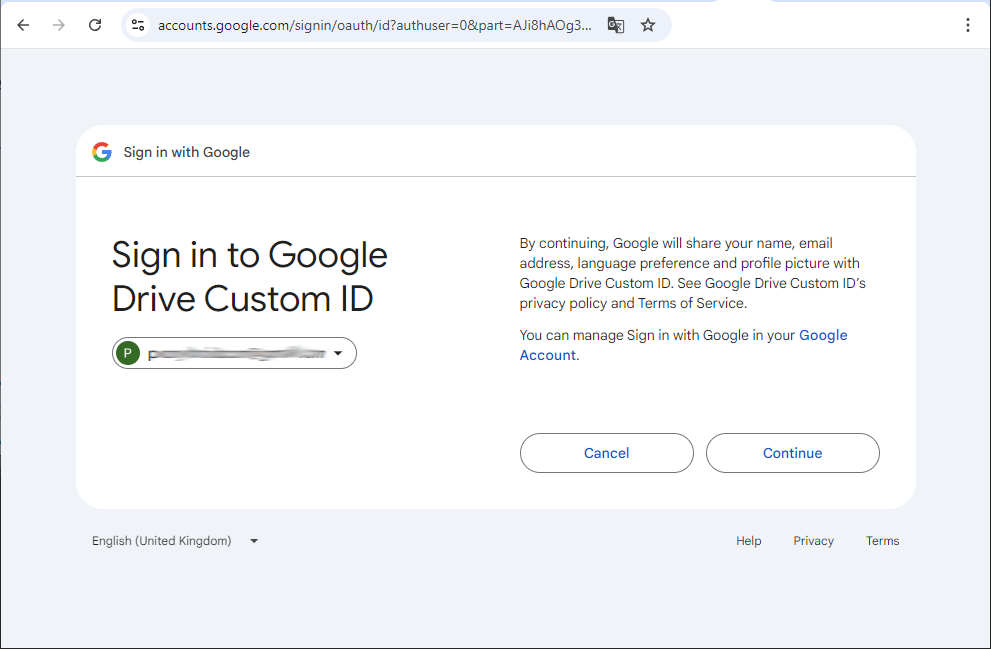
Review the confirmation page and select Continue.

Google Drive authorization continue button
5

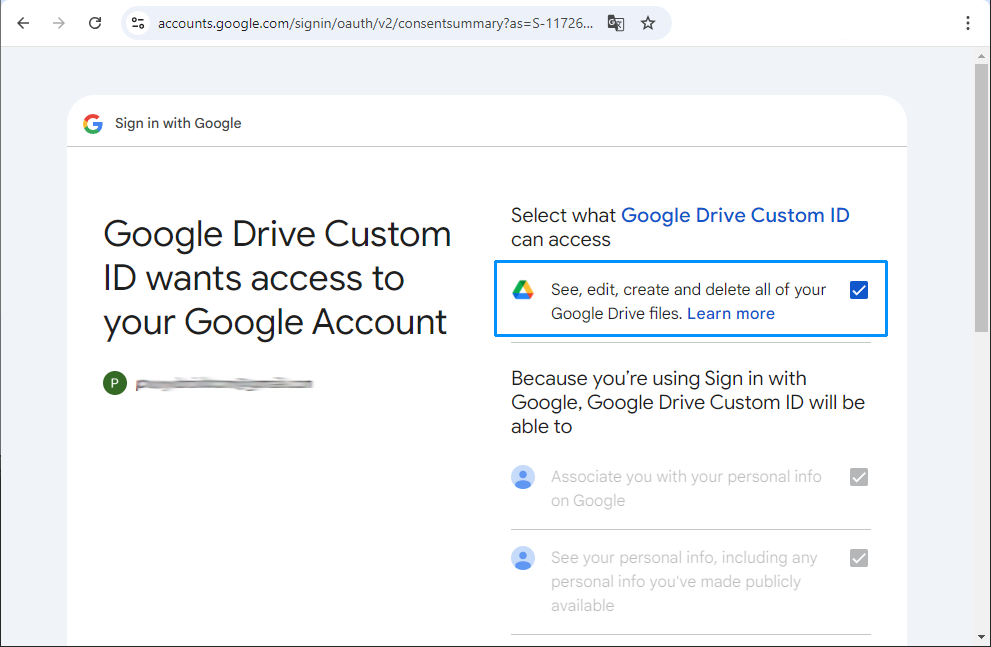
Review the requested Google Drive permissions, select the required access, and continue to complete the connection.

Google Drive permissions confirmation