
Short answer: use Mirror when the destination must be an exact copy of the source, deletions included; Update when you want a backup that never deletes anything; and Bidirectional when you work on the same files from two places and want changes to travel both ways. Mirror Update is a Mirror that won’t overwrite newer files in the destination, and Customized lets you decide every case yourself.
The Air Cluster sync tool
Air Cluster includes a tool to synchronize two folders. Each one can be on your PC or in a cluster of cloud accounts, so you can use it both to back up your computer to Google Drive, OneDrive or Mega and to keep two clusters identical.
It works in two phases. First it compares both folders and shows you the list of differences with the action it will apply to each file. Then, when you decide, it syncs and generates a report with the result. Nothing is copied or deleted until you click Start.
How to use it, step by step
- Open the tool: in the Synchronize tab of Air Cluster, click New Synchronization.
- Pick the two folders: use Browse… to select the left folder (the source) and the right folder (the destination). The arrows button between them swaps them.
- Configure the sync: the button showing the mode name (Mirror by default) opens the options. We cover them in the next section.
- Click Compare: Air Cluster reads both folders and lists every difference with its action.
- Review the list: you can narrow it with Filter action and Filter state, and change the action for any file.
- Click Start: you can pause or stop the sync, and the report opens when it finishes.
- Save the configuration with Save to load it another day from Load Synchronization or schedule it with the task scheduler.
How to configure the sync
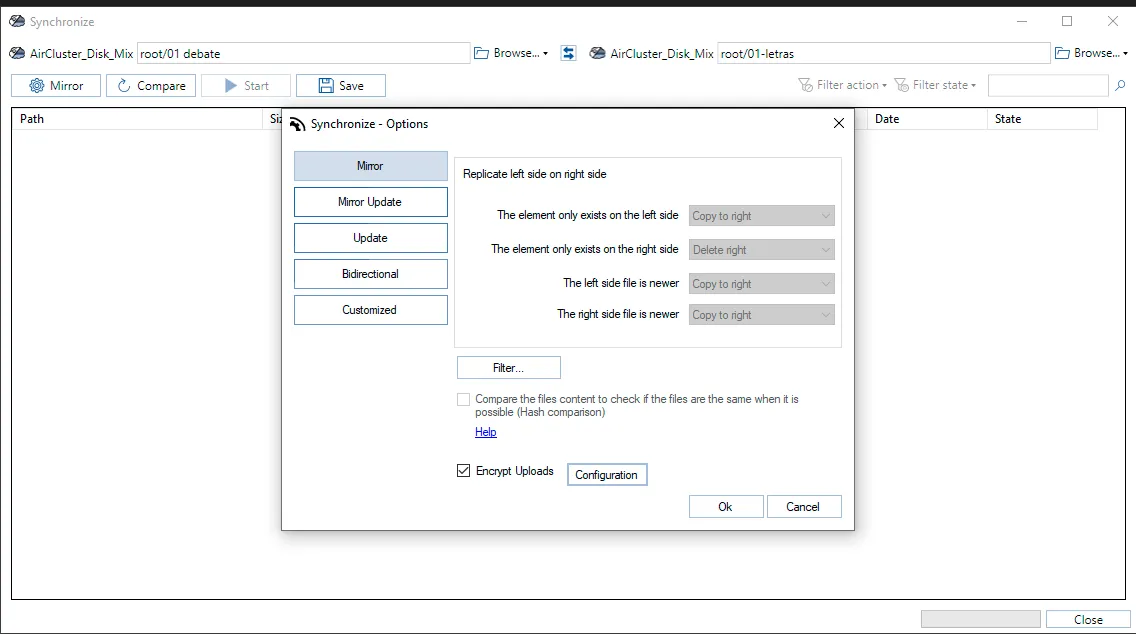
The options window holds everything that decides how the sync behaves:
- The sync mode, on the left: Mirror, Mirror Update, Update, Bidirectional or Customized. It’s the most important decision, and we explain it below.
- Filter…: excludes files by name, size or date.
- Hash comparison: compares file contents, when the service allows it, instead of relying on dates alone.
- Encrypt Uploads: encrypts the files uploaded to the cloud with your password (Pro).
How the sync modes work
When comparing, every file falls into one of four cases: it only exists on the left, it only exists on the right, the left file is newer, or the right file is newer. Each mode is a fixed answer to those four cases, and the options window shows it when you select the mode.
| Mode | Only in source | Only in destination | Source is newer | Destination is newer |
|---|---|---|---|---|
| Mirror | Copies to destination | Deletes it | Copies to destination | Overwrites it with the source file |
| Mirror Update | Copies to destination | Deletes it | Copies to destination | Does nothing |
| Update | Copies to destination | Does nothing | Copies to destination | Does nothing |
| Bidirectional | Copies to destination | Copies to source | Copies to destination | Copies to source |
| Customized | You choose | You choose | You choose | You choose |
Two details in the table tend to surprise people:
- Mirror overwrites even newer files in the destination. If you edited something directly in the destination, that edit is lost. Mirror Update does the same job but keeps those changes.
- Bidirectional does not sync deletions. Because a file that exists on only one side is copied to the other, a file you delete on your PC comes back on the next sync. To make a deletion reach the destination you need Mirror or Mirror Update.

Decision tree: which mode to choose
Answer these questions in order:
- Do you change files on both sides?
- Yes → Bidirectional. Each file ends up in its newest version on both sides. Note that deletions are not synced.
- No, only the source changes → go to question 2.
- If you delete something in the source, should it also disappear from the destination?
- No, keep everything → Update. It’s the safest mode for cumulative backups: it never deletes anything.
- Yes → go to question 3.
- Could the destination have changes you don’t want to lose?
- Yes, or I’m not sure → Mirror Update. It removes extra files but never overwrites a newer file in the destination.
- No, the destination must match the source no matter what → Mirror.
- None of these combinations fits? → Customized, and pick the action for each of the four cases.

Which mode to use, case by case
- Backing up your photos or documents to the cloud: Update. If you delete something on your PC by mistake, it’s still in the cloud.
- An exact replica of a working folder in a cluster: Mirror, or Mirror Update if you sometimes edit the destination.
- Migrating from one cloud to another: Update first; once you’ve checked the result, a final Mirror to make both sides identical.
- Working on the same folder from your laptop and your home PC through the cloud: Bidirectional.
- Uploading only new files without touching anything already in the cloud: Customized, with Do nothing in every case except “only exists on the left”.
Whatever the mode, always compare before you start, and keep automatic start after comparison turned off until you know how a new sync behaves.
Frequently asked questions
What is the difference between Mirror and Update? Mirror makes the destination identical to the source, so it deletes anything extra in the destination. Update only adds new or newer files and never deletes anything.
What is the difference between Mirror and Mirror Update? Just one: if the destination file is newer, Mirror overwrites it with the source file and Mirror Update leaves it alone.
Does bidirectional sync delete files? No. It copies the newest version of each file in both directions, so a file deleted on one side is copied back from the other.
Which mode is safest for backups? Update, because it never deletes a file or overwrites a newer one in the destination.
Can I change what happens to a specific file? Yes. After comparing, you can change the action for any item before starting the sync.
Conclusion
The Air Cluster sync tool shows you what it will do before doing it, and the mode you choose decides what you’ll see in that list. Choosing it comes down to two questions: which way changes travel, and whether deletions should travel with them.
Download Air Cluster and try syncing your clouds.
More on syncing with Air Cluster:
-Guide to cloud synchronization
-How to sync your cloud accounts
-Encrypted synchronization to save files in the cloud