
Cloud storage gives you more room for your files, but working with several accounts can make everyday tasks more complicated. Documents may be stored in one service, videos in another, and project folders somewhere else. Finding a file or deciding where to upload a new folder can mean switching between different websites and applications.
Adding PikPak to Air Cluster brings that storage into a shared workspace. You can use a cluster dedicated to PikPak or combine your PikPak account with other cloud services. From there, you can browse your cloud folders, transfer files, and check your storage capacity through a familiar interface.
See how PikPak fits into this workflow in the video below. It shows a PikPak account being added to Air Cluster, its storage becoming part of the cluster, and files being dragged between the cloud and the computer. You’ll also see how the file explorer and storage chart help you work with your cloud folders through a familiar interface.
PikPak storage as part of your everyday workflow
PikPak is a cloud storage service with features focused on saving and accessing files, including photos and videos. Its online previews and video playback make it useful for people who keep media collections in the cloud. You can find more about the service on the official PikPak website.
However, a cloud account becomes more useful when it fits into the way you already work. You might keep videos in PikPak while storing documents or project materials in other services. Managing those locations separately adds extra navigation whenever you need to upload or retrieve something.
Air Cluster gives PikPak a place within your broader file management routine. Your cloud storage becomes accessible through a common workspace, making it easier to move between local folders and the files stored in your cluster.
A PikPak cluster or a combination of clouds
The right cluster depends on how you organize your files. A dedicated PikPak cluster can be useful if you want to keep that service separate or bring several PikPak accounts together. A mixed cluster suits a workflow where storage from different providers contributes to the same working space.
For example, you could organize a cluster around personal files, creative projects, or material you want to keep outside your computer. The focus becomes the purpose of those files, rather than the website you need to open to reach them.
Air Cluster combines the storage capacity of the accounts in a cluster and presents them through one interface. The accounts continue to provide the underlying storage, while the cluster gives you a common place to manage it.
Manage cloud files like Windows Explorer
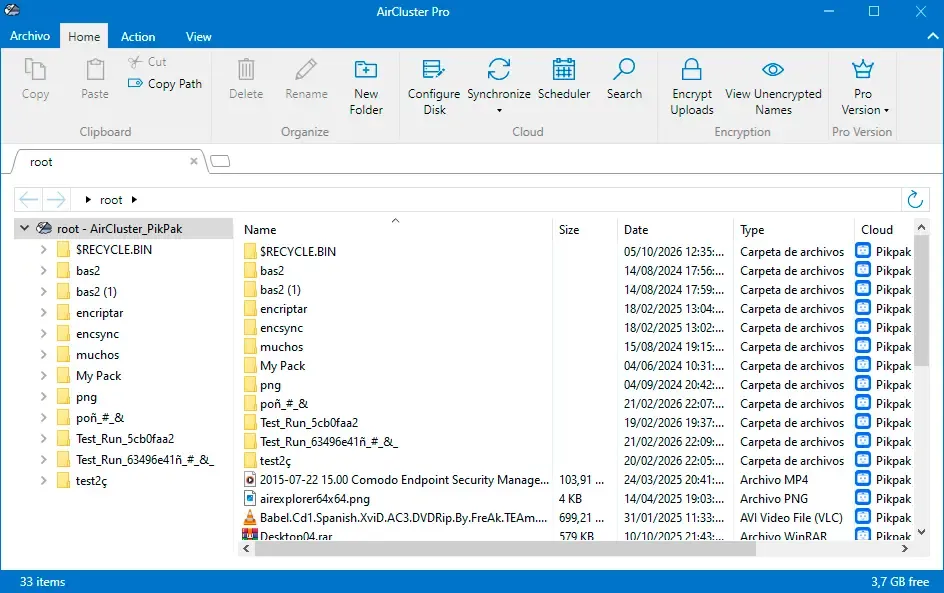
One of the most practical benefits is the familiar way you can work with folders. In Air Cluster’s file explorer, you browse the cluster and manage its contents in a way that resembles Windows Explorer.
That familiarity matters during ordinary tasks. You may want to download a document, upload a folder of photographs, or retrieve a video for a local project. Instead of treating each action as a separate cloud workflow, you work with files and folders through the same interface.
Drag and drop makes the connection between your computer and the cluster especially clear. Files can be dragged from the cloud to your computer, or from your computer into the cloud cluster.
Imagine finishing a project on your PC and uploading its materials to the cluster. Later, you can browse those folders and download the files you need. The workflow stays focused on your content, with PikPak contributing storage alongside any other accounts you have included.
Understand your combined storage space
Managing cloud files also means knowing how much room remains. Once PikPak is included in your cluster, its capacity contributes to the overall storage figures.
The storage chart shows the cluster’s used and available space. You can also examine the capacity contributed by each cloud account, giving you both a general overview and a more detailed view.
This is helpful when planning an upload or organizing a growing collection. A cluster containing several accounts is easier to understand when you can see the total space and the individual contributions together.

Synchronize folders, save configurations, and schedule tasks
Drag and drop works well for occasional transfers. For folders you update regularly, Air Cluster synchronization provides another way to manage the work.
Air Cluster supports synchronization between your computer and a cluster, or between clusters. For example, you could use it to update a cloud copy of a local project folder as that project develops. Read about synchronization between your computer and the cloud.
With Air Cluster Pro, you can save synchronization configurations and reuse them, keeping the chosen folders and settings ready for future runs. The Air Cluster guide explains saved configurations and their availability.
You can also schedule synchronization tasks to run at defined times or repeat periodically. This is useful for recurring work, such as transferring updated files at the end of the day. Explore Air Cluster’s task scheduler support.
Bring PikPak into one cloud workspace
With PikPak in Air Cluster, your cloud storage becomes part of a familiar workspace for browsing, transferring, and synchronizing files. Download Air Cluster and build a cluster that fits your everyday workflow.