
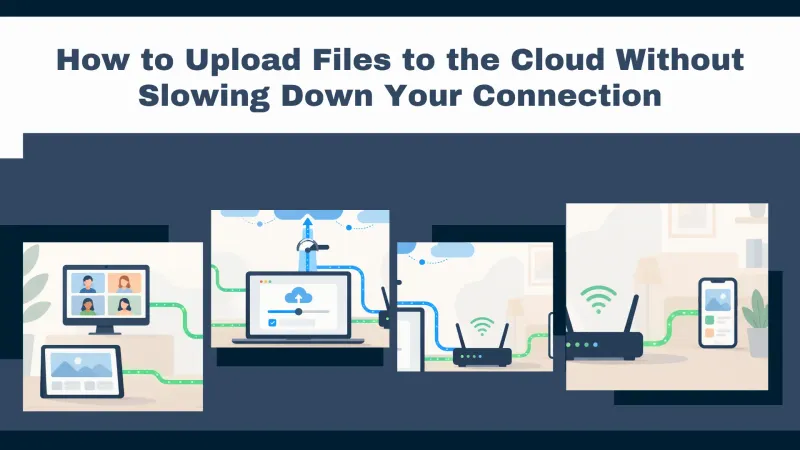
Uploading a folder of photos or a video project to the cloud can overlap with an online meeting, a lesson, or your daily work. If the transfer uses too much bandwidth, your connection may become less responsive just when you need it most. How can you save your files without choosing between finishing the upload and getting on with your work?
Air Cluster lets you adjust upload speed and the number of simultaneous transfers. These are two different controls that help you adapt the application to your connection. This guide explains how to configure them and check the results with a practical example.
Why Uploading Files Can Slow Down Your Internet
Sending files to the cloud uses your connection’s upload capacity. Video calls, messages, and other services also need to send data. When their combined traffic exceeds the available capacity, network congestion can cause delays and make your connection less responsive.
That is why you should check your upload speed, rather than focusing only on downloads. A connection with fast downloads may have considerably less capacity for sending files. Other devices in your home or office also share that connection, leaving less bandwidth available for your computer.
How to Limit Upload Speed in Air Cluster
Upload and download speed limits are available in Air Cluster Pro. To configure the upload limit:
- Open Air Cluster and go to File > Options.
- Find “Upload speed limit”.
- Select the checkbox and enter the limit in KB/s.
- Start an upload and check how your other applications behave.
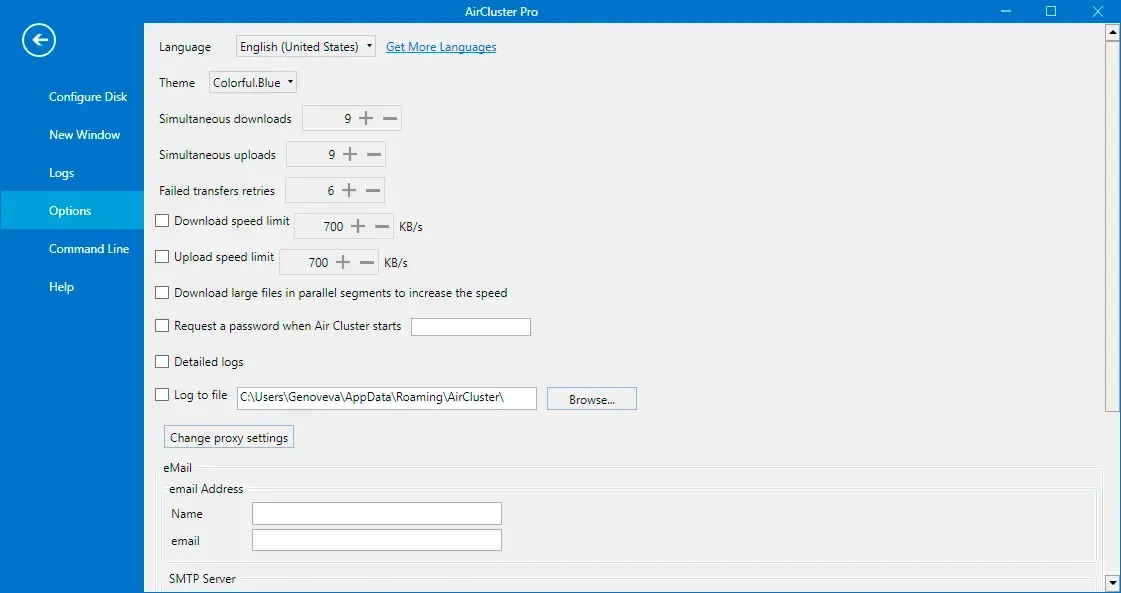
Entering a number alone does not enable the limit: the checkbox must also be selected. You can change the value in the options whenever you need to leave more capacity available or allow transfers to run faster.
The setting controls Air Cluster’s upload traffic. When choosing a value, remember that other applications and devices may also be sending data through the same Internet connection.
Choosing a Limit: An Example With 20 Mbps Upload Speed
Start by measuring your available upload speed with file transfers stopped. Use the actual result as your reference, because your connection may not deliver its advertised speed at that moment.
Speed tests usually display Mbps, whereas Air Cluster uses KB/s. As a rough guide, 20 Mbps corresponds to approximately 2,500 KB/s before accounting for connection overhead.
For that example, you could start with 1,500 KB/s to leave some room for other activities. This is a trial value, rather than a setting that suits every connection. During a video call, check whether the sound and picture remain stable. If problems continue, lower the limit; if everything works comfortably, increase it gradually.
The aim is to balance upload time with a responsive connection. Leaving bandwidth available may make the transfer take longer, but it lets you continue using other services while your files are being uploaded.
Upload Speed and Simultaneous Uploads Are Different Settings
The options also include “Simultaneous uploads”. This value determines how many upload tasks can run at once, while the speed limit controls the rate at which data is sent.
Allowing more simultaneous uploads may help with some collections of files, but it does not multiply your Internet connection’s capacity. Transfers share the available bandwidth, and performance also depends on the storage provider and the files involved.
For a configuration that is easy to evaluate, try two simultaneous uploads and a moderate speed limit. Change one setting at a time so you can identify what improves the result. Reducing concurrency does not replace limiting speed: a single large file can still use a substantial amount of upload capacity.

What Happens When You Use Several Clouds?
Air Cluster lets you combine multiple accounts into a cluster and manage their files from one view. However, adding Google Drive, OneDrive, or other services does not increase your Internet connection’s bandwidth.
Even when files have different destinations, uploads from your computer use the same connection. You can take advantage of the cluster’s combined storage while adjusting transfer speed to share the network with other activities.
If you are downloading files too, configure “Download speed limit” separately. The upload setting does not limit downloads, so each direction needs its own adjustment when you want to control both.
Frequently Asked Questions
Will Limiting Upload Speed Finish the Transfer Sooner?
Usually, a lower limit increases the time required. Its purpose is to leave capacity available so you can keep working while files are being sent.
Can I Upload Without a Speed Limit Again?
Yes. Clear the speed limit checkbox when you want Air Cluster to use the available speed. Performance will still depend on your connection and the storage service.
What if My Internet Connection Still Feels Slow?
Lower the limit and check for other active transfers. It is also worth checking your Wi-Fi connection and whether other devices are using the network heavily.
Try these settings with a small folder before applying them to your regular uploads. Download Air Cluster to manage your clouds, and read the upload and download speed guide for more information about these controls.