
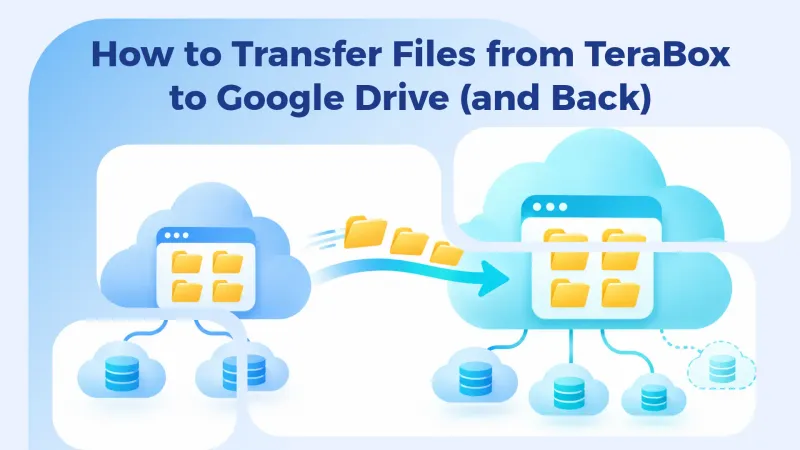
Short answer: in Air Cluster, create one cluster with your TeraBox account and another with your Google Drive account, open each one in its own window, and drag your folders from one to the other. The files are not saved to your hard drive during the transfer and they keep their original dates. And if the destination cloud runs short of space, you can add more accounts to its cluster to make it bigger.
Why move files between TeraBox and Google Drive
Usually it comes down to space. Google Drive gives you 15 GB for free, but that space is shared with other Google services such as Gmail, so it fills up sooner than you expect. TeraBox, on the other hand, offers 1 TB for free, far more room for photos, videos and backups.
The opposite case is common too. Maybe you stored your files in TeraBox and now you need them in Google Drive to share them with your team or open them in Google Docs.
The usual method is to download everything to your computer and upload it again. It works, but you need free disk space, the files lose their original dates, and you have to watch the process from start to finish.
Step 1: Create a cluster for each cloud
In Air Cluster, a cluster is a virtual disk made of one or more cloud accounts. To transfer files between two services, the clearest setup is one cluster for each:
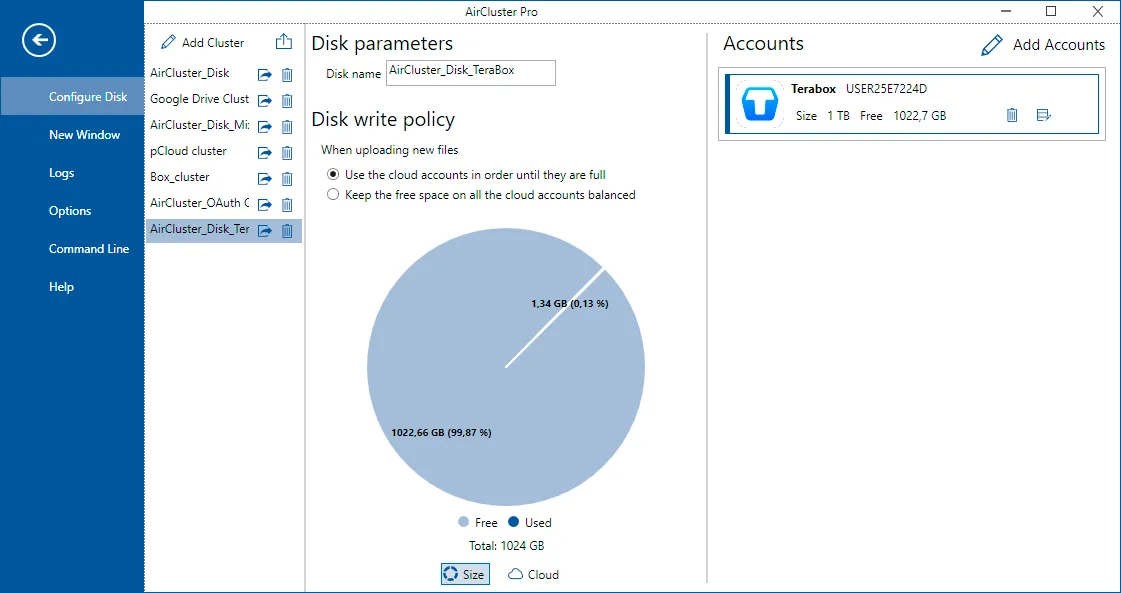
- Open Configure Disk and click Add Cluster. Give it a name, for example “TeraBox”.
- Use Add Accounts to connect your TeraBox account.
- Repeat the steps to create a second cluster, “Google Drive”, with your Google account.
The free version of Air Cluster lets you create two clusters, exactly what you need here.
Grow each cluster by adding more accounts
This is where working with clusters pays off. When you create the cluster for each cloud, you don’t have to stop at one account: you can add others to enlarge its space.
Say you want to move 40 GB from TeraBox to Google Drive. One Drive account doesn’t have enough room, but if you add three Google Drive accounts to its cluster, Air Cluster shows them as a single 45 GB disk. You drag a folder and the program spreads the files across the accounts.
You also decide how they are spread, under Disk write policy:
- Use the cloud accounts in order until they are full: the first account fills up before the next one is used.
- Keep the free space on all the cloud accounts balanced: new files go to the account with the most free space.
The free version supports up to three accounts per cluster. If you need more, Air Cluster Pro removes that limit. You can see how to combine several TeraBox accounts in this article.
Step 2: Transfer the files
There are two ways to do it, depending on what you need.
Drag and drop. Open the TeraBox cluster and, from the menu, open a New Window with the Google Drive cluster. Select folders in one window and drag them into the other. It is the fastest option for a one-off transfer.
A synchronization. If you are moving a lot of folders, click Synchronize > New Synchronization and pick the TeraBox cluster on the left and the Google Drive cluster on the right. Click Compare to see what will be copied before anything happens, then click Start.

One important tip: if the destination folder already contains files, choose the Update mode (“Copy newer files from left to right”). The Mirror mode replicates the left side exactly on the right side, so it would delete anything in the destination that isn’t in the source.
What happens during the transfer
- Your hard drive doesn’t fill up. Air Cluster downloads each file from one cloud and uploads it to the other at the same time, through memory. You don’t need free space on your PC, although the data does go through your internet connection.
- Dates are preserved. Files keep their creation and modification dates.
- Failures are retried. If a transfer fails, the program tries it again.
Step 3: Keep both clouds up to date
Once the files are moved, you can save the synchronization settings (in Air Cluster Pro) and run them again whenever you like. With the task scheduler, the synchronization can also repeat on its own every night or every week.
To make sure nothing is missing, turn on Hash comparison in the synchronization options. Files are then compared by their content, not just by size and date.

What if you didn’t have to move them?
Sometimes what you need isn’t a different cloud but more space. In that case you can put TeraBox and Google Drive in the same cluster: you’ll see both clouds as a single disk of more than 1 TB, with all your files together and nothing moved. We explain it in Unifying Google Drive, TeraBox and other cloud storage.
Frequently asked questions
Can I move files from Google Drive to TeraBox without downloading them? Yes. Air Cluster transfers them from one cloud to the other without saving them to your hard drive.
Do the files lose their dates? No. Air Cluster keeps each file’s creation and modification dates.
How many accounts can I combine for free? The free version allows two clusters with up to three accounts each.
Does it work both ways? Yes. The process is the same from TeraBox to Google Drive as from Google Drive to TeraBox; only the source cluster changes.
Download Air Cluster and try moving your first folders between TeraBox and Google Drive.