
Short answer: in the Air Cluster sync options window, click Filter… and choose what to leave out. You can exclude files by name, extension or folder, include only the files that match a pattern, skip files by size or by date, sync only the root folder, and tell it not to read filtered folders so the comparison runs faster. A filtered file is never copied, overwritten or deleted, on either side.
Before filtering: choose the sync mode
The Air Cluster sync tool compares two folders, on your PC or in a cluster of cloud accounts, and makes one match the other following the rules you choose. Setting it up well comes down to two steps.
The first one is choosing the sync mode, which decides what Air Cluster does with each difference between the two folders: whether it copies, overwrites or deletes. We cover it in depth in Mirror, Update or Bidirectional: Which Sync Mode Should You Choose?, but in short:
- Mirror: the destination ends up identical to the source, deletions included.
- Mirror Update: like Mirror, but it won’t overwrite newer files in the destination.
- Update: copies new and modified files and never deletes anything. It’s the safest mode for backups.
- Bidirectional: takes the newest version of each file to both sides, but doesn’t propagate deletions.
- Customized: you choose the action for each case.
The second step, the one this article is about, is the sync filters: they decide which files that mode applies to. A Mirror of your projects folder is a very different thing if it drags along caches, temp files and gigabytes of dependencies, or if it only uploads what really matters.
Where the filters are
- Open the sync tool and pick the two folders.
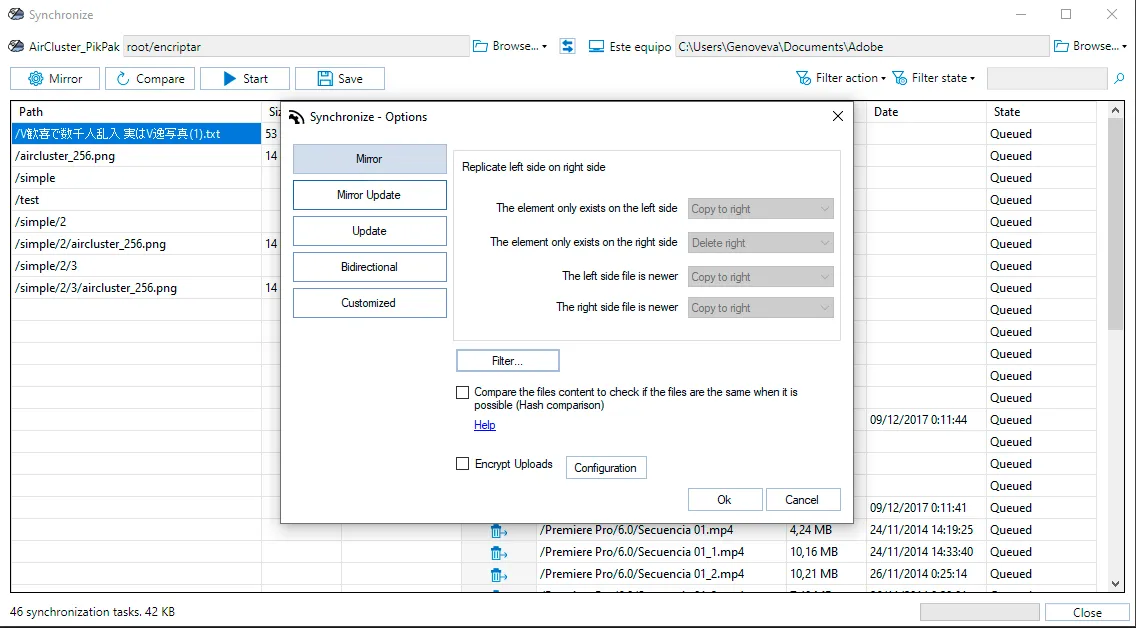
- Click the mode button (Mirror by default) to open the options.
- Click Filter…, below the mode’s action table.
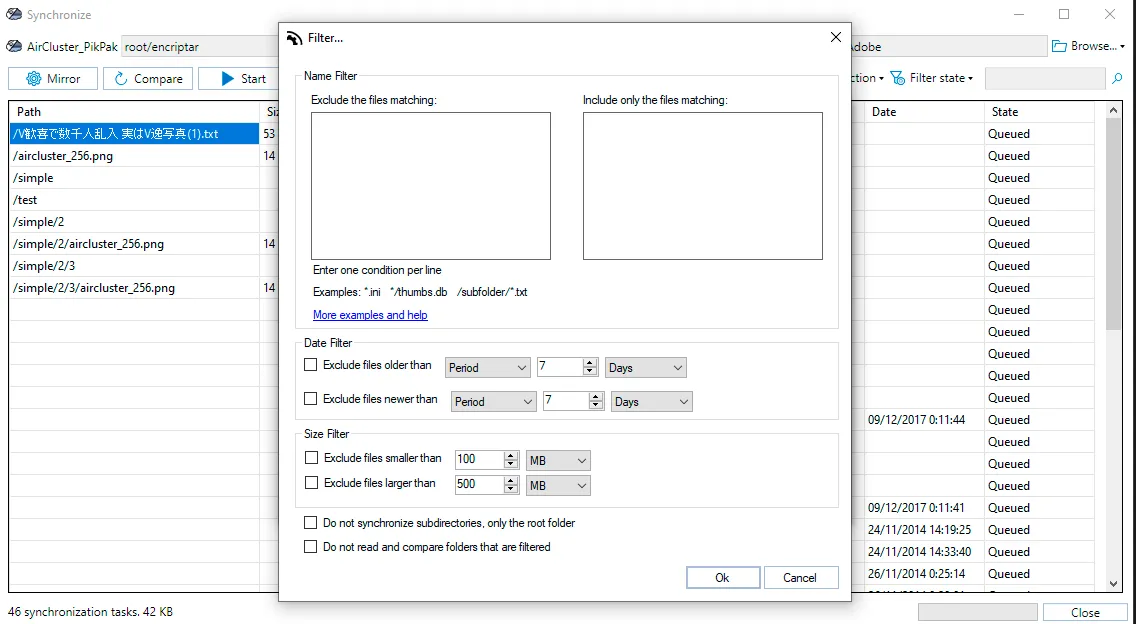
The filter window has three blocks, Name Filter, Date Filter and Size Filter, and two checkboxes at the bottom: Do not synchronize subdirectories, only the root folder and Do not read and compare folders that are filtered. Below the name boxes it reminds you of the syntax (Enter one condition per line) with three examples, *.ini, */thumbs.db and /subfolder/*.txt, plus a More examples and help link.
Filters are saved with the sync configuration, so they also apply when you load it another day or run it from the task scheduler.
What happens to a filtered file
This is the most important thing to understand before setting anything up: a filtered file is left out of the sync completely. Air Cluster doesn’t copy it, doesn’t overwrite it and doesn’t delete it, whichever side it’s on.
That has a very handy consequence: with Mirror, destination files that match a filter are not deleted even if they don’t exist in the source. You can keep an Archive folder in the cloud that isn’t on your PC and protect it with an exclude filter.
The filter is also checked on both sides: if the file meets the condition in the source or in the destination, it’s skipped.
Name filter: exclude and include
It has two text boxes:
- Exclude the files matching: anything that matches one of the patterns is left out.
- Include only the files matching: if you type something here, only what matches one of the patterns is synced. Leave it empty and it doesn’t apply.
If you use both, a file has to pass the include filter and match none of the exclude patterns.
How to write patterns
- Write one pattern per line, or separate them with semicolons (
;). - The asterisk (
*) stands for any text, including none, and it also crosses folders:/Reports/*.txtcovers the.txtfiles in Reports and in all its subfolders. - Matching is case-insensitive:
*.JPGand*.jpgare the same. - The pattern is matched against the path from the folder you’re syncing, which always starts with
/. A fileC:\Work\Reports\january.docx, when syncingC:\Work, is seen as/Reports/january.docx. That’s why you should start almost every pattern with*or/: plainThumbs.dbmatches nothing,*/Thumbs.dbdoes.
Those paths are exactly what you see in the Path column of the list after comparing, so it’s the best place to copy the shape of a pattern from:
| You want to leave out… | Pattern |
|---|---|
| Temp files | *.tmp |
Office lock files (~$report.docx) |
*/~$* |
| Windows thumbnails | */Thumbs.db |
| Editor backup files | *.bak |
.ini files in any folder |
*.ini |
.txt files in the Reports folder and its subfolders |
/Reports/*.txt |
| A folder called node_modules, wherever it is | */node_modules and */node_modules/* |
| Only the Drafts folder in the root | /Drafts and /Drafts/* |
How to exclude a whole folder
To leave out a folder and everything in it, use two patterns: one for the folder and one for its contents, for example */Cache and */Cache/*. The first one filters the folder itself and the second one, every file and subfolder inside it.
Include only
It’s the quick way to sync one type of file and nothing else. For a backup of your photos and videos:
*.jpg; *.jpeg; *.png; *.heic; *.mp4; *.movKeep in mind that this filter also applies to folder names. That’s why you shouldn’t combine it with Do not read and compare folders that are filtered: a folder like /Holidays doesn’t end in .jpg, so it would count as filtered and Air Cluster wouldn’t go into it. Without that checkbox, it goes into every subfolder and checks each file one by one.
For advanced users: regular expressions
If a pattern starts with [ and ends with ], what’s inside is used as a regular expression. For example, [\.(tmp|bak|log)$] excludes .tmp, .bak and .log files in one go. Without brackets, the asterisk is the only wildcard.
Date filter
It uses each file’s modification date and has two checkboxes you can turn on separately:
- Exclude files older than: leaves out old files.
- Exclude files newer than: leaves out recent ones.
Each one accepts a period (in days, hours or minutes), a specific date, This Month or This Year. The window suggests 7 days; set your value before ticking the checkbox.
Two practical uses:
- Upload only recent work: Exclude files older than 30 days. Ideal for a quick daily backup of a huge folder.
- Don’t copy half-written files: Exclude files newer than 10 minutes. If a camera, a scanner or an export tool is saving files into the folder, they’ll wait for the next run and be uploaded complete.
Size filter
Also with two checkboxes: Exclude files smaller than and Exclude files larger than, in bytes, KB or MB. The values shown by default (100 MB and 500 MB) are just a suggestion.
- Protect a small cloud: if your cluster includes free accounts with little space, Exclude files larger than 2048 MB keeps out the videos and disk images that would fill an account in one go.
- Ignore empty or leftover files: Exclude files smaller than 1 KB.
Sync only the root folder
The Do not synchronize subdirectories, only the root folder checkbox limits the sync to the files sitting directly in the chosen folder. Subfolders are not read, not compared and not created on the other side.
It’s perfect for “flat” folders, like Downloads, a scanner’s output folder or a folder where an app drops its exports, and it makes the comparison almost instant even if there are thousands of files underneath.
Do not read and compare filtered folders: faster comparisons
By default, Air Cluster reads every folder and then applies the filters to each item. That way you also see what was filtered in the list, but it comes at a cost: in the cloud, every folder read means requests to the service, and a folder with tens of thousands of files can make the comparison much longer.
With Do not read and compare folders that are filtered, when a folder matches a name filter Air Cluster doesn’t even go into it. The comparison is much faster, at a price: those folders don’t show up in the sync list.
Turn it on when you exclude big folders you don’t care about (node_modules, .git, caches, build folders), and leave it off if you use Include only.
Recipes: mode + filters
| What you want to do | Mode | Filters |
|---|---|---|
| Back up photos and videos | Update | Include only *.jpg; *.jpeg; *.png; *.heic; *.mp4; *.mov |
| Replicate a projects folder without the junk | Mirror | Exclude */node_modules, */node_modules/*, */.git, */.git/*, *.tmp + Do not read and compare folders that are filtered |
| Quick daily backup of recent work | Update | Exclude files older than 30 days |
| Upload what the scanner saves | Update | Only the root folder + exclude files newer than 10 minutes |
| Keep large videos out of a small cloud | Update | Exclude files larger than 2048 MB |
| A Mirror that respects a folder that only exists in the cloud | Mirror | Exclude /Archive and /Archive/* |
Check before you start
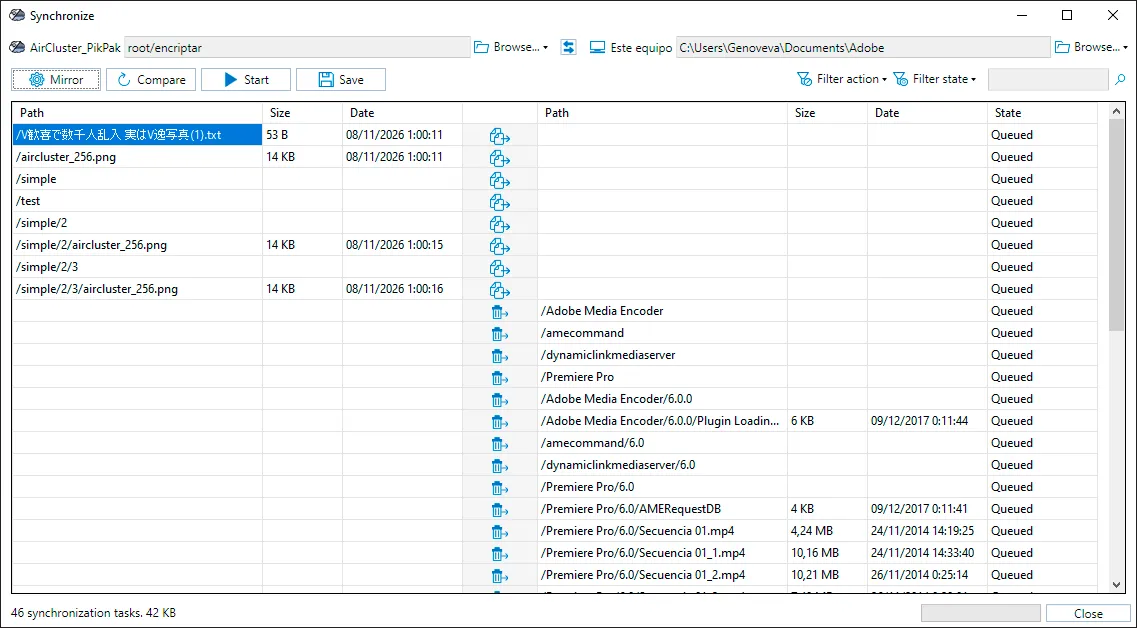
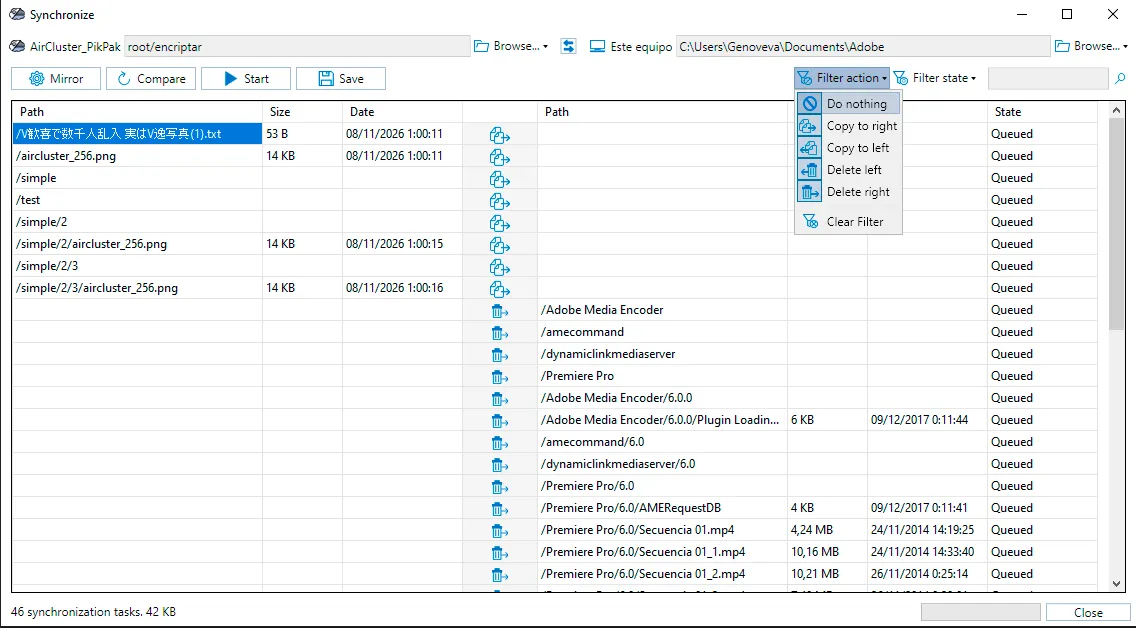
Whatever the combination, click Compare and review the list before you click Start. The source is on the left, the destination on the right and the action icon in the middle. Filtered files show up as Do nothing (except those in folders that weren’t read).
In the previous screenshot, a Mirror from a PikPak cluster to a PC folder marks with the trash icon everything that is on the PC but not in the cloud: it would be deleted. If one of those folders has to stay, just exclude it (for example /Premiere Pro and /Premiere Pro/*) and compare again.
To avoid scrolling through a long list, open Filter action and leave checked only the action you want to review, for example Delete right, to see at a glance what will be removed. Clear Filter shows everything again.
If you save a sync report, it also counts how many files were filtered.
Once the result is what you expect, save the configuration and schedule it: the filters go with it.
Frequently asked questions
Is an excluded file deleted from the destination if I use Mirror? No. Filtered files are left out of the sync on both sides: they’re not copied, overwritten or deleted.
How do I exclude a whole folder?
With two patterns, one for the folder and one for its contents: */FolderName and */FolderName/*. If you also turn on Do not read and compare folders that are filtered, Air Cluster won’t waste time reading it.
Why doesn’t my pattern exclude anything?
Almost always because it doesn’t start with * or /. The pattern is matched against the full path from the synced folder (for example /Photos/beach.jpg), so beach.jpg doesn’t match and */beach.jpg does.
Are filters case-sensitive?
No. *.PDF and *.pdf exclude the same files.
Can I combine several filters? Yes. Name, date and size filters apply at the same time: a file is skipped as soon as it meets any of them.
What’s the difference between “only the root folder” and excluding subfolders by name? Only the root folder ignores every subfolder without you having to name them, and it doesn’t read them either. Excluding by name lets you choose which subfolders stay out and which don’t.
Conclusion
The mode decides what happens with each difference; the filters decide which files it happens to. Together, they turn a “sync everything” job into a fast, clean backup that doesn’t waste cloud space on what you don’t need. If you’re not sure yet which mode to use, start with our guide to sync modes and come back here to fine-tune it.
Download Air Cluster and try the filters with your clouds.
More on syncing with Air Cluster:
-Mirror, Update or Bidirectional: Which Sync Mode Should You Choose?
-Encrypted synchronization to save files in the cloud
-Limitless Efficiency: Set It Up Once, Let Air Cluster Sync Forever