
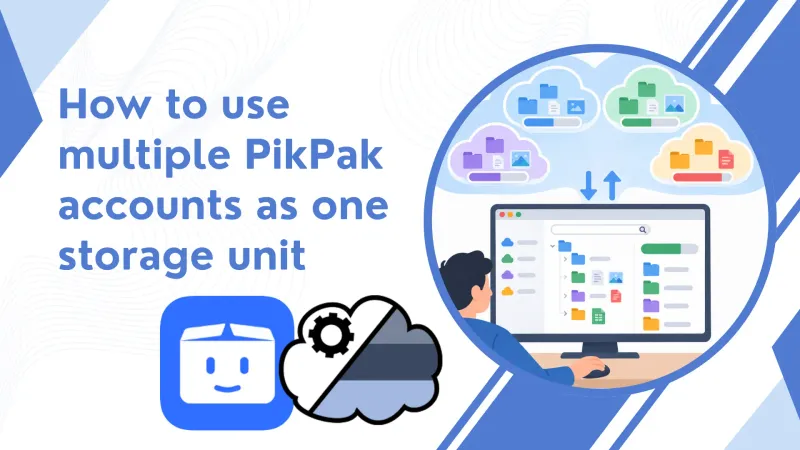
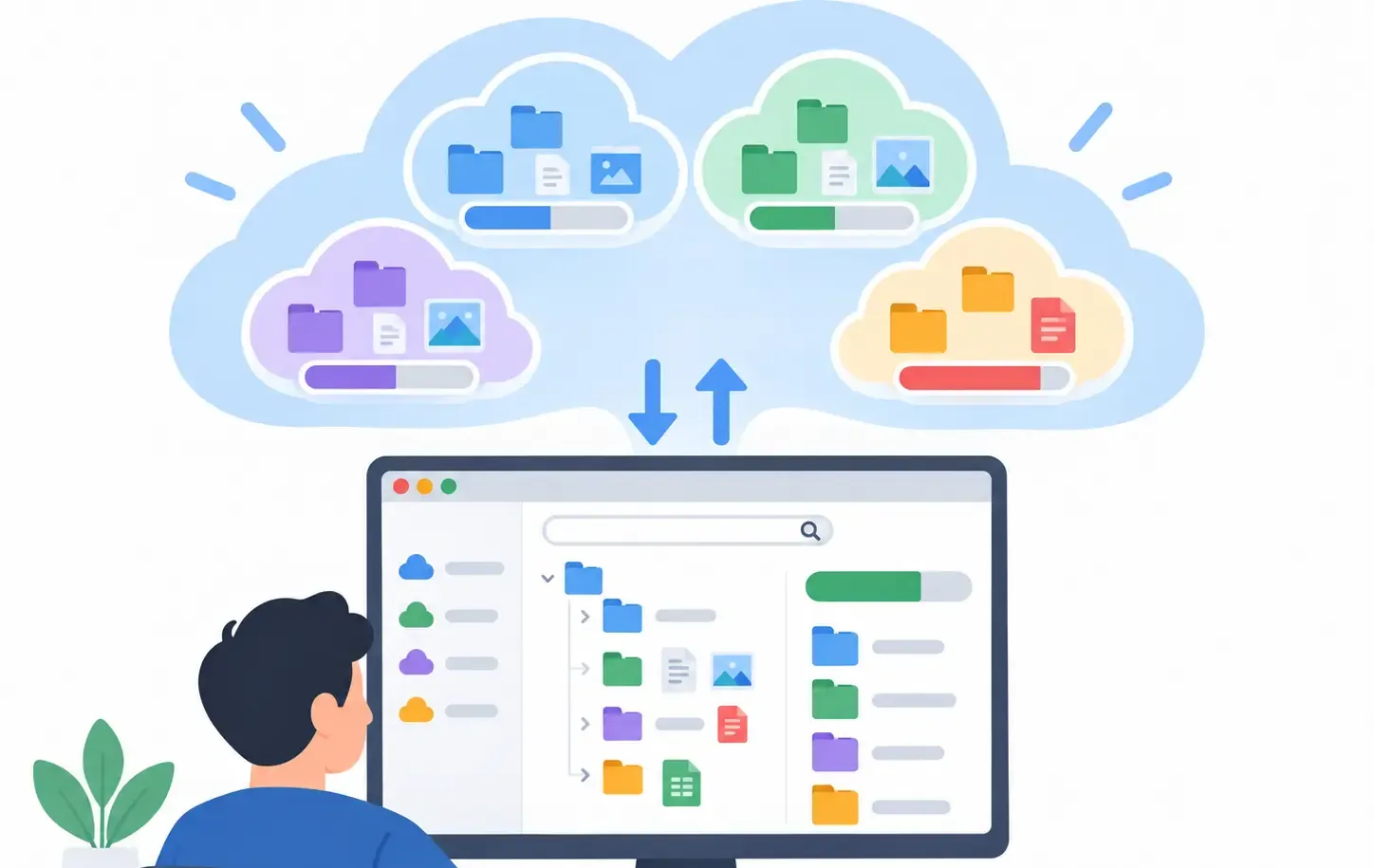
More than one PikPak account can separate personal files, projects, or backups. The complication is remembering where a file was saved, how much room remains in each account, and which one should receive the next upload. With Air Cluster, you can place those accounts in a cluster and use them as one virtual unit.
It is worth being precise about “one unit.” Air Cluster does not create a new account, automatically move existing files, or duplicate every file. Each file remains in its PikPak account while the app builds one view for browsing, uploading, downloading, copying, moving, and searching. The cluster capacity is the available space across its accounts, but the files remain real PikPak files.
Add Several PikPak Accounts to a Cluster
Open Air Cluster and create a cluster from File > Configure disk. Give it a recognisable name, click Add account, select PikPak, and sign in. Repeat for every account; a cluster can use only PikPak or combine it with other services.
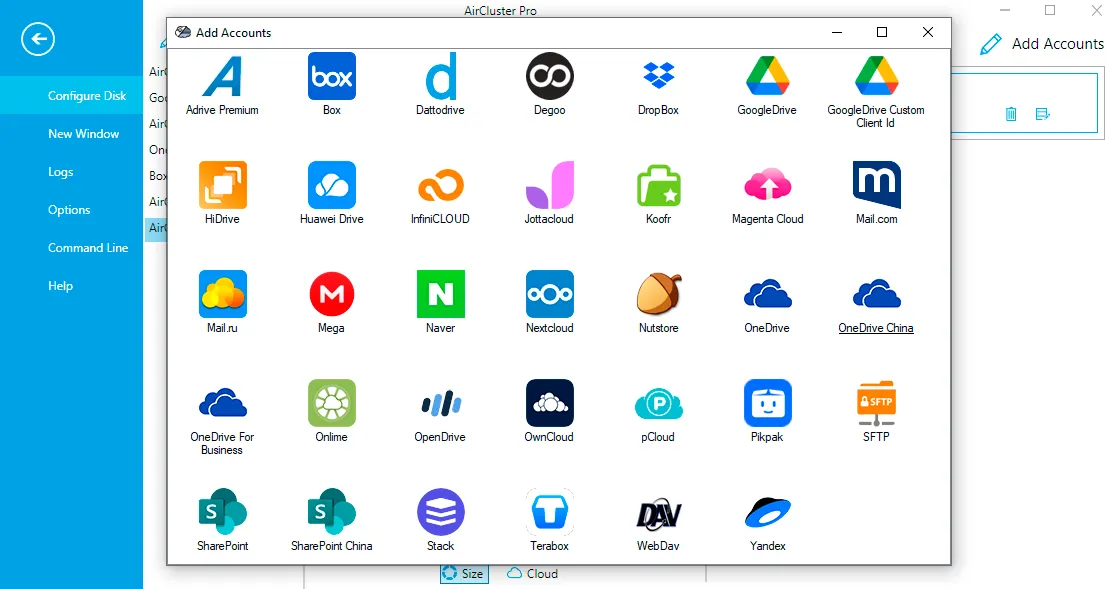
The order of that list can matter too. It does more than organise the display: it controls the destination of new uploads when you use the ordered write policy. You can change the order by dragging an account or using the arrows in the configuration window.
See the Combined Space Without Losing the Details
When you open a cluster, Air Cluster queries its accounts and displays their combined free capacity. Two accounts with 20 GB free each show roughly 40 GB for planning a backup from one view.
The total does not remove the limit of each individual account, however. A file is uploaded whole to one account; the cluster does not split it across two PikPak accounts to finish an upload. Before uploading an especially large file, make sure that at least one account has enough room for it. Four accounts with 10 GB free each do not provide a destination for one 25 GB file, even though the cluster total is 40 GB.
How Air Cluster Decides Where to Save a File
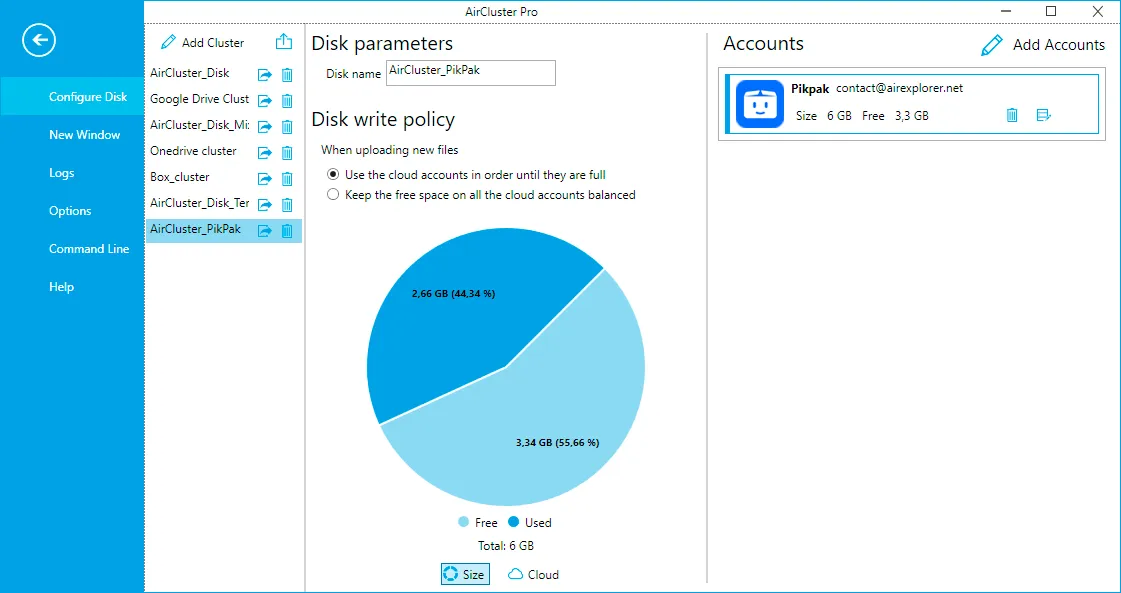
The disk write policy decides where new folders and files are written.
The default option is “Use cloud accounts in order until they are full.” Air Cluster checks the accounts in list order and saves a file in the first one with enough free space for it. Choose this if you want to fill a particular account first, keep another in reserve, or use a distribution that is easy to predict.
The alternative is “Keep the free space on all cloud accounts balanced.” In this mode, Air Cluster selects the account with the most free space for new uploads, aiming to prevent one account from filling far ahead of the others. It is useful for recurring backups containing many files and for making the most of several similarly sized accounts.
The policy governs future writes only: changing it does not rearrange existing files or trigger surprise transfers.
What Happens When an Account Is Full
With the ordered policy, when an account lacks sufficient space, Air Cluster moves to the next one that can hold the upload. A full account does not disappear: its files remain visible and can be opened, downloaded, or deleted, and any space you free becomes available again.
With the balanced policy, new uploads go to accounts with more capacity. In both cases, one file must fit in one account. If none can hold it, the upload cannot complete even when the sum of small free spaces looks sufficient. Free space or add an account with enough individual capacity.
How to Find Files Later
You usually do not need to remember the physical account: search or browse within the cluster. The Cloud column identifies each item’s service and account. Properties shows the PikPak account and the file’s real path.
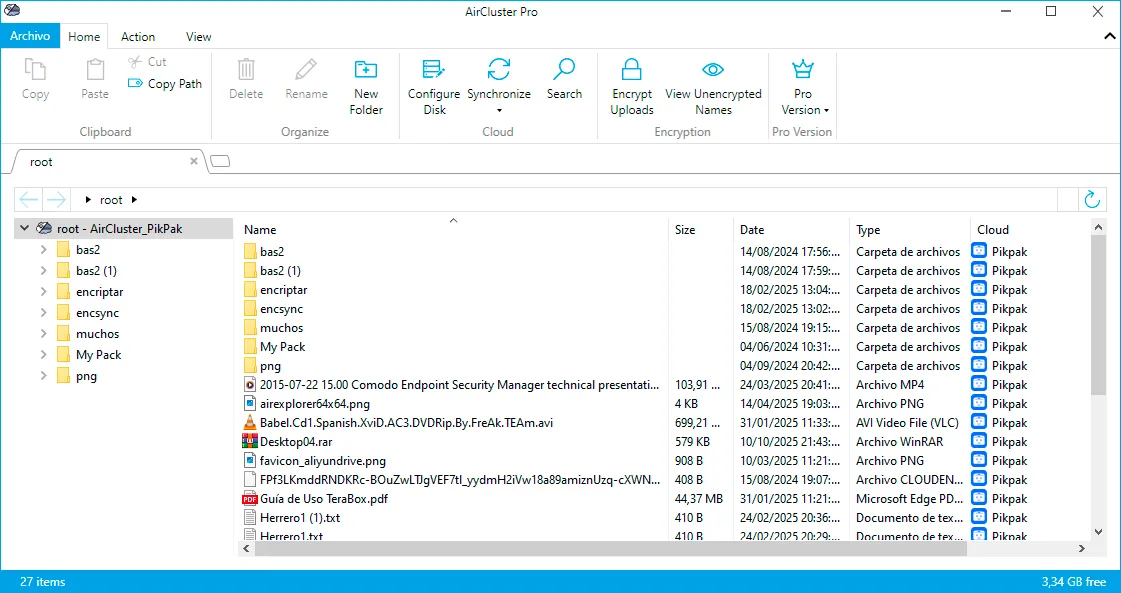
Folders are presented as one structure, though one logical folder can contain files spread between accounts. This is a unified view, not a copy in every destination.
To prevent ambiguity, do not directly create different files with the same name and path in separate accounts. Matching entries are grouped under one logical item. Use a consistent folder structure and manage files from Air Cluster to find them by name and, when needed, see their physical account.
A PikPak cluster does more than add up gigabytes: it distributes capacity predictably and provides one place from which to retrieve everything.
You can also read these guides: