
Air Cluster’s command line does not have to replace the desktop app. Its best use is taking care of one clear, repetitive job that you already know how to perform: uploading a folder of files and downloading an updated version later, for example.
In this article, we will create that workflow. It is a simple case, but the same approach works for sending backups, delivering exports, collecting processed invoices, or exchanging files between two computers. The goal is to perform each operation quickly, without browsing several accounts or repeating the same interface steps.
The Use Case: Send Files and Retrieve the Updated Version
Imagine that a small business prepares a file named Project-files.zip in C:\Company\Exports. It must be uploaded to the CompanyCloud cluster, in root/Files/ToReview. Another person reviews the contents and places an updated version, Project-files-reviewed.zip, in root/Files/Reviewed.
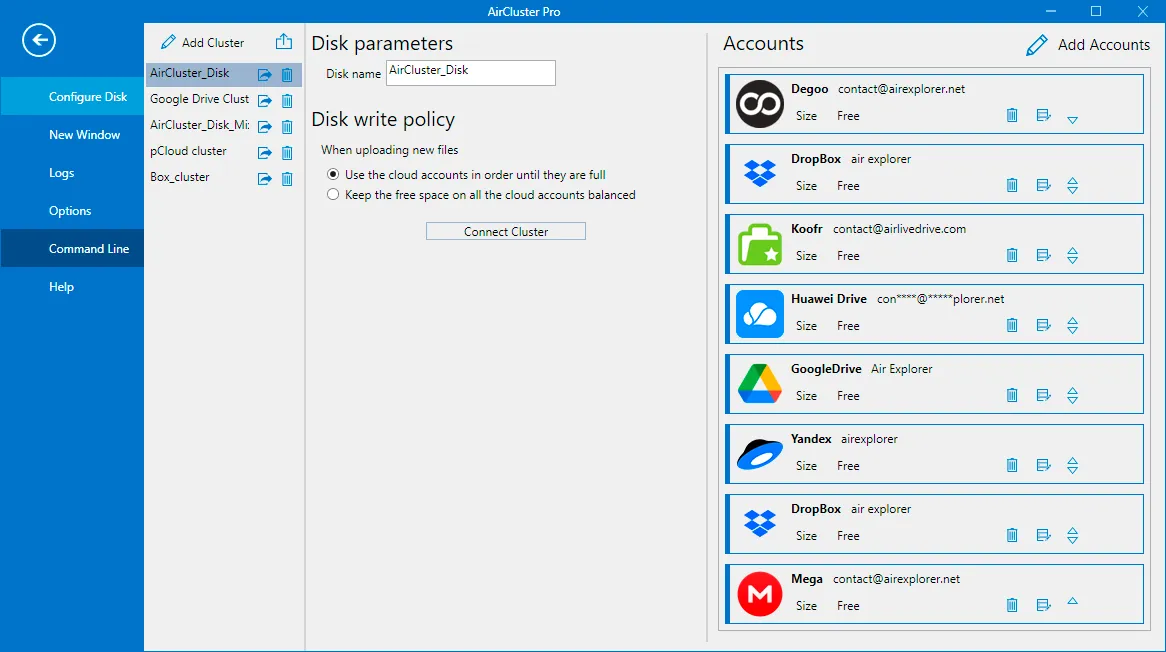
Before creating the scripts, open Air Cluster and confirm that the CompanyCloud cluster is configured and that the target folders exist. The command line uses the cloud accounts and clusters that you have already set up in the desktop application. This feature requires Air Cluster Pro.
Why Use the Command Line for This Job?
The main benefit is not typing commands; it is turning a manual action into a reliable routine. A script always uses the same local path, cluster, and destination folder. That reduces the mistakes that happen when someone is in a hurry or working with several similar folders.
It also makes exchanges that depend on another person faster. When files are ready, you run the upload script; once you receive confirmation that an updated version is available, you run the download script. There is no need to open several web interfaces or manually search folders in every account.
The script targets the unified cluster, not an individual account. If you add more storage later, the automation can keep using the same path.
Step 1: Check the Space and Folder
Open Command Prompt or PowerShell in Air Cluster’s installation folder. The command-line executable is named AirClusterCmd.exe. You can view the arguments supported by your installed version with:
AirClusterCmd.exe helpBefore scheduling an upload, check that the cluster has free space and that the remote folder is correct:
AirClusterCmd.exe quota CompanyCloud
AirClusterCmd.exe dir "CompanyCloud" "root/Files/ToReview"
quota reports used and available storage, while dir lists the specified location. If you see a connection error, resolve it in the desktop app and try again.
Step 2: Create the Upload Task
Create a text file named upload-project-files.bat and save it somewhere such as C:\Company\Scripts. Add the following content:
@echo off
AirClusterCmd.exe upload "C:\Company\Exports\Project-files.zip" "CompanyCloud" "root/Files/ToReview"
upload receives the local file, cluster, and destination folder. Run the .bat file manually once and verify the result with:
AirClusterCmd.exe dir "CompanyCloud" "root/Files/ToReview"Once the test works, keep the .bat file in an accessible folder. Run it from File Explorer or a terminal whenever you prepare new files. If AirClusterCmd is not on PATH, use its full path in the script.
Step 3: Create the Download Task
The second task retrieves the updated file. Create download-reviewed-files.bat with this command:
@echo off
AirClusterCmd.exe download "CompanyCloud" "root/Files/Reviewed/Project-files-reviewed.zip" "C:\Company\Received"
For download, the order is cluster, remote file, and local folder. Test it with a sample file in Files/Reviewed to confirm the filename and path.
Run the download after the person responsible confirms that the updated version is available. Users will find the updated file in C:\Company\Received.
Advantages of an Automated Workflow
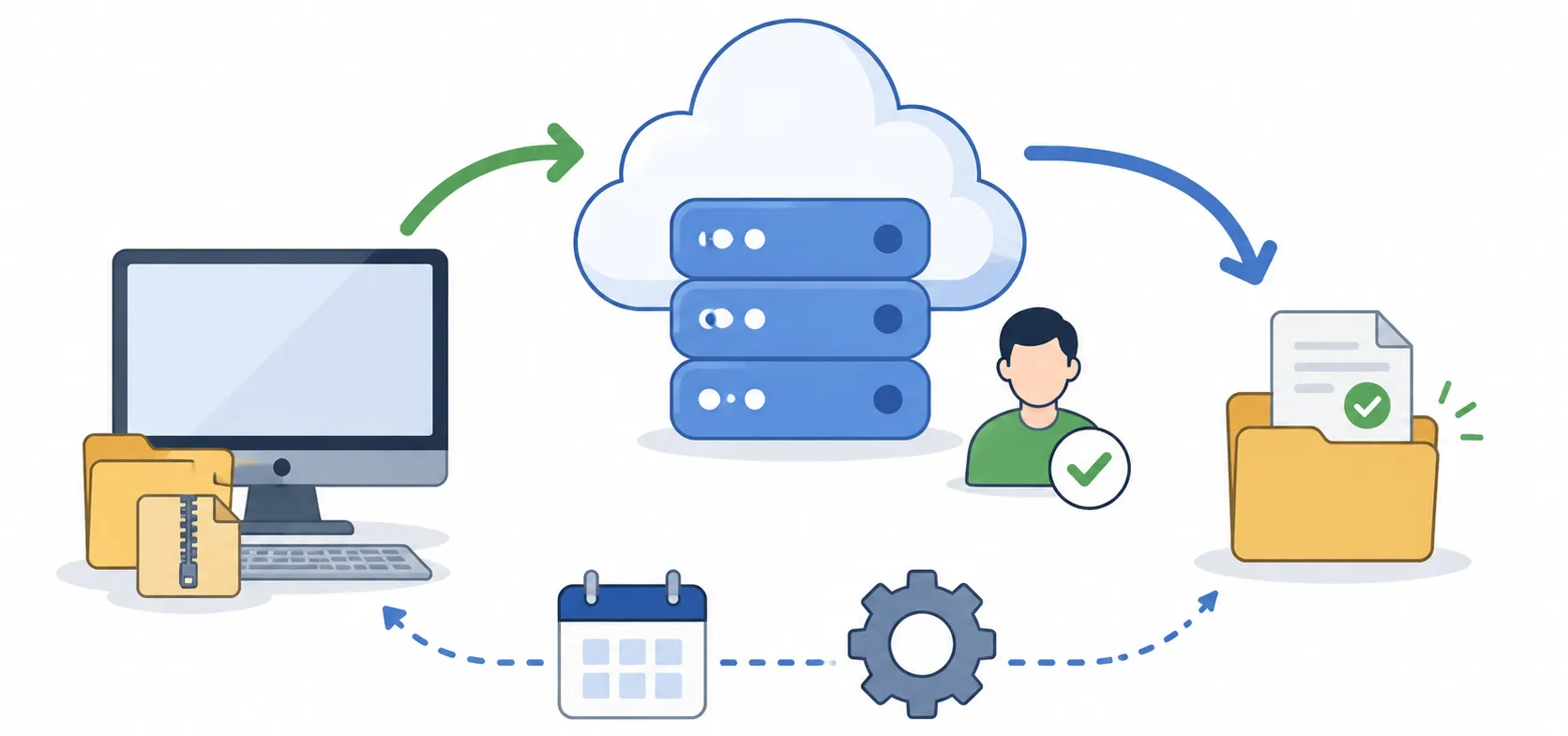
This example removes two manual jobs each day, but the advantages go beyond time saved:
- Fewer mistakes: Paths and filenames are defined once in the script.
- More speed: You run a complete operation without browsing separate cloud accounts.
- Clear traceability: Each file arrives in a known local and remote folder.
- More flexibility: You can adapt the paths or reuse the pattern for other files.
- Expandable capacity: The destination remains the same cluster even if you add more cloud accounts.
For important files, test with sample copies first.
This workflow provides a clear foundation for automating backups, downloads for local processing, or transfers between clusters.
Continue learning about Air Cluster:
-Use the Command Line to Automate Tasks
-How to Upload Files or Folders to the Cloud
-Manage Your Files in a Cloud Cluster