


The hidden risks of manual sync and how Air Cluster’s sync tool avoids them
In today’s fast-paced digital world, relying on manual file synchronization between your cloud storage services is a recipe for disaster. Many users still drag and drop files between local folders and cloud interfaces, believing they are saving time or maintaining better control. However, this outdated approach introduces significant risks to data integrity and workflow efficiency. The growing need for reliable, seamless cloud synchronization in both personal and professional environments demands a smarter solution.
Manual sync methods invariably lead to data loss, frustrating file duplications, and confusing version conflicts. It’s a process fraught with human error and inefficiency.

Enter Air Cluster,an automated solution designed to eliminate these risks entirely. It provides a secure, efficient, and reliable way to unify and synchronize all your cloud drives without the hassle of manual oversight.
The hidden risks of manual sync
The seemingly simple act of manually copying files is laden with potential pitfalls that can derail productivity and compromise sensitive data.
- Data loss and overwrites: The most significant danger is accidental data loss. In the rush to update files, it is easy to mistakenly overwrite a newer version with an older one or delete essential files permanently. Unlike automated systems with robust recovery options, manual errors often lack a safety net.
- Human error: Humans forget things. You might forget to copy the latest project file before leaving the office, or sync the wrong set of folders. These errors lead to using outdated information, causing project delays and communication breakdowns within teams.
- Time consumption: Manual synchronization is surprisingly time-consuming. You have to constantly monitor file locations, verify versions, and manage multiple cloud interfaces. This attention is inefficient, especially when dealing with large datasets or complex, multi-cloud setups.
- Inconsistency across devices: Relying on manual processes results in different versions of files spread across various computers, tablets, and cloud accounts. When teams rely on this method for collaboration, version conflicts become inevitable, leading to confusion and rework.
How Air Cluster’s sync tool solves these problems
Air Cluster transforms this process into a streamlined, hands-off operation. It addresses the core failures of manual synchronization with powerful automation and integration features.
- Automated synchronization: By setting up automated sync tasks, Air Cluster entirely eliminates human error. Once configured, your files are synchronized in the background according to your defined rules, ensuring consistency without constant manual intervention.
- Multi-cloud integration: Air Cluster excels at managing disparate cloud storage services. You can seamlessly sync across multiple cloud accounts, whether it’s Google Drive, OneDrive, Dropbox, or others, treating them as one unified storage space.
How to configure Air Cluster’s sync tool
Implementing Air Cluster’s sync features is straightforward and makes your workflow instantly more efficient.
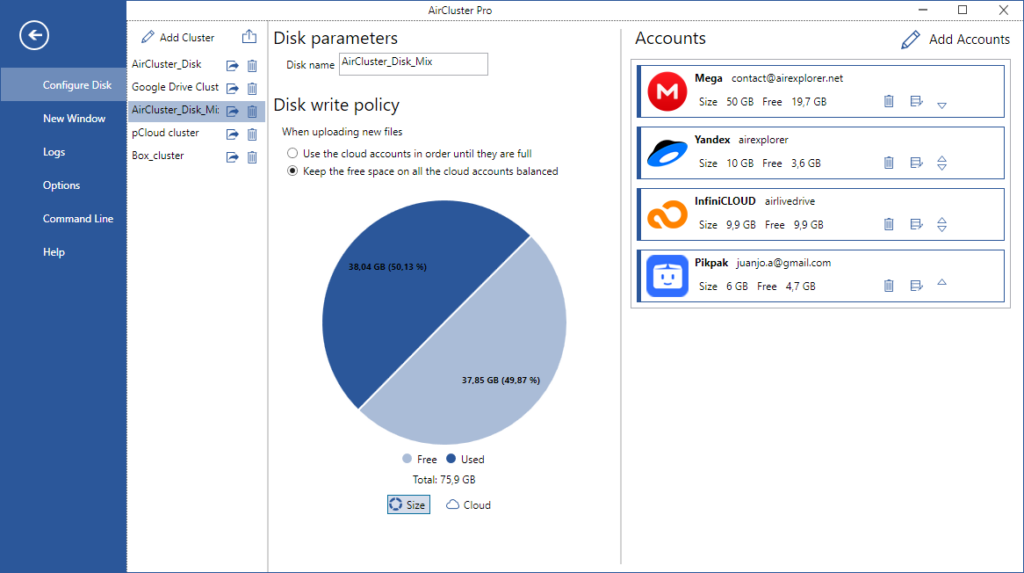
Step 1. Create your cluster: First, download and install Air Cluster. Create a cluster with one or more clouds and create the other cluster with the other cloud to synchronize.
Step 2. Open the sync tool: Navigate to the main toolbar and select the sync option. This opens a dedicated interface where you define the source and destination of your synchronization task.
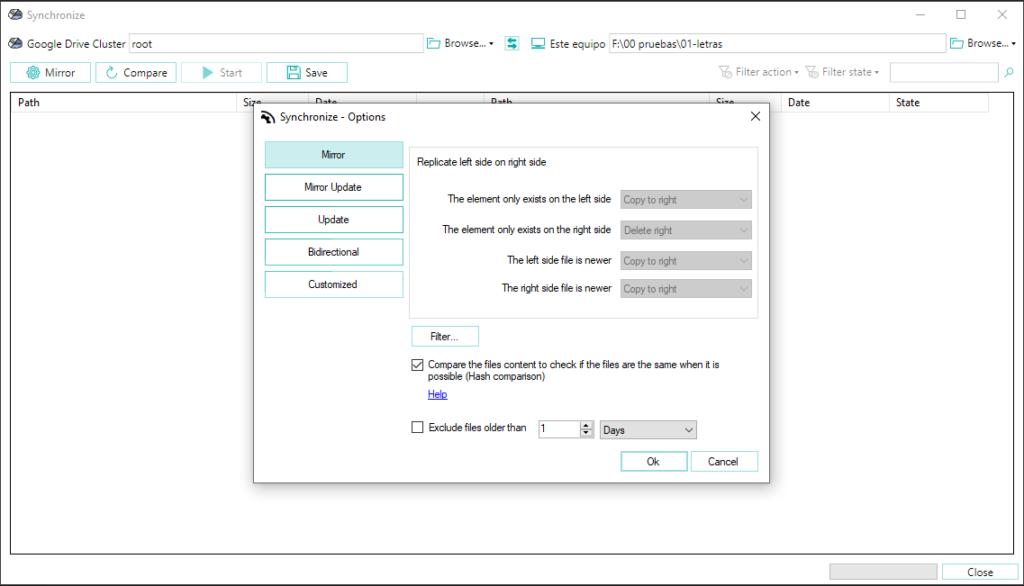
Step 3. Define sync rules: This is where you customize your workflow. Choose how you want your data managed using options like:
–Mirror: Keeps the destination an exact copy of the source (one-way sync).
–Mirror updated: Updates files only if the source file is newer than the destination file.
–Update: Copies new or modified files to the destination.
–Bidirectional: Keeps both locations identical by syncing changes in both directions.
–Customize: Offers advanced settings for specific folder exclusions or scheduling.
Step 4. Monitor and verify: Use the progress window within the application to monitor file transfers in real-time. Once the process is complete, you can verify that all selected folders are perfectly updated across all your linked cloud drives.
Why choose Air Cluster over manual sync
The choice is clear. Automating your cloud management with Air Cluster allows you to:
- Save time and reduce stress by eliminating tedious manual checks.
- Protect data integrity and prevent costly errors, duplications, and data loss.
- Improve collaboration and workflow efficiency by ensuring everyone always has access to the correct, latest version of files.
Conclusion
The dangers of manual sync, data loss, human error, and inefficiency, are no longer acceptable in today’s cloud-dependent world. Air Cluster provides a safe, efficient, and reliable solution that automates synchronization and unifies your digital workspace.
Download Air Cluster today and try the sync tool to experience a seamless, automated, and secure cloud management solution. Take control of your cloud storage workflow and focus on what truly matters.
You can check more information about more features here:
-Migrating from Dropbox and OneDrive to PikPak
-File organization across clouds
-Step-by-Step: Back up your data to the cloud
