

How to Schedule Backups Across Multiple Cloud Accounts
If your files live scattered across Google Drive, OneDrive, Dropbox, and a couple of forgotten free accounts, backing them up manually is not a strategy, it is a countdown to a missed file. The good news is that you can turn that fragmented storage into a single, automated backup system, and you do not need to buy an expensive cloud plan to do it.
This guide walks you through building a real backup workflow with Air Cluster, combining multiple cloud accounts into one unified storage cluster and scheduling backups so they run without you touching a thing .
Why Scattered Cloud Storage Hurts Backups
Most people do not lack cloud storage. They lack organized cloud storage. A few free gigabytes here, a shared folder there, and legacy files in an account nobody checks anymore . That fragmentation creates blind spots: you never quite know where your latest backup is, and switching between accounts manually invites human error .
Scheduling removes that dependency on memory entirely. It guarantees business continuity, lets you run transfers during off-peak hours to save bandwidth, and ensures an updated backup always exists without manual intervention .
Step 1: Build Your Storage Cluster
Before scheduling anything, you need a destination that can actually hold your backups. Air Cluster lets you create a logical container called a cluster, which groups several cloud accounts into one high-capacity virtual drive .
- Open Air Cluster and go to the Configure Disk tab.
- Click Add Cluster and give it a clear name, such as Corporate_Backup_2026.
- Choose a Disk Write Policy: “Use accounts in order” fills one account before moving to the next, while “Keep free space balanced” spreads usage evenly across all accounts .
This step matters more than it seems. A well-planned cluster structure now saves you from reorganizing storage later.
Step 2: Add Multiple Cloud Accounts
Once the cluster exists, it needs actual storage behind it. Air Cluster connects with virtually every major provider, including Google Drive, OneDrive, Dropbox, Box, Mega, Naver, Mail.ru, Yandex, and standard protocols like WebDAV or SFTP .
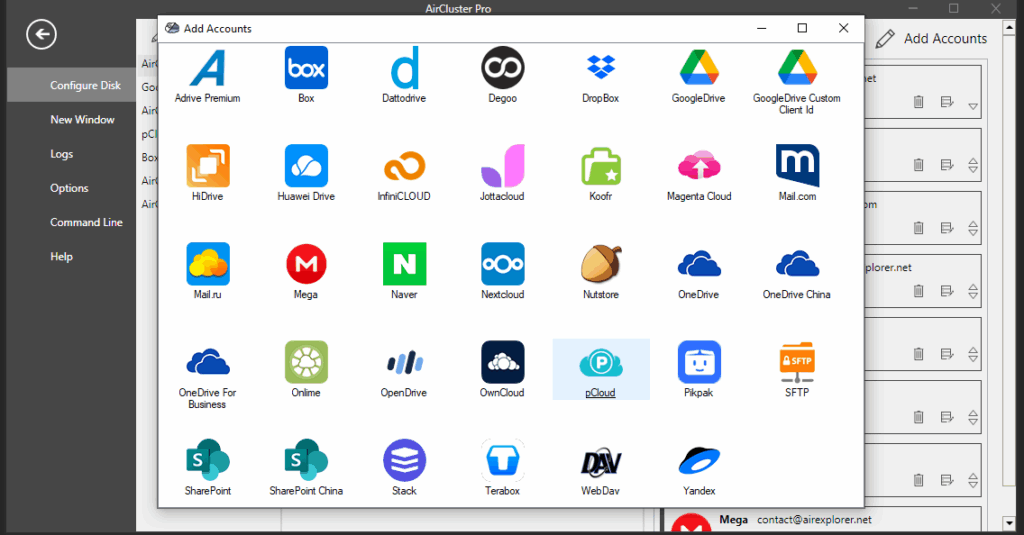
You can combine several free accounts into one large pool at no extra cost. For example, five free 15GB Google Drive accounts become a single 75GB cluster . Once connected, a real-time pie chart shows total space, used space, and the health of each account .
- Free tier stacking: turn multiple free accounts into one large drive.
- Mixed providers: combine different services in a single cluster.
- Live monitoring: see usage across all accounts at once.
Step 3: Schedule the Backup Task
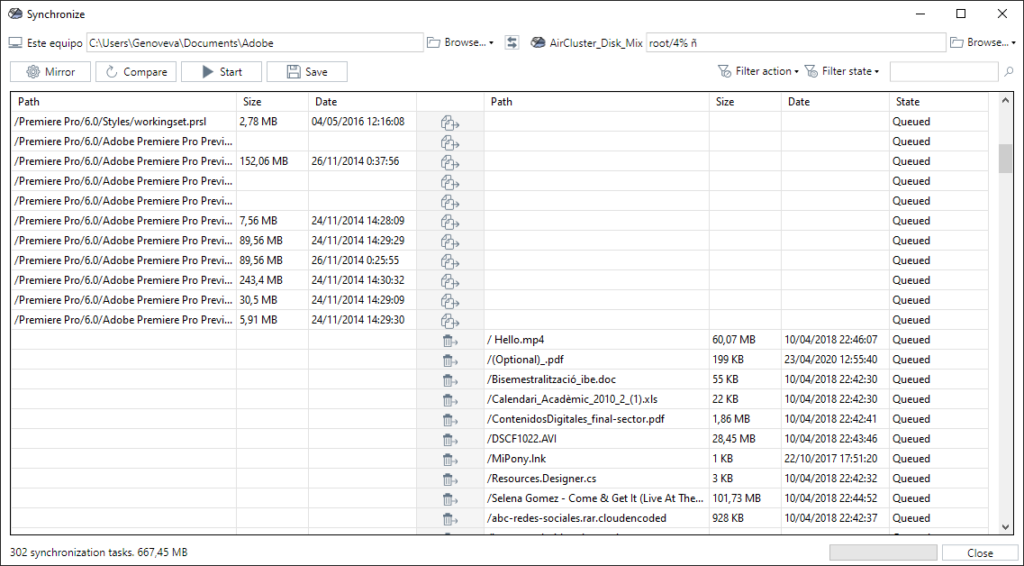
This is where the manual work disappears. Air Cluster’s Synchronize tool lets you define what gets backed up, where it goes, and how it behaves .
- Go to the Synchronize tool and pick your source folder on the left panel and your Cluster as the destination on the right .
- Choose the backup logic that fits your needs.
- Save the task, open the Scheduler, and set it to run daily at a specific time, weekly, or at system startup .
| Backup mode | What it does | Best for |
|---|---|---|
| Mirror | Exact replica, deletions included | Full parity backups |
| Mirror Update | Optimized mirror, only transfers changes | Large folders synced often |
| Update | Only adds new/modified files, never deletes | Cumulative archive backups |
| Bidirectional | Keeps both sides identical | Working files edited from multiple devices |
| Customized | User-defined rules for copy/delete/skip | Specific business workflows |
For most backup scenarios, Update or Mirror Update are the safest starting points, since they protect against accidental deletion while keeping storage current.
Step 4: Add a Security Layer
A scheduled backup that lands on an unprotected cloud account is only half a solution. Air Cluster includes an Encrypt Uploads option that encrypts files before they leave your computer, so even if a provider suffers a breach, your data stays unreadable to anyone else .
This is particularly relevant for business backups containing client data, financial records, or internal documents, where compliance and confidentiality matter as much as availability.

Why Do This With Air Cluster Instead of One Big Cloud Plan
Paying for a large single cloud subscription is not the only way to get serious storage capacity. Air Cluster’s pooling approach lets you combine storage you may already have, including free accounts, into one virtual drive large enough for real backup routines .
- No need to consolidate everything into one paid provider.
- Scales by simply adding more accounts to the cluster.
- Works with providers you likely already use.
- Backup logic and scheduling live in one interface instead of several apps.
From Reactive to Proactive Backups
The real shift here is not just automation, it is moving from reactive backups, done only when you remember, to a proactive system that runs on its own schedule . Once your cluster is built and your Synchronize task is scheduled, Air Cluster keeps working quietly in the background, turning scattered free storage into a dependable, encrypted backup destination.
If your current backup routine still depends on remembering to do it, this is the point where you stop relying on memory and start relying on a system.
You can check more information about more features here:
-Sum Your Clouds and Cut Subscriptions: How to Turn Free Cloud Accounts Into One Bigger Storage Space
-Limitless Efficiency: Set It Up Once, Let Air Cluster Sync Forever
-Manage Your Storage Clusters on a Scheduled Basis
