

Organize Your Folders Before Uploading to the Cloud: The Definitive Guide to a Perfect Backup
Your computer is full of folders named “Stuff”, “Final_v2”, or “Documents_new_thisone”. You’ve been thinking about backing everything up to the cloud for months, and now you finally have the time, the motivation, and the storage space to do it. But before you hit upload, there’s an uncomfortable truth worth hearing: if you upload the mess, the mess stays. And in a large-scale cloud, chaos doesn’t disappear, it scales.
The good news is that the migration moment is a unique opportunity to start fresh with intention. This guide walks you through the exact methodology for organizing your local files before moving them to the cloud, so the result is clean, navigable, and built to last. At the end of the process, your destination will be Air Cluster: a unified cloud that erases the boundaries between services and gives you a single control panel to manage everything.
Why Organizing Before Uploading Changes Everything
Uploading files to the cloud is not the same as making a useful backup. It’s making a copy of what you have, organized or not. A disorganized cloud is just as useless as a disorganized hard drive, but with one added frustration: searching for something across several terabytes of poorly named files is a whole new kind of painful.
Organizing locally first also has a practical advantage: it’s faster and more comfortable to do it on your computer, with your familiar file explorer, than to reorganize everything once it’s already in the cloud. Think of it like renovating a house before moving in, not after filling it with furniture. The effort is the same, but the result is radically different.

Step 1: Audit and Clean Your Computer Before Moving Anything
The first step is not creating new folders. It’s reducing what you already have. Go through your local directories and apply the three-category method to everything you find.
- Keep: active, relevant files you use on a regular basis
- Archive: historical documents you don’t touch but don’t want to lose
- Delete: duplicates, outdated versions, temporary files, context-free screenshots, and anything you wouldn’t open in the next two years
The average user has between 20 and 35% redundant or unnecessary content on their computer. Reducing that volume before uploading not only saves cloud storage space, it makes the cluster more agile and search more accurate. The goal isn’t perfection, it’s intention: upload only what deserves to be there.
Step 2: Define Your Folder Architecture
With your content cleaned up, it’s time to design the hierarchy before moving anything. Three models work well depending on your type of use:
- By date: ideal for photos and personal backups. Example:
2025 > Travel > Portugal - By project: ideal for freelancers and teams. Example:
Clients > ClientName > Deliverables - By content type: ideal for mixed use. Example:
Documents / Multimedia / Backups / Historical Archive
What matters is not which model you choose, but that you choose one and apply it consistently across all your folders. This architecture is what you’ll replicate in Air Cluster, where you’ll see it unified regardless of how many services are running underneath. The structure is yours; the technical distribution is Air Cluster’s job.
Step 3: Establish Naming Conventions
Folder structure is the skeleton, but file naming is the nervous system. Without clear conventions, even the best architecture starts to degrade over time.
A few basic rules that work: use dates in YYYY-MM-DD format at the beginning of the filename, avoid spaces and special characters, and always go for descriptive names. Instead of report_FINAL_v3_thisone.docx, write 2026-03-sales-report-q1.docx. The difference seems small until you have to find that file six months later among thousands of documents.
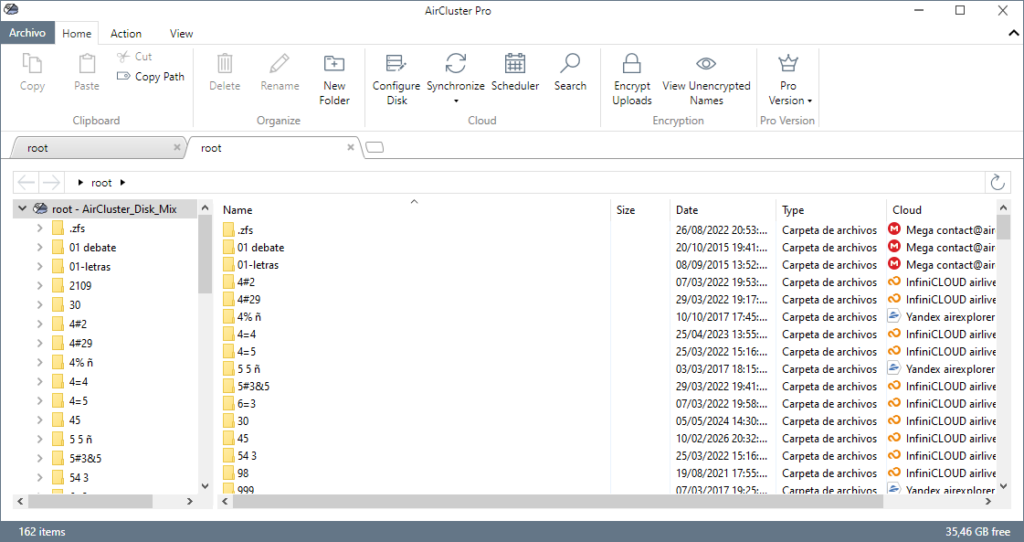
Applying these conventions locally before uploading guarantees consistency across the entire cluster from the very first file. In a multi-terabyte cloud, naming conventions aren’t a detail, they’re what makes the whole system work.
Step 4: Upload to Your Unified Cloud Without Thinking About Boundaries
With the structure ready and the content clean, the upload process is straightforward and friction-free. This is where Air Cluster shows its real value.
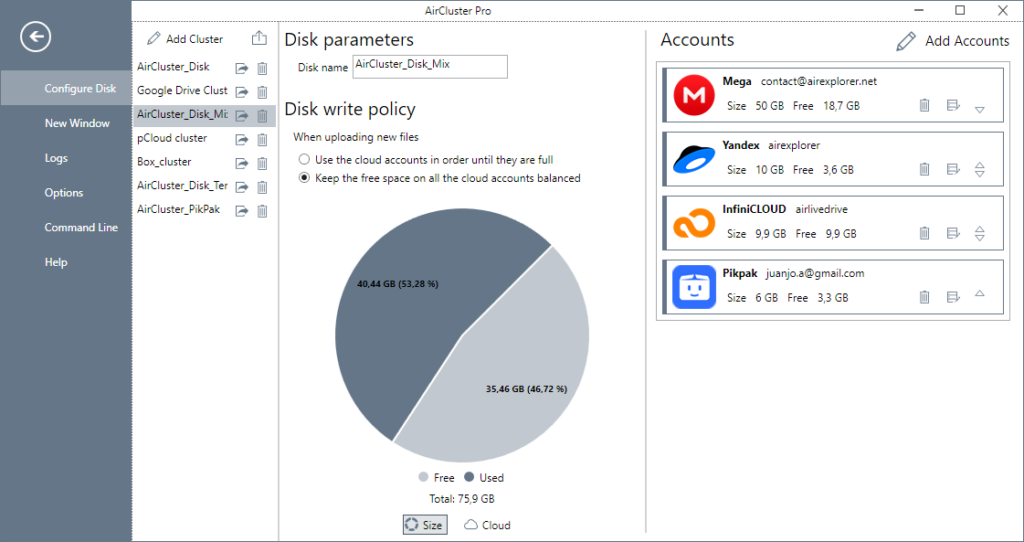
By connecting your services (Google Drive, Dropbox, OneDrive) Air Cluster merges them into a single storage space. The tool distributes files across services automatically and completely transparently. You don’t have to decide what goes in which cloud or remember where you saved something. You just see your folder architecture, clean and consistent, with all your combined capacity available from a single panel.
That’s exactly what sets Air Cluster apart from simply having three tabs open with three different services. It’s not a shortcut to your clouds, it’s a real organizational layer on top of them that gives you back control.
Order Is a Habit, Not a One-Time Effort
Getting to this point with the prep work done properly is a huge advantage. But maintaining it requires a small routine: review your folders once a month, delete outdated versions when you finish a project, and check available space from the Air Cluster panel before the cluster grows out of control.
The cloud doesn’t organize for you. But if you arrive at it with a clear system, it becomes the most powerful and accessible storage setup you can have. Air Cluster isn’t just there to add up gigabytes, it’s there so you can manage a single intelligent cloud, built on your own architecture, without the limitations of each individual service.
Prepare your folders, connect your clouds, and start the migration the right way: from the beginning, and in order.
You can check more information about more features here:
-Manage Your Storage Clusters on a Scheduled Basis
-Air Cluster vs MultCloud: Which One Do You Actually Need?
-Cloud Automation: Discover the Air Cluster Task Scheduler
