

How to Create an Unlimited “Virtual Hard Drive” by Joining Your Free Clouds
We have all been there: you receive that dreaded “Your storage is full” email exactly when you need to perform an urgent backup. The usual solution is to start paying for a monthly subscription or to create multiple accounts that end up being a management nightmare. But what if you could combine the space of all your accounts into one single, giant unit?
This is where Air Cluster comes in, a tool designed to transform your fragmented services into a high-capacity virtual hard drive.
What is Air Cluster and Why is it Different?
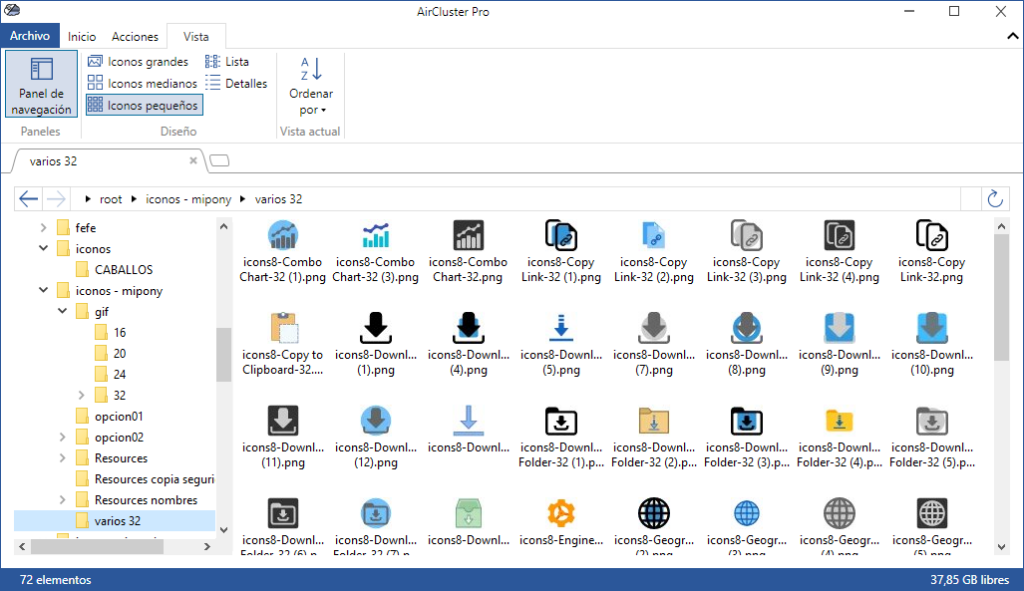
Unlike other managers that only allow you to view your clouds separately, Air Cluster merges them into a single structure. This aggregation capability allows users to stop looking at isolated accounts and start working with a unified data volume.
The “Cluster” Concept for Your Virtual Hard Drive
You can create a grouping (cluster) that adds up, for example, three 15GB Google Drive accounts to obtain a 45GB unit. As you add more servers, the capacity of this virtual hard drive continues to grow without theoretical limits.
Intelligent Storage Management
The program features an intelligent management system that automatically decides which account to save each file in, based on the available space in each one. The best part of this system is the transparency: even though your files are physically distributed across five different providers, you see everything as a single folder or drive on your computer.
Ideal for Massive Backups
By having a much larger total space, you can perform backups of heavy folders that would not fit into a single individual cloud. This makes Air Cluster the perfect solution for uploading video files, databases, or photo collections that exceed the standard 15GB of free accounts.
Advantages of Using Air Cluster for Your Backups
Setting up a virtual hard drive by joining accounts offers benefits that go beyond simple space-saving:
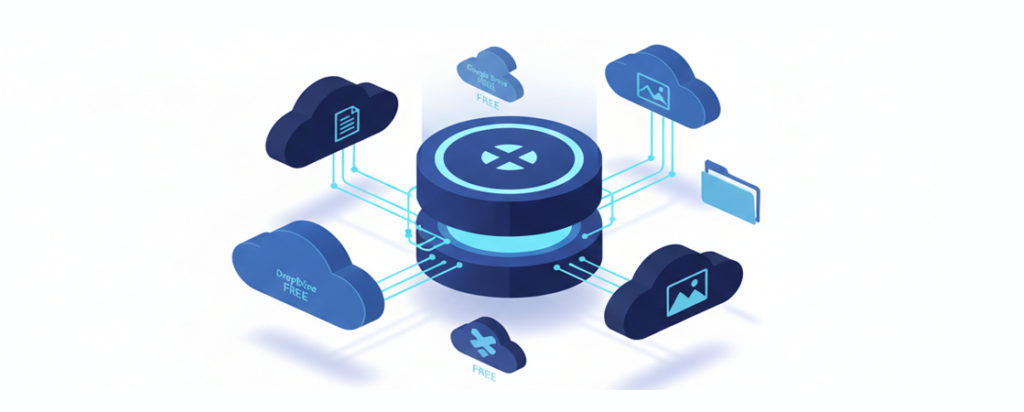
- Real Cost Savings: It allows you to maximize the free storage of multiple providers such as Google Drive, OneDrive, Dropbox, MEGA, or Box before being forced to pay for a monthly subscription.
- Resource Centralization: You manage all your files from a single application, avoiding having to open five different tabs in your browser to find a document.
- Security Through End-to-End Encryption: Air Cluster offers the option to encrypt your files when uploading them. This means your data is password-protected and unreadable to anyone else, including the cloud provider.
- Centralized Search: The program allows you to perform file searches across all connected clouds simultaneously, saving valuable time in daily management.
Step-by-Step: How to Set Up Your First Virtual Hard Drive
Configuring this system is an intuitive process that can be summarized in three main phases:
Step 1: Create the Cluster and Add Accounts
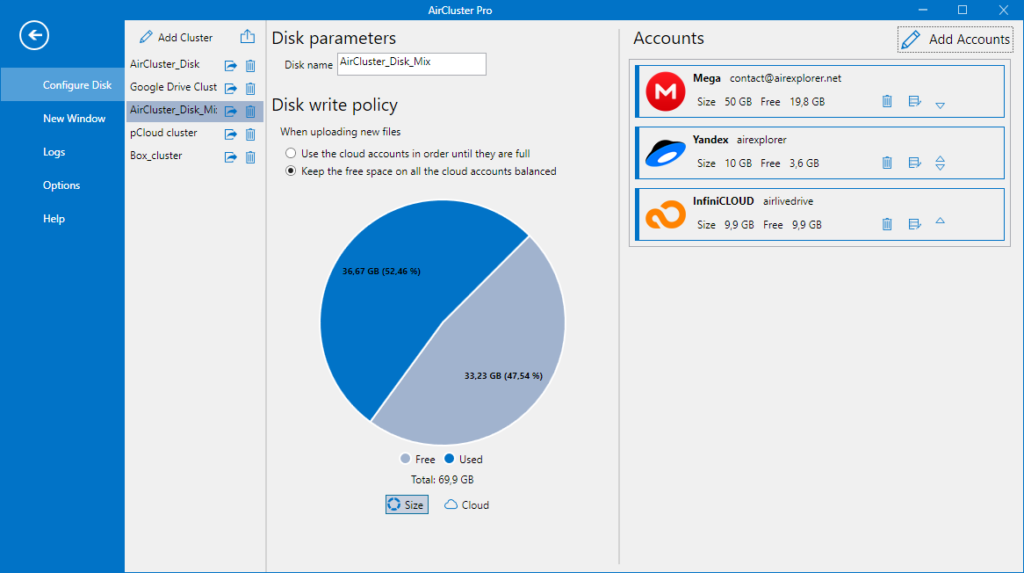
Open the program and start adding your different storage accounts. Air Cluster is compatible with the best servers on the market and allows you to configure multiple accounts from the same server (for example, three different Gmail accounts) within the same cluster.
Step 2: Real-Time Space Summation
As you add accounts, you will see the total capacity indicator of the cluster increase automatically. At this point, you have created your personalized virtual hard drive, ready to receive any volume of data.
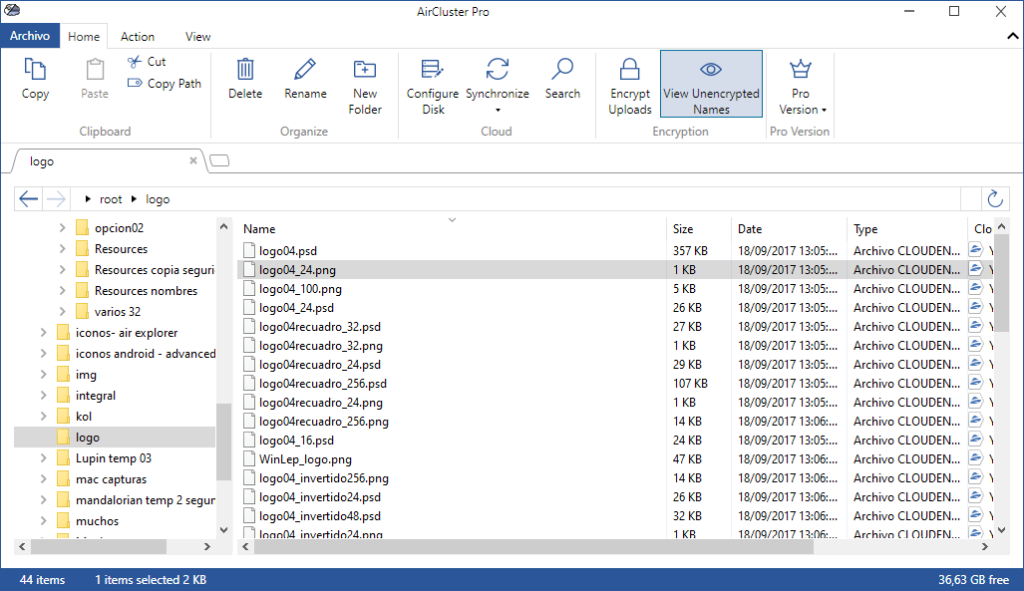
Step 3: File Management
Simply drag your files from your computer to the cluster. The software will handle distributing the data efficiently among all linked clouds, allowing you to manage your backups with unprecedented ease.
Conclusion
Do not let the limitations of a single account or high subscription prices slow down your digital security strategy. With Air Cluster, the concept of a virtual hard drive becomes a tangible and free reality. The space limit is no longer set by the service provider, but by yourself, by joining all your available resources into a single massive and secure unit.
You can check more information about more features here:
-Stop paying for storage: How to create a “Giant cloud” by unifying your free accounts
-Cloud‑to‑cloud and PC‑to‑cloud migration made easy
-Free way to join Google Drive, Dropbox and Mega
