

Cloud‑to‑cloud and PC‑to‑cloud migration made easy
What is Air Cluster and how does the cluster system work?
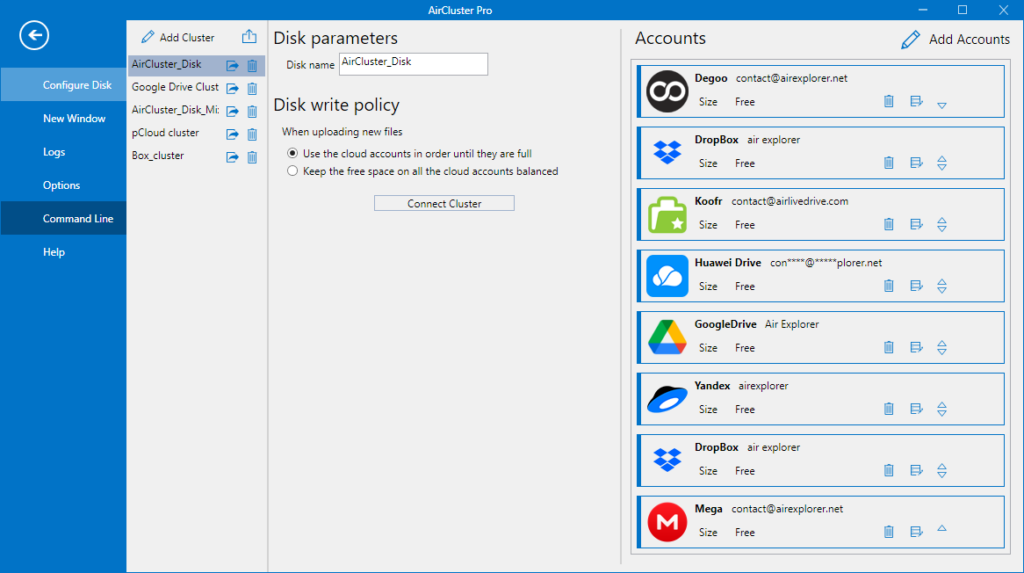
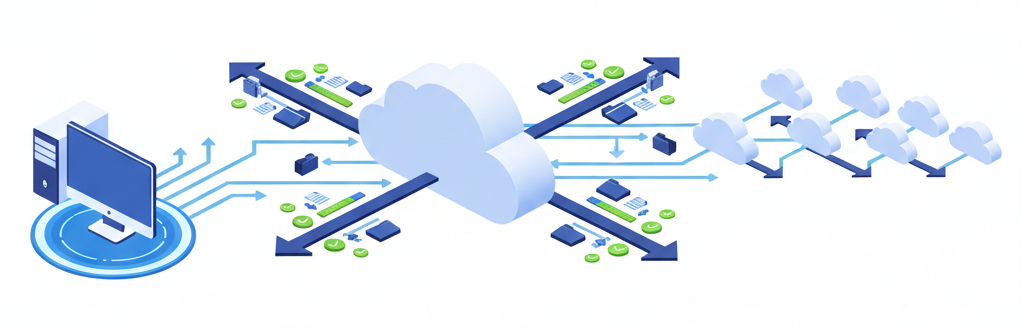
Air Cluster is a tool that lets you aggregate multiple cloud accounts into one virtual drive. Instead of managing each cloud separately, you can merge them into a single cluster that behaves like a unified storage space.
How the cluster works
- You add your cloud accounts (Google Drive, OneDrive, Dropbox, etc.).
- Air Cluster combines their available storage into one large pool.
- Files are distributed across the clouds automatically or according to your chosen configuration.
- You can upload, download, sync, and migrate data as if you were working with a single massive cloud.
This architecture makes Air Cluster ideal for large migrations, backups, and long‑term storage strategies.
Advantages of using Air Cluster for cloud‑to‑cloud and PC‑to‑cloud migration
Migrating with Air Cluster offers several key benefits:
- Unified storage capacity: By merging multiple cloud accounts, you can migrate large datasets without worrying about individual cloud limits.
- Faster transfers: Air Cluster uses parallel upload and download processes, significantly speeding up migrations.
- Reliability and redundancy: Distributing files across multiple clouds reduces the risk of data loss and improves long‑term availability.
- Seamless folder structure preservation: Air Cluster maintains your original folder hierarchy during migrations.
- Compatibility with major cloud providers: Google Drive, OneDrive, Dropbox, Mega, Box, pCloud, and more.
Preparing your cloud environment before migration
A smooth migration starts with proper preparation. Here are some recommended steps:
- Check available storage: Ensure your cluster has enough combined space for the data you plan to migrate.
- Organize your source files: Remove unnecessary files or temporary data to reduce migration time.
- Verify your internet connection: A stable connection is essential for large transfers.
Adjust Air Cluster settings:
- Activate hash comparison for data integrity.
- Configure filters to exclude unwanted files.
How to migrate data using Air Cluster (step‑by‑step)
1. Creating your cluster
- Open Air Cluster.
- Create a new cluster
- Add your cloud accounts to the cluster.
- Choose your preferred distribution mode (balanced or fill‑up).
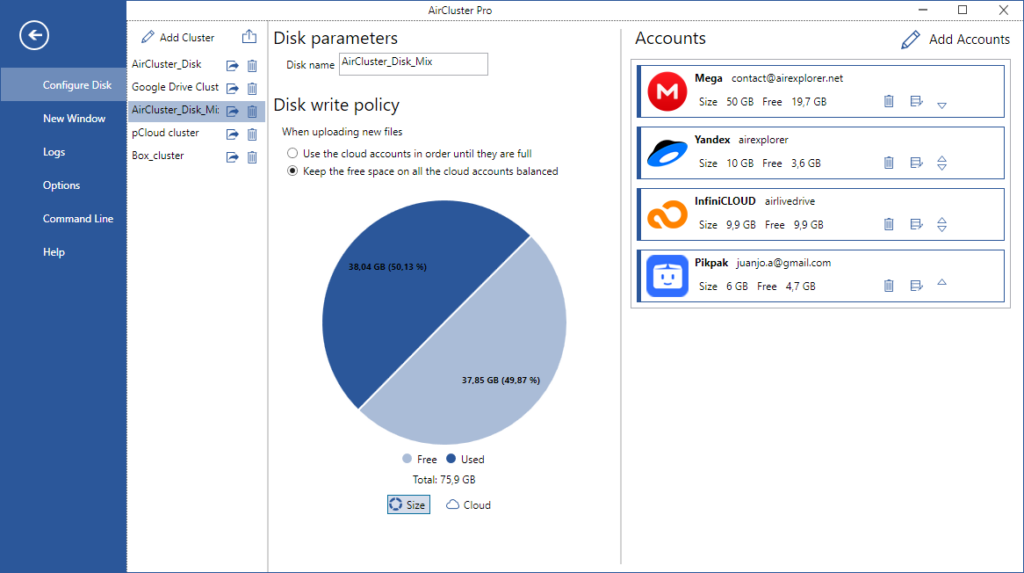
Your cluster is now ready to receive data.
2. Migrating from PC to cloud cluster
- Open the cluster in Air Cluster.
- Select the local folders you want to migrate in your Windows Explorer.
- Drag and drop them into the cluster or use the copy function.
- Air Cluster will distribute the files across your clouds automatically.
Best practice:
For very large migrations, use the synchronization feature to ensure consistency between your PC and the cluster.
3. Migrating from cloud to cloud
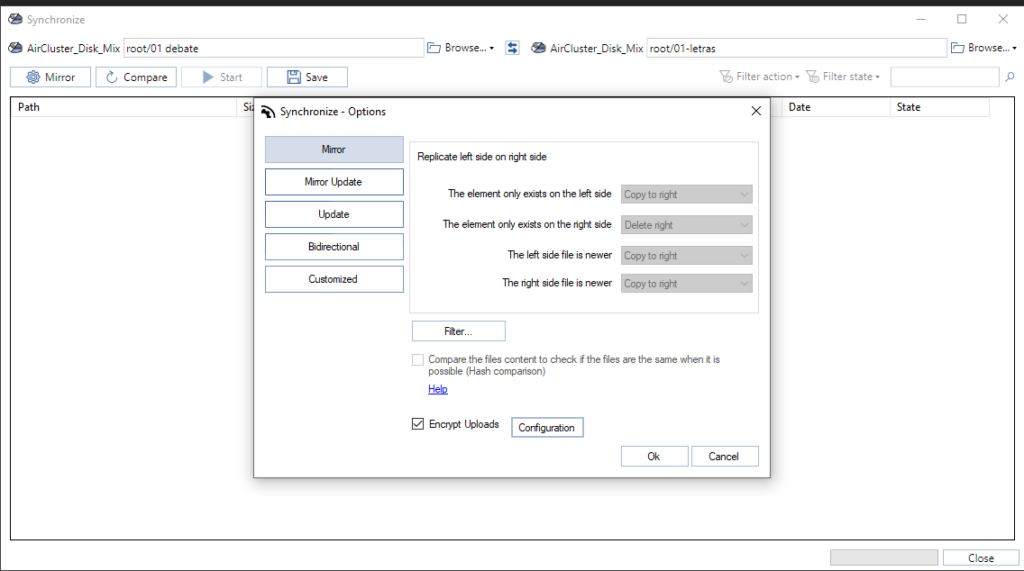
- Open de sync tool of Air Cluster.
- Add the source and the destination cluster.
- Compare the clouds to check the process actions.
- Start the sync and complete your migration.
This method is ideal for:
- Moving from Google Drive cluster to OneDrive cluster.
- Migrating from your PC to Dropbox and pCloud cluster
- Consolidating multiple clouds into one cluster
Best practices for efficient and safe migrations
- Use synchronization instead of manual copy: Syncing ensures that all files are transferred correctly and updated automatically.
- Enable hash comparison: This verifies file integrity and prevents corrupted transfers.
- Use filters to exclude unnecessary files: Example: skip temporary files, large media, or system files.
- Keep logs and reports: Air Cluster can generate detailed reports for auditing and troubleshooting.
How to take full advantage of the combined storage of your clouds
One of Air Cluster’s biggest strengths is the ability to treat multiple clouds as a single massive drive. Here’s how to make the most of it:
- Store large projects without worrying about limits: Perfect for video editors, photographers, and developers.
- Use the cluster as a long‑term backup solution: Distributing files across clouds increases durability.
- Balance storage usage automatically: Air Cluster decides where to place files based on available space.
- Ideal for teams and collaborative environments: Everyone can work with a unified cloud structure instead of juggling multiple accounts.
Conclusion
Migrating data between clouds, or from your PC to the cloud, doesn’t have to be complicated. Air Cluster makes the process simple by combining your cloud accounts into a single, powerful storage cluster. With faster transfers, unified storage, and advanced synchronization tools, Air Cluster is an ideal solution for anyone looking to streamline cloud migrations.
By following the best practices in this guide, you can ensure smooth, efficient, and secure migrations while taking full advantage of the combined capacity of all your cloud accounts.
You can check more information about more features here:
-Free way to join Google Drive, Dropbox and Mega
-The hidden risks of manual sync and how Air Cluster’s sync tool avoids them
-Migrating from Dropbox and OneDrive to PikPak
